
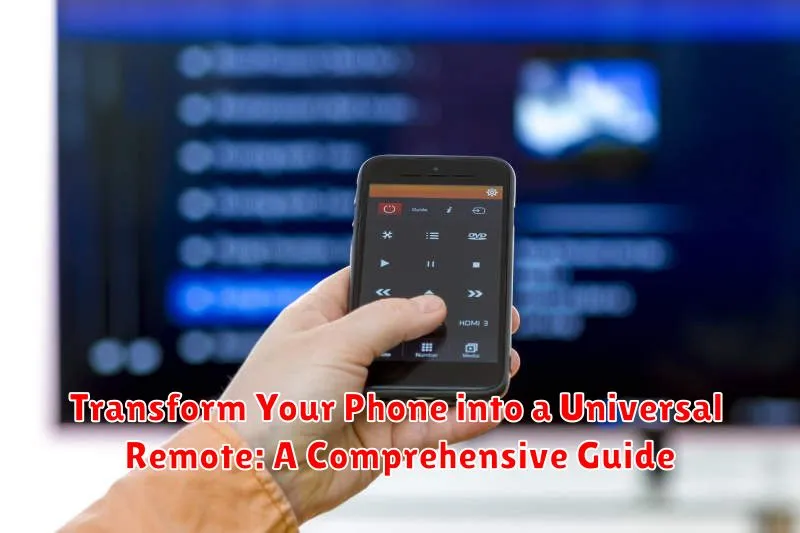
Tired of juggling multiple remotes for your TV, air conditioner, and other smart home devices? Transform your phone into a universal remote and streamline your entertainment experience. This comprehensive guide will provide you with the necessary steps and information to control your devices seamlessly using just your smartphone. Learn how to consolidate all your remote controls into one convenient, easily accessible location, effectively making your phone a universal remote control.
This guide covers everything from identifying compatible devices and choosing the right apps, to configuring your phone for infrared (IR) blasting and utilizing Wi-Fi control for your smart home appliances. Whether you’re a tech novice or an experienced user, you’ll find valuable insights on how to set up your phone as a universal remote, troubleshoot common issues, and discover advanced features that will truly transform the way you interact with your home entertainment system and smart devices. Maximize your phone’s potential and say goodbye to the clutter of traditional remotes.
Understanding Your Phone’s Remote Capabilities
Most modern smartphones possess the hardware required to function as a universal remote. This functionality hinges on two key technologies: Infrared (IR) blasters and Wi-Fi connectivity.
Phones equipped with an IR blaster can directly control devices using infrared signals, much like a traditional remote. This makes them compatible with a wide range of older electronics, including televisions, DVD players, and stereo systems. Check your phone’s specifications to confirm the presence of an IR blaster, often located on the top edge of the device.
For devices without an IR blaster, Wi-Fi connectivity offers an alternative control method. Many smart TVs, streaming devices, and other modern electronics can be controlled over your home’s Wi-Fi network. This approach often offers more advanced features, such as on-screen navigation and voice control, compared to IR-based control.
Understanding which technology your phone utilizes is crucial for selecting compatible remote control apps and ensuring successful device pairing.
Setting Up Your Phone as a Remote
Setting up your phone as a universal remote is generally straightforward and involves a few key steps. First, you need to identify the devices you wish to control. This might include your TV, sound system, streaming device, or even air conditioning unit. Knowing the make and model of each device will be crucial during the setup process.
Next, you’ll need to install a compatible remote control app. Your phone’s app store will offer various options, some specializing in specific device types or brands. Choosing the right app often depends on your specific needs and the devices you want to control. Once installed, the app will usually guide you through a discovery process.
This process typically involves connecting your phone and the target device to the same Wi-Fi network. The app will then search for compatible devices on the network. Alternatively, some apps and devices utilize Infrared (IR) technology. If your phone has an IR blaster, the app will use it to communicate directly with the device. You may need to point your phone directly at the device during this process.
Finally, most apps will prompt you to configure the remote layout. This may involve customizing button functions, creating activity macros, or simply selecting a pre-designed remote template that matches your device.
Compatible Apps and Devices
Several apps can transform your phone into a universal remote, each offering different features and device compatibility. Choosing the right app depends on your specific needs and the devices you wish to control.
Popular universal remote apps often support a broad range of devices, including TVs, streaming devices, soundbars, and even air conditioners. Look for apps with an extensive device database and frequent updates to ensure compatibility with newer models. Some apps offer advanced features like voice control, automation routines, and integration with other smart home platforms.
Device compatibility is a crucial factor to consider. While many modern electronics are compatible with remote control apps, older devices might require specific hardware or adapters. Check the app’s compatibility list or your device’s documentation to confirm compatibility before purchasing or subscribing to an app.
Some devices come with their own dedicated remote control apps. These apps may offer tighter integration and more specific features compared to generic universal remote apps. Consult your device’s manual or manufacturer website to see if a dedicated app is available.
Troubleshooting Common Remote Control Issues
Occasionally, you might encounter issues when using your phone as a remote. This section covers some common problems and their solutions.
Device Not Responding
If your device isn’t responding to commands from your phone, first ensure the remote app is correctly configured for that specific device. Double-check the device’s model number in the app’s settings. Also, verify that both your phone and the device are connected to the same Wi-Fi network. Restarting both your phone and the controlled device can sometimes resolve connectivity glitches.
Intermittent Connectivity
If the connection between your phone and the device keeps dropping, check for interference. Other electronic devices or physical obstructions can disrupt the signal, particularly with infrared (IR) blasters. Try moving closer to the device or removing any obstacles. Weak batteries in either your phone or an IR blaster can also cause connectivity problems.
App Crashes or Freezes
If the remote app frequently crashes or freezes, ensure you’re running the latest version of the app. Outdated versions can have bugs that cause instability. Closing other apps running in the background on your phone can free up resources and improve performance. If the issue persists, try reinstalling the app.
Advanced Tips for Using Your Phone as a Remote
Customize Your Remote Layout. Many remote apps allow customization, letting you arrange buttons to suit your preferences. This can streamline your experience, especially for frequently used functions.
Create Macros for Complex Commands. For advanced users, consider creating macros. These combine multiple commands into a single button press, ideal for activities like starting a movie night (dimming lights, turning on the TV, and launching a streaming app).
Integrate with Smart Home Devices. Extend your phone’s remote capabilities beyond individual devices. Connect with smart home platforms to control lights, thermostats, and other smart appliances, all from a single interface.
Utilize Voice Control. Some remote apps offer voice control integration. This allows hands-free operation, enabling you to adjust volume, change channels, or power devices on/off with simple voice commands.
Exploring Different Remote Control Functionalities
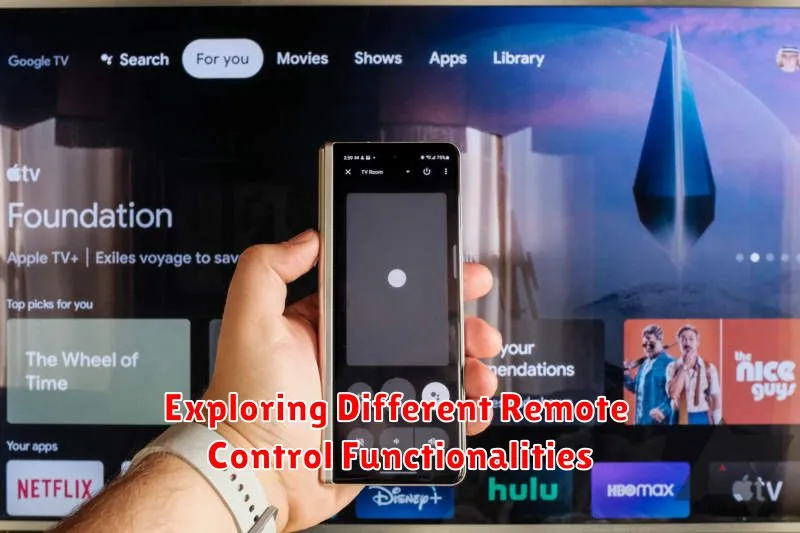
Smartphones possess the capability to emulate various remote control functionalities, extending beyond basic television control. This section delves into the diverse applications of your phone as a universal remote.
Infrared (IR) Blasting
Many smartphones retain infrared (IR) blasters, allowing them to directly control devices using traditional infrared signals. This functionality is especially useful for controlling older electronics that may not have smart capabilities. Through dedicated apps, you can configure your phone’s IR blaster to mimic the functions of various remotes, such as those for televisions, set-top boxes, and even some air conditioners.
Wi-Fi Control
Modern smart devices often utilize Wi-Fi connectivity for control. Your phone can connect to these devices on your home network, effectively acting as a remote. This allows for more complex control options and integration with other smart home ecosystems.
Bluetooth Control
Some devices utilize Bluetooth for remote operation. Similar to Wi-Fi control, your phone can pair with these devices to provide remote control functionality. This is common for devices like speakers, soundbars, and some smart lighting solutions.
Integrating Your Phone with Smart Home Devices
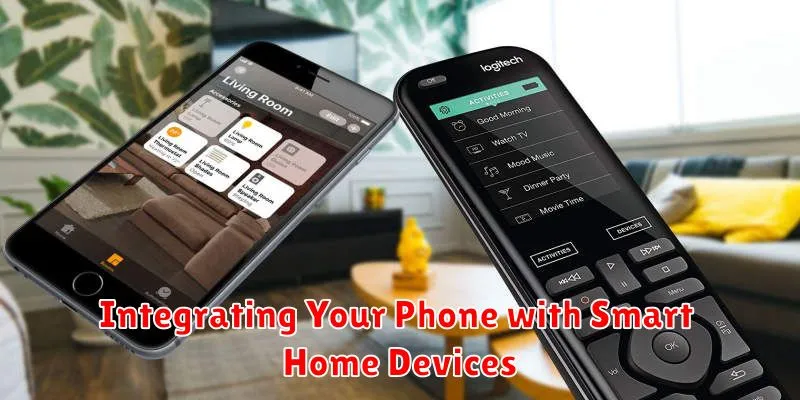
Your smartphone can act as a central hub for controlling various smart home devices. From adjusting your thermostat to turning off lights, integration offers unparalleled convenience.
Connecting to Your Smart Home Ecosystem often involves downloading a manufacturer’s app. Many smart home device brands have dedicated apps that allow direct control from your phone.
Centralized Control Apps provide an alternative for managing devices from different brands. These apps, often compatible with a wide range of devices, create a single interface for your entire smart home system. This eliminates the need to switch between multiple apps.
Utilizing Voice Assistants further simplifies control. By integrating with voice assistants like Siri, Google Assistant, or Alexa, you can issue voice commands to control your smart home devices through your phone. This hands-free approach adds another layer of convenience.
