
Near Field Communication (NFC) is a powerful technology built into many modern Android devices, offering a seamless and intuitive way to interact with the world around you. From mobile payments and data transfer to smart home integration and personalized experiences, NFC unlocks a wealth of possibilities. This comprehensive guide will explore the intricacies of NFC on your Android device, covering everything from its basic functionality and enabling it in your settings to its diverse range of applications and advanced security considerations. Whether you’re a seasoned tech enthusiast or new to the world of NFC, this guide will provide you with the knowledge and understanding you need to effectively utilize this cutting-edge technology.
Understanding how to use NFC on your Android device is essential for taking advantage of its myriad benefits. This guide will delve into the core functionalities of NFC, including reading and writing NFC tags, pairing NFC enabled devices for quick and easy connections, and using NFC for mobile payments through services like Google Pay. We will explore the practical applications of NFC in various scenarios, enabling you to maximize its potential and integrate it seamlessly into your daily routine. By the end of this guide, you will be equipped with the expertise to confidently navigate the world of NFC on your Android device.
Understanding NFC Technology
NFC, or Near-Field Communication, is a short-range wireless technology that allows devices to communicate with each other when they are held close together, typically within a few centimeters.
It operates at a frequency of 13.56 MHz and is based on established radio-frequency identification (RFID) standards. NFC allows for simple and secure two-way interactions, making it suitable for various applications.
Key Features of NFC:
- Simplicity: NFC offers a user-friendly experience with a simple tap-to-connect mechanism.
- Security: The short range of NFC enhances security by reducing the risk of eavesdropping or interference.
- Versatility: NFC can be used for a wide array of applications, from mobile payments to data transfer.
- Interoperability: NFC is based on international standards, ensuring compatibility across different devices and systems.
NFC technology enables devices to act as both readers and tags, allowing them to send and receive information. This two-way communication is a defining characteristic of NFC, differentiating it from some other wireless technologies.
Enabling NFC on Your Android Device
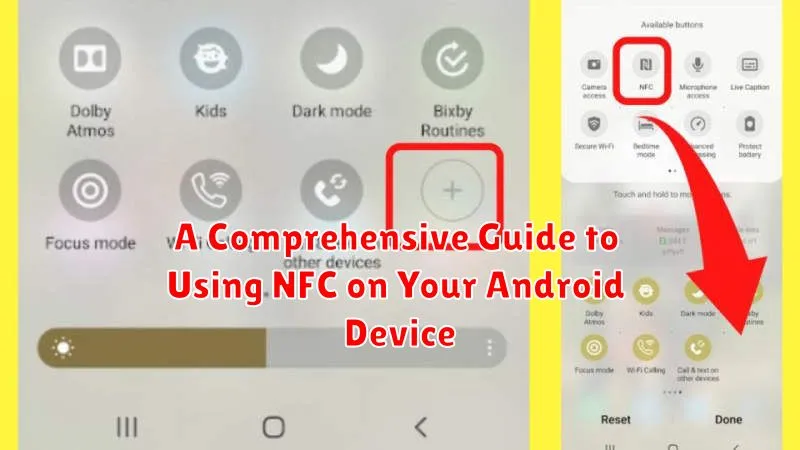
Before you can start using NFC, you’ll need to ensure it’s enabled on your Android device. The process is generally straightforward, but it may vary slightly depending on your device’s manufacturer and Android version. Here’s a general guide:
Locating NFC Settings
Most Android devices locate NFC settings within the “Connected devices” or “Wireless & networks” section of the Settings app. Look for an option explicitly labeled “NFC” or sometimes “Near-field communication.”
Activating NFC
Once you’ve located the NFC setting, simply toggle the switch to the “On” position. You may also see additional options related to Android Beam (a feature used for sharing data) which you can also enable if desired. A notification may appear confirming that NFC is active.
Confirming NFC Functionality
To confirm NFC is working correctly, hold your device near another NFC-enabled device or tag. Your phone should vibrate or make a sound, indicating it has detected the NFC field. If not, double-check your settings and try again.
Different Uses of NFC
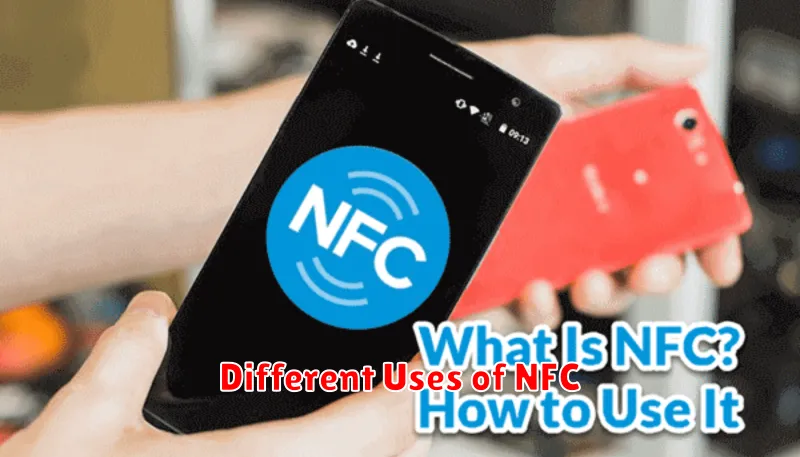
Near Field Communication (NFC) offers a diverse range of functionalities beyond simple data transfer. Its short-range, contactless nature makes it ideal for various applications.
One major use case is access control. NFC tags can be used to unlock doors, grant building access, or even start vehicles. Simply tapping your NFC-enabled device against a reader can authenticate your credentials.
Information sharing is another common application. NFC tags can be programmed to launch websites, display contact information, or provide product details. This is especially useful for marketing campaigns and interactive exhibits.
NFC also facilitates device pairing. Connecting to Bluetooth headphones or speakers can be simplified by tapping your phone against an NFC-enabled device. This eliminates the need for complex manual pairing processes.
Pairing with NFC-Enabled Devices
Near Field Communication (NFC) simplifies the pairing process for various devices. This allows for quick and easy connections without complex setup procedures.
Pairing with Bluetooth devices: Many Bluetooth speakers, headphones, and other audio devices support NFC pairing. Simply bring your Android device close to the NFC touchpoint on the Bluetooth device. Your phone will receive a pairing request, and with a tap, the devices are connected.
Connecting to Wi-Fi networks: Some routers broadcast their network information via NFC. Holding your phone near a compatible router allows you to automatically join the Wi-Fi network without manually entering the password. This offers a convenient alternative to traditional setup methods.
Making Payments with NFC (Google Wallet/Apple Pay)
NFC facilitates contactless payments through services like Google Wallet (Android) and Apple Pay (iOS, not applicable to Android devices in this article). Security is a primary concern with contactless payments. NFC transactions use tokenization, meaning your actual card number isn’t transmitted. Instead, a unique, virtual account number represents your card, protecting your sensitive information.
To use NFC for payments, ensure you’ve set up your preferred payment method within Google Wallet. Open the app, add a card, and follow the on-screen verification steps. Once configured, simply unlock your phone, hold it near the payment terminal with the NFC antenna located (usually the back of the device), and the transaction should complete automatically. A confirmation message will appear on your screen and the terminal.
Availability of NFC payments depends on both your device having NFC hardware and the payment terminal supporting contactless transactions. Look for the contactless symbol (typically a stylized Wi-Fi symbol with radiating lines) at the point of sale to confirm compatibility.
Transferring Data with Android Beam
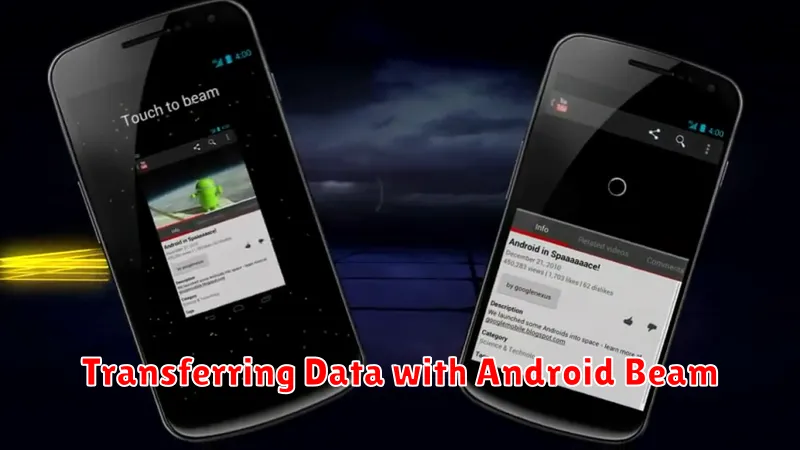
Android Beam provides a simple way to transfer small amounts of data between two NFC-enabled Android devices. This feature utilizes NFC to establish a Bluetooth connection, allowing for slightly larger file transfers compared to direct NFC. Ensure both devices have NFC and Android Beam enabled in their settings.
To transfer data, simply place the backs of the two devices together. You’ll feel a vibration and hear a sound when the connection is established. A prompt will appear on the sending device asking you to confirm the transfer by tapping “Touch to beam.”
Android Beam is best suited for transferring small files such as contact details, web pages, and small images. Larger files are better transferred using alternative methods like Bluetooth or cloud sharing due to speed limitations.
Reading NFC Tags and Stickers
NFC tags and stickers are small, passive devices that can store information which your Android device can read. They don’t require a power source and are activated by the NFC field emitted from your phone.
To read an NFC tag, simply hold your Android device near the tag. You should feel a slight vibration or hear a sound when the connection is made. The information stored on the tag will then be displayed or trigger an action, depending on how it is programmed.
Different Types of NFC Tags: NFC tags come in various types, each with varying memory capacity. The most common are:
- Type 1: Low capacity, read-only.
- Type 2: Larger capacity than Type 1, also read-only.
- Type 4: Can be read and rewritten, offering greater flexibility.
- Type N: Primarily used for connecting two NFC-enabled devices (like Android Beam).
Common Uses of NFC Tags:
- Launching apps
- Joining Wi-Fi networks
- Making mobile payments
- Automating tasks (e.g., setting phone to silent mode)
Troubleshooting NFC Issues on Android
Sometimes, NFC may not work as expected. Here are some common troubleshooting steps:
NFC is Turned Off
Ensure NFC is enabled in your device’s settings. Look for “NFC” or “Connected Devices” in the settings menu. Toggle NFC on.
Incorrect Placement
Accurate placement is crucial. The NFC antennas are typically located on the back of the phone. Experiment with slightly different positions to find the sweet spot for your device.
Metal Interference
Metal can interfere with NFC communication. Remove any phone cases or accessories containing metal, and ensure the other NFC device is not near metal surfaces.
Incompatible Devices or Tags
Confirm both devices or the tag and device support NFC. Not all devices and tags are compatible. Check manufacturer specifications.
Software Issues
Occasionally, a software glitch can cause NFC problems. Restart your device to see if this resolves the issue.
Advanced NFC Features and Apps
Beyond basic data transfer and tag reading, NFC offers a range of advanced functionalities facilitated by specialized apps. These functionalities extend the utility of NFC beyond simple interactions.
Mobile Payments: NFC is the backbone of contactless payment systems like Google Pay. By storing your card information securely on your device, you can make payments by simply tapping your phone on compatible terminals. This streamlined process offers a secure and convenient alternative to physical cards.
Access Control: NFC can be employed for secure access control in various settings. Specialized apps allow you to use your phone as a digital key for homes, offices, or even vehicles equipped with NFC readers.
Automated Tasks: NFC tags can be programmed to automate tasks on your Android device. Imagine tapping a tag on your nightstand to automatically silence your phone, disable Wi-Fi, and set an alarm. These personalized automations can significantly improve efficiency.
Wireless Charging (Limited): While not as common, some devices support limited wireless charging capabilities through NFC. This typically involves low-power charging for smaller devices like smartwatches or headphones.
