
In today’s fast-paced digital world, keeping your phone’s applications updated is crucial for both security and performance. Outdated apps can be vulnerable to security threats and may not function properly with newer operating systems. While automatic updates are convenient, manually updating your apps gives you greater control over when and which apps are updated, ensuring compatibility and minimizing disruptions. This comprehensive guide provides a step-by-step approach to manually updating apps on both Android and iOS devices, empowering you to maintain an optimized and secure mobile experience.
Learn how to manually update apps on your phone with our easy-to-follow instructions. Whether you’re using an Android phone or an iPhone, this step-by-step guide will walk you through the process. Staying on top of app updates is essential for security, as well as accessing the latest features and performance improvements. Take control of your app updates and ensure a smooth and secure mobile experience. This guide provides everything you need to know to manually update apps on your device, regardless of your technical expertise.
Why Update Apps Manually?
While automatic updates are generally convenient, manually updating your apps can offer several advantages in specific situations.
Control over data usage: Automatic updates can consume significant mobile data if not configured for Wi-Fi only. Manual updates allow you to choose when and where to download updates, conserving your data allowance.
Troubleshooting issues: If an automatic update introduces a bug or incompatibility, manually controlling the update process allows you to delay updating until a fix is released. This can prevent disruptions to your app usage.
Managing storage space: For devices with limited storage, manually updating provides greater control over which apps are updated and when, allowing you to prioritize essential apps and manage storage more effectively.
Testing beta versions: Some apps offer beta programs where users can test upcoming versions. These updates are often distributed outside the automatic update mechanism and require manual installation.
Security concerns: In rare cases, automatic updates can be exploited to distribute malicious software. Manually reviewing updates before installation provides an additional layer of security.
Checking for App Updates on Android
Regularly checking for app updates is crucial for optimal performance and security. The Google Play Store makes this process simple. Here’s how to manually check for updates:
-
Open the Google Play Store app on your Android device.
-
Tap your profile icon in the top right corner.
-
Select Manage apps & device.
-
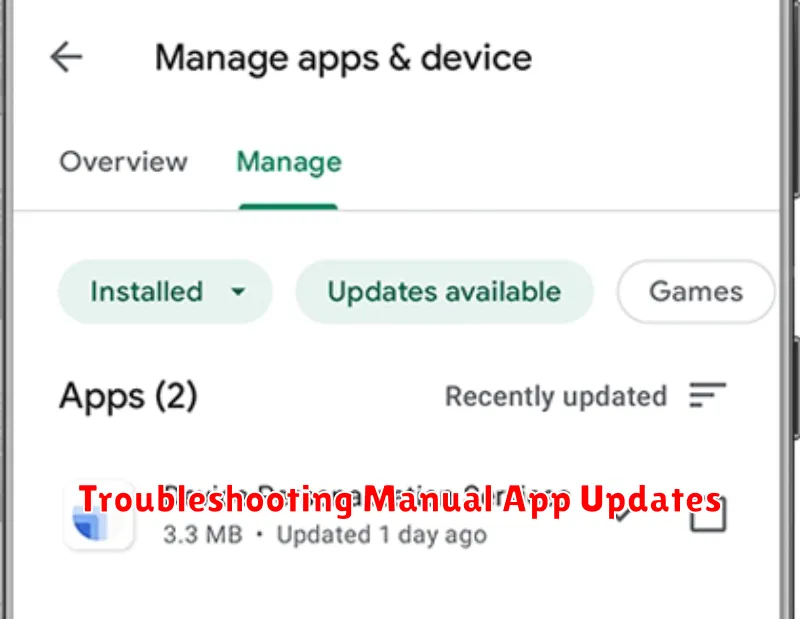
Tap Updates available. This will display a list of apps with pending updates.
From this screen, you can choose to update individual apps by tapping the “Update” button next to each app, or update all apps at once using the “Update all” button. The Play Store will display the version number of the update and any required permissions.
Manually Updating Apps on Android via Google Play Store
The Google Play Store is the primary method for updating apps on Android devices. It offers a straightforward way to manage app updates, ensuring you have the latest features and security patches.
To manually update your apps via the Google Play Store, follow these steps:
-
Open the Google Play Store app on your device. It’s typically identified by a multicolored triangle icon.
-
Tap on your profile icon, usually located in the top-right corner of the screen.
-
Select “Manage apps & device.”
-
Choose the “Updates available” option. This will display a list of apps with pending updates.
-
You can update all apps at once by tapping “Update all.” Alternatively, to update individual apps, locate the specific app and tap the “Update” button next to it.
The Google Play Store will then download and install the updates. Ensure you have a stable internet connection for a seamless update process.
Manually Updating Apps on Android via APK Files
Manually updating via APK files offers an alternative method for updating Android applications, especially when the Google Play Store isn’t accessible or when you want to install a specific version of an app. This method involves downloading the APK file directly from a trusted source and installing it on your device.
Caution: Downloading APK files from untrusted sources poses significant security risks. Ensure you only download APKs from reputable websites or developers to avoid malware and protect your device. Improperly formatted or malicious APK files can harm your device.
Steps to manually update via APK:
- Enable “Unknown sources”: In your phone’s security settings, enable the option to install apps from unknown sources. This allows you to install apps outside the Play Store.
- Download the APK file: Locate a reliable source for the APK file of the app you wish to update. Download the file to your device.
- Locate and install the APK: Using a file manager app, locate the downloaded APK file. Tap the file to begin the installation process.
After installation, the app should be updated. Verify the app’s version number to confirm the update was successful.
Checking for App Updates on iOS
The process for checking for app updates on iOS is straightforward. Open the App Store app on your iPhone or iPad. This is typically represented by a blue icon with a white “A” inside a circle.
Once inside the App Store, tap on your profile icon located in the top right corner of the screen. This will take you to your account page.
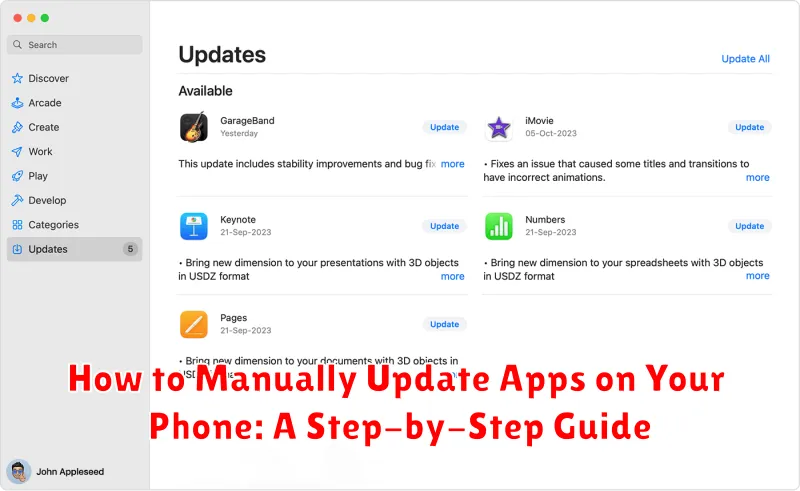
Scroll down to find the “Available Updates” section. If any updates are available, they will be listed here. You’ll see the app icon, the current version number, and what the new version number will be after updating.
You can also enable automatic updates on iOS. This will automatically download and install app updates in the background, ensuring your apps are always up-to-date without manual intervention. To do this, go to Settings > App Store and toggle on “App Updates”.
Manually Updating Apps on iOS via App Store
Manually updating apps on your iPhone gives you full control over when and which apps receive updates. Here’s a step-by-step guide:
-
Open the App Store app on your iPhone.
-
Tap your profile icon in the upper-right corner.
-
Scroll down to see pending updates. You’ll find a list of apps with available updates.
-
Tap “Update All” to update all apps at once. Alternatively, tap the “Update” button next to each individual app to update them selectively.
iOS may require you to enter your Apple ID password or use Face ID/Touch ID to authorize the update process.
You can monitor the update progress as a circular progress indicator appears on the app icon. Once the update is complete, the “Update” button will be replaced with the “Open” button.
Troubleshooting Manual App Updates
Sometimes, manual app updates don’t go as smoothly as planned. Here are some common issues and how to address them:
“Update” Button Grayed Out
If the “Update” button is grayed out, it usually indicates one of two things. First, ensure your device is connected to a stable internet connection. Try switching between Wi-Fi and cellular data. Second, check if there’s sufficient storage space on your device. Delete unnecessary files or apps if needed.
App Freezes During Update
If an app freezes during the update process, try force-closing the App Store (or Google Play Store on Android) and restarting the update. If the problem persists, restarting your phone can often resolve the issue. As a last resort, you might consider deleting and reinstalling the app.
Update Keeps Failing
Repeated update failures can be frustrating. Check your internet connection and device storage as mentioned above. If those aren’t the culprits, try updating your phone’s operating system. Outdated OS versions can sometimes interfere with app updates.
Benefits of Keeping Apps Updated

Regularly updating your apps offers several significant advantages that enhance both the functionality and security of your device. Updated apps often include performance improvements, resulting in faster loading times, smoother operation, and reduced battery drain.
New features are frequently introduced in updates, expanding the capabilities of your apps and providing access to the latest tools and functionalities. Developers often address bug fixes in updates, resolving issues that may cause crashes, glitches, or other undesirable behaviors.
One of the most critical benefits of app updates is enhanced security. Updates often patch security vulnerabilities that could be exploited by malicious actors, protecting your personal data from potential threats. Furthermore, updates ensure compatibility with the latest operating system versions, preventing potential conflicts and maintaining optimal performance.
Tips for Managing App Updates
Managing app updates efficiently can save you time and data. Here are some helpful tips:
Enable Automatic Updates
While this guide focuses on manual updates, enabling automatic updates is generally recommended. This ensures your apps are consistently up-to-date without requiring manual intervention. You can configure your device to update apps automatically over Wi-Fi only to avoid using cellular data.
Schedule Update Checks
If you prefer manual control, establish a regular routine for checking for updates. For example, check the app store once a week to see what updates are available. This prevents a backlog of updates and ensures you benefit from new features and security patches promptly.
Prioritize Essential Apps
If you’re short on time or data, prioritize updating the apps you use most frequently. Focus on essential communication, productivity, and banking apps to ensure optimal performance and security.
