
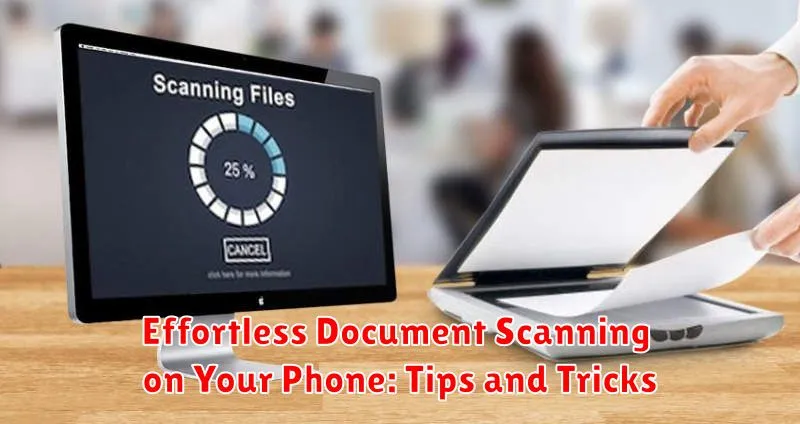
In today’s fast-paced world, accessing and sharing documents quickly is essential. Document scanning has become a crucial task for both personal and professional use. Thankfully, gone are the days of bulky, expensive scanners. Your smartphone offers a powerful and effortless way to scan documents with impressive accuracy, transforming it into a portable document scanner. This article will provide valuable tips and tricks to help you maximize your phone’s document scanning capabilities and achieve professional-quality results with minimal effort.
Learn how to harness the power of your phone’s camera and readily available apps to create crisp, clear digital copies of your important papers. Discover tips and tricks for optimizing lighting, minimizing glare, and ensuring accurate text recognition. We’ll guide you through the process of effortless document scanning, covering everything from selecting the right scanning app to efficiently organizing and sharing your digitized files. Whether you need to scan receipts, contracts, or important notes, this guide will empower you to digitize your documents effortlessly and effectively using your phone.
Choosing the Right Scanning App
Selecting the right scanning app is the first step towards effortless document digitization. A good scanning app should be easy to use, offer high-quality scans, and provide useful features. Consider these factors when making your choice:
Features: Look for features such as auto-crop and perspective correction, which can save you significant editing time. Optical Character Recognition (OCR) is essential if you need to extract text from your scans. Cloud integration for easy storage and sharing can also be a valuable feature.
User Interface: A clean and intuitive user interface is crucial for a smooth scanning experience. The app should be easy to navigate, with clearly labeled buttons and straightforward workflows.
Image Quality: The app should produce clear, sharp images with accurate color reproduction. Test the app with a variety of documents to ensure it meets your quality standards.
Platform Compatibility: Ensure the app is compatible with your phone’s operating system (iOS or Android) and offers the features you need on your specific device.
Essential Tips for Quality Document Scans
Capturing clear and legible document scans is crucial for various purposes. Follow these essential tips to ensure high-quality results every time.
Preparation and Lighting
Steady Surface: Place your document on a flat, stable surface to avoid distortions. A contrasting background helps the app identify the document’s edges accurately.
Adequate Lighting: Ensure ample, even lighting to minimize shadows and enhance clarity. Natural, indirect light is ideal. Avoid harsh direct light or dim conditions.
Camera Techniques
Proper Alignment: Align your phone’s camera directly above the document to prevent perspective distortion. The app’s edge detection feature can assist with alignment.
Steady Hand: Hold your phone steady while capturing the scan. Avoid blurring by using a tripod or bracing your hands against a stable surface.
Focus and Clarity: Ensure the document is in sharp focus before capturing. Most scanning apps offer auto-focus, but you may need to manually adjust it in some cases.
Editing and Enhancing Scanned Documents
After scanning a document, you can usually improve its readability and appearance with a few editing tools. Most scanning apps offer basic editing features, while dedicated photo editing apps provide more advanced options.
Cropping: Remove unwanted borders or areas from the scanned document. Precise cropping ensures only the essential content remains, making it look neater and more professional.
Rotation: Correct the orientation of the document if it was scanned at an angle. A slight rotation can make a significant difference in readability.
Perspective Correction: If the document wasn’t lying perfectly flat during scanning, perspective correction can adjust the image to appear as if it were scanned straight on, removing any distortions.
Brightness and Contrast Adjustment: Enhance the clarity of the document by adjusting the brightness and contrast. This can make the text more legible and the background cleaner.
Filters: Some apps offer filters like “Black and White” or “Grayscale” which can improve the legibility of text-heavy documents and reduce file size.
Different Ways to Share Scanned Documents
Once you’ve created digital copies of your documents, sharing them is quick and easy. There are several convenient methods available, depending on your needs and the recipient’s preferences.
Email is a widely used option for sharing documents. Most scanning apps allow you to directly email scanned files as attachments. Be mindful of file size limitations and consider compressing larger files before sending.
Messaging Apps
For quick sharing with colleagues or friends, messaging apps are a convenient choice. Many platforms support direct file sharing, allowing you to send your scanned documents instantly.
Cloud Storage Services
Services like cloud storage provide a seamless way to share documents with multiple people. Upload your scans to your preferred cloud storage platform and then simply share the link with the intended recipients. This also allows for collaborative editing in some cases.
Other Sharing Options
Other options include sharing via AirDrop (for Apple devices) or using other file transfer apps designed for specific operating systems. These can provide fast and secure sharing methods.
Troubleshooting Document Scanning Problems
Occasionally, you might encounter issues while scanning documents. Here are some common problems and how to fix them:
Blurry Scans
Blurriness often results from camera shake or an unsteady hand. Ensure your phone is stable, perhaps by using a tripod or placing it on a flat surface. Good lighting is crucial. Avoid dim lighting and shadows. Refocus the camera by tapping the screen before capturing the scan. Some apps offer image stabilization features – enable these for clearer results.
Cropping Issues
If the app isn’t cropping the document correctly, try adjusting the boundaries manually. Most scanning apps allow you to drag the corners of the cropping box to define the document edges precisely. If automatic edge detection isn’t working well, consider using a high-contrast background to make the document stand out.
Skewed or Distorted Images
Perspective correction features in scanning apps can fix skewed images. If your scan appears distorted, ensure the document is lying flat on the surface. Taking the photo from directly above the document can also help minimize distortion. If the distortion persists, try using a document scanning stand or mat.
Organizing and Managing Your Digital Documents
Once you’ve digitized your documents, implementing a robust organizational system is crucial. A well-structured system allows for easy retrieval and efficient management of your files. Consider these strategies:
Establish a Clear Folder Structure
Create a logical hierarchy of folders on your device or in your chosen cloud storage. Categorize documents by type (e.g., receipts, medical records, legal documents) or by date. Consistent naming conventions are vital for quick identification. For example, use the format “YYYYMMDD_DocumentName” for easy sorting.
Utilize Tagging and Keywording
Many scanning apps and cloud services offer tagging or keywording features. Assign relevant keywords to your documents to enable powerful search capabilities. Think of terms you would use to look for a specific document later.
Regularly Review and Purge
Periodically review your digital documents and delete any that are no longer needed. This keeps your system clutter-free and saves valuable storage space.
Protecting Sensitive Information When Scanning Documents
Scanning sensitive documents with your phone requires extra precautions. Password-protect PDFs created from scanned documents. This adds a layer of security should your device be lost or accessed without authorization.
Enable two-factor authentication on any cloud storage accounts where you save scanned documents. This provides an additional barrier against unauthorized access. Consider using encrypted cloud storage services designed specifically for sensitive data.
Be mindful of your physical surroundings when scanning. Avoid scanning in public areas where others might see sensitive information. After scanning, shred physical documents containing highly sensitive information to ensure complete security.
Regularly review the privacy settings of your scanning app and cloud storage services. Ensure these settings align with your security needs. Install reputable security software on your phone to protect against malware and other threats that could compromise your data.
Exploring Advanced Scanning Features
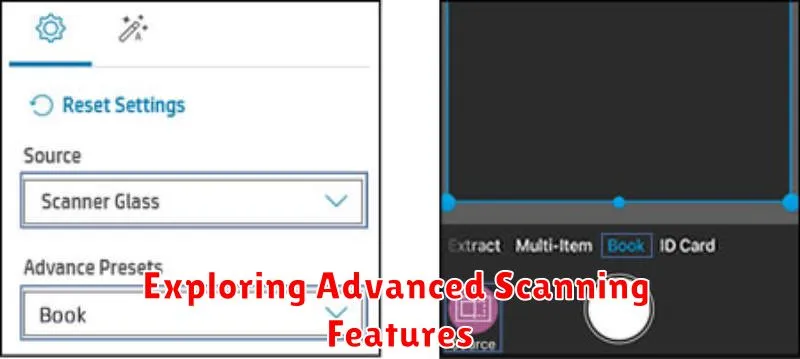
Beyond basic scanning, many phone apps offer advanced features to enhance document quality and usability. Optical Character Recognition (OCR) converts scanned images into searchable and editable text. This is invaluable for archiving and repurposing documents. Look for OCR functionality within your chosen app.
Experiment with different scanning modes. Some apps offer specialized modes for whiteboards, photos, or even business cards. These modes automatically adjust settings for optimal results. Consider using cloud integration. Many scanning apps can directly upload documents to cloud storage services, simplifying organization and access.
Batch scanning allows you to scan multiple pages into a single PDF file. This feature is especially useful for digitizing larger documents or collections of papers. Finally, explore signature features if you need to sign and return scanned documents electronically. Many apps facilitate this process seamlessly.
