
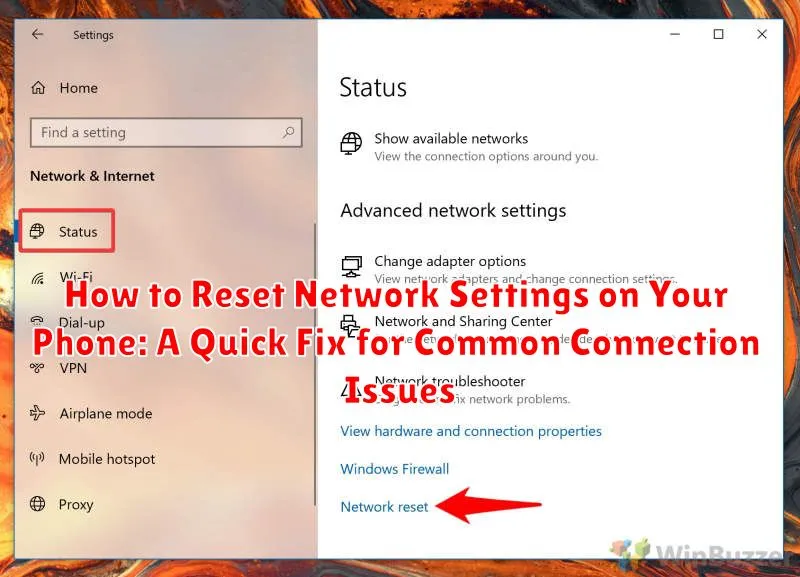
Experiencing frustrating network connectivity issues on your phone? Whether you’re dealing with slow data speeds, dropped calls, or trouble connecting to Wi-Fi, resetting your network settings can often be a simple and effective solution. This comprehensive guide will walk you through the process of how to reset network settings on both Android and iOS devices, providing a quick fix for those common connection issues.
Learning how to reset network settings is a valuable troubleshooting skill for any smartphone user. This process essentially refreshes all your network configurations, including Wi-Fi passwords, Bluetooth connections, and cellular settings. While it may require you to re-enter some information afterward, it can often resolve persistent connection issues and restore your phone’s network connectivity to optimal performance. In this article, we’ll explain why you might consider a network settings reset and guide you through the necessary steps on different platforms to achieve a quick fix.
Identifying Network Connectivity Problems
Before resorting to a network reset, it’s crucial to pinpoint the actual connectivity issue you’re experiencing. This ensures you’re addressing the root problem and not just treating a symptom. Several common indicators suggest underlying network problems.
Inability to connect to Wi-Fi: This is often signaled by the absence of Wi-Fi networks in your available list, or a persistent “Connecting…” message next to your preferred network.
Slow internet speeds: Experiencing unusually slow loading times for websites, apps, or streaming services, despite having a strong signal, could indicate a network problem.
Dropped calls: Frequent call drops, especially without a clear reason like poor cellular coverage, can be a sign of a network issue.
Intermittent connectivity: If your connection fluctuates between working and not working, characterized by sudden disconnections, then your network settings might be the culprit.
Unable to send or receive text messages (SMS/MMS): Difficulties in sending or receiving text messages, despite having sufficient signal strength, could be another indicator.
When to Reset Your Network Settings
Resetting your network settings can be a powerful tool for resolving connectivity issues, but it should be done strategically. Consider this action when you experience the following problems:
- Inability to connect to Wi-Fi: If your phone can’t detect or connect to a known Wi-Fi network, even after verifying the network is functioning correctly, a reset can help.
- Slow or intermittent internet connection: Experiencing unusually slow data speeds or frequent disconnections, despite having a strong signal, may warrant a reset.
- Difficulty sending or receiving calls or text messages: If you consistently struggle to make calls, receive calls, or send and receive text messages, a network reset can often resolve underlying network configuration issues.
- Problems with Bluetooth connectivity: While not strictly network-related, resetting your network settings often resolves Bluetooth pairing and connectivity problems as well.
- No data connection after SIM card swap or software update: If you’ve recently changed your SIM card or updated your phone’s operating system and are experiencing cellular data connectivity issues, a reset might be necessary.
Resetting your network settings isn’t a daily fix. It’s a targeted solution for specific connection issues and should be considered after simpler troubleshooting steps have been exhausted.
Step-by-Step Guide to Resetting Network Settings on Android Devices
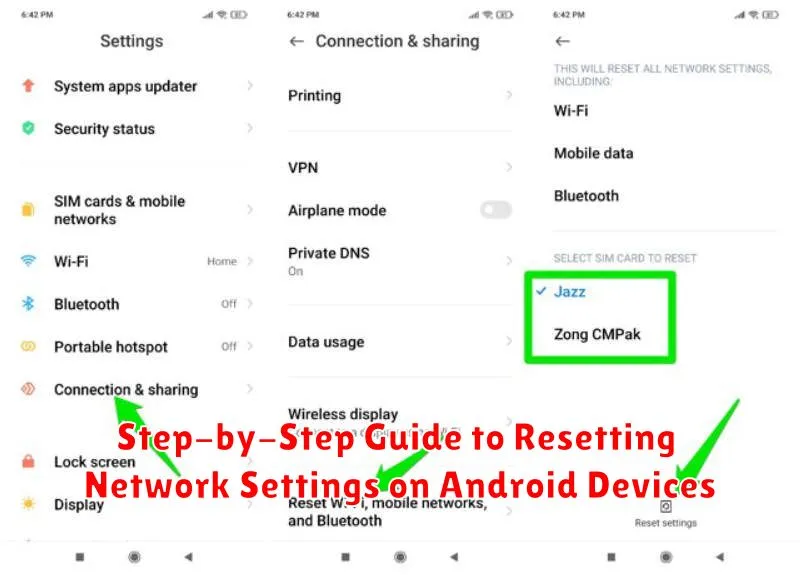
Please note that the following steps may vary slightly depending on your Android device’s manufacturer and Android version. It is always best to consult your device’s specific user manual if you encounter any difficulties.
Step 1: Access Settings. Open your device’s Settings app. You can typically find this by swiping down from the top of the screen to access the notification shade, and then tapping the gear icon.
Step 2: Locate “System” or “General Management”. Depending on your Android version and manufacturer, you might see an option labeled “System” or “General Management”. Tap on this option.
Step 3: Find “Reset” Options. Look for an option related to “Reset”. This may be labeled “Reset options”, “Reset Wi-Fi, mobile, & Bluetooth” or similar. Tap on it.
Step 4: Reset Network Settings. Select the “Reset Network Settings” or “Reset Wi-Fi, mobile, & Bluetooth” option. You may see a warning message explaining that this will reset all network connections, including Wi-Fi networks, mobile data, and Bluetooth pairings.
Step 5: Confirm Reset. Confirm your choice by tapping the “Reset Settings” button. You may be prompted to enter your device’s PIN or password.
Step-by-Step Guide to Resetting Network Settings on iOS Devices
Resetting network settings on an iOS device can resolve various connectivity problems. This process will erase saved Wi-Fi networks, Bluetooth pairings, and VPN settings. Follow these steps carefully:
-
Open the Settings app on your iPhone or iPad.
-
Tap on General.
-
Scroll down and tap on Transfer or Reset iPhone. (On older iOS versions, this might be labeled as “Reset”.)
-
Tap Reset.
-
Select Reset Network Settings.
-
You will be prompted to enter your device’s passcode.
-
Confirm the reset by tapping Reset Network Settings again.
Your device will restart. After it powers back on, you will need to reconnect to Wi-Fi networks and re-pair Bluetooth devices.
Things to Keep in Mind After Resetting Network Settings
After resetting your network settings, there are a few important things to remember. Your phone will forget all saved Wi-Fi networks and their passwords. This means you’ll need to reconnect to each network and enter the password again.
Bluetooth pairings will also be erased. You will have to re-pair any Bluetooth devices, like headphones or smartwatches, with your phone.
Your VPN settings will be removed. If you use a VPN, you’ll need to reconfigure it after the reset. This includes downloading any necessary apps and re-entering your login credentials.
Cellular settings will return to default. In most cases, this will automatically reconnect you to your mobile network. However, you may need to contact your carrier if you experience any issues with cellular data or calling.
Troubleshooting Tips If Network Issues Persist
If resetting your network settings doesn’t resolve the connection problems, there are additional steps you can take to identify and fix the issue.
Check Your Wi-Fi or Cellular Connection
Ensure you’re within range of a reliable Wi-Fi network or have a strong cellular signal. Try connecting other devices to the same network to see if they experience similar issues. This helps isolate whether the problem is with your phone or the network itself.
Restart Your Device
A simple restart can often resolve temporary software glitches that might be affecting your network connection. Power off your phone completely, wait a few seconds, and then turn it back on.
Check for Software Updates
Outdated software can sometimes cause compatibility issues with network connections. Make sure your phone’s operating system and apps are up-to-date.
Contact Your Carrier or Service Provider
If you suspect a problem with your cellular service or Wi-Fi network, contacting your carrier or internet service provider is the next best step. They can help determine if there are any outages or service disruptions in your area.
Prevention: Avoiding Future Network Problems
While resetting network settings can resolve many connection issues, taking proactive steps can minimize future problems. Regularly updating your phone’s operating system ensures you have the latest network drivers and bug fixes. These updates often address known network vulnerabilities and improve compatibility with evolving network technologies.
Be mindful of the apps you install. Some poorly designed or malicious apps can interfere with network functionality. Download apps only from trusted sources and review permissions carefully before granting access.
Avoid connecting to unsecured public Wi-Fi networks. These networks are often vulnerable to security breaches and can expose your device to malware that can compromise network stability. If you must use public Wi-Fi, consider using a Virtual Private Network (VPN) for added security.
Occasionally clearing your phone’s cache and temporary files can prevent network congestion caused by accumulated data. This simple maintenance task can improve overall device performance, including network connectivity.
