
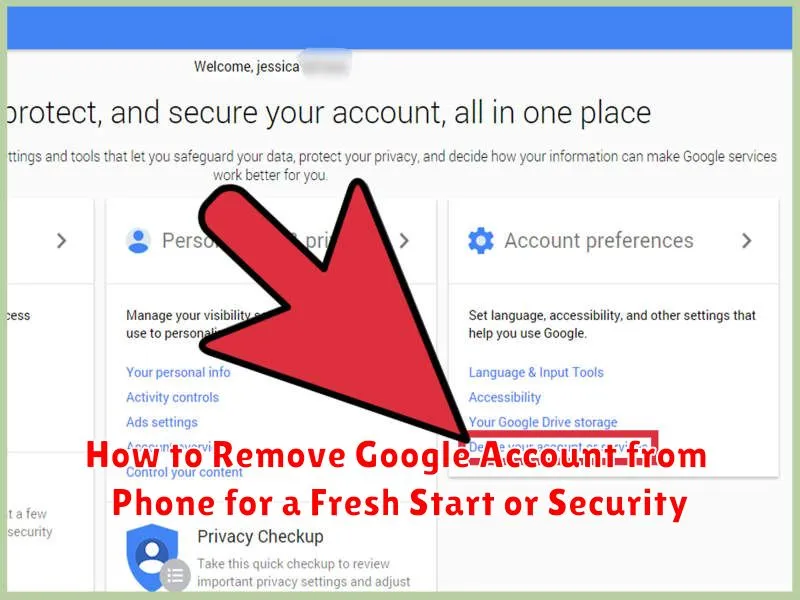
Looking for a fresh start with your phone or prioritizing enhanced security? Removing your Google account is a crucial step. Whether you’re selling your device, giving it away, or simply want to ensure your personal data remains private, this guide offers a comprehensive walkthrough on how to remove Google account from your phone. We’ll cover various scenarios, including removing a Google account from an Android phone, an iPhone, and even addressing specific situations such as factory resets. Understanding how to properly disconnect your Google account is vital for both security and a clean start.
This article provides a step-by-step process on how to remove your Google account from your phone, outlining the necessary precautions and detailing the implications involved. We’ll address common questions and concerns, ensuring a smooth and trouble-free experience as you navigate the process of removing your Google account. Whether your goal is enhanced phone security or preparing your phone for a new user, this guide will equip you with the knowledge to remove Google account effectively and safeguard your data.
Preparing Your Phone for Account Removal
Before removing your Google account, it’s crucial to back up important data to avoid data loss. This process can vary slightly depending on your phone’s operating system (Android or iOS).
For Android devices, you can typically back up data to your Google account itself, or locally to your device. Backing up to your Google account is often the easiest option, ensuring contacts, calendar events, app data, and other information are saved. However, if you’re removing your Google account due to security concerns, backing up to your Google account might not be ideal. In such cases, consider backing up to a local storage device or an external SD card, if your phone supports it.
If you’re using an iOS device, iCloud is typically the primary backup method. Ensure that your important data, such as photos, contacts, and messages, are backed up to your iCloud account before proceeding. You can also back up your device to a computer using iTunes or Finder.
Syncing your data is also a good practice. This will ensure all recent changes are saved before removing the account.
Accessing Your Google Account Settings
To begin removing your Google account, you need to access your account settings within your phone’s operating system. The process is generally similar across Android devices, though slight variations may exist depending on the manufacturer and Android version.
First, open your phone’s Settings app. This is typically represented by a gear or cogwheel icon. Once inside the Settings menu, locate and select the Accounts (or sometimes labeled “Users & Accounts”) option.
Within the Accounts menu, you’ll see a list of accounts associated with your device. Locate and select your Google account from this list. This will take you to a dedicated page for managing your Google account settings on the device. It’s important to select the correct Google account if you have multiple accounts linked to your phone.
Locating and Removing the Account
Once you’ve accessed your account settings, the process of removing your Google account varies slightly depending on your phone’s operating system (OS). Here’s a general guide for both Android and iOS devices.
Android
On most Android devices, look for the “Accounts” or “Users & Accounts” section. Within this section, you should see a list of accounts connected to your phone, including your Google account. Select the Google account you wish to remove. You will then see options related to that specific account. Tap the “Remove account” button. A confirmation prompt will appear, highlighting the data that will be removed from your phone. Confirm the removal.
iOS (iPhone/iPad)
On iOS devices, open the “Settings” app. Scroll down and select “Mail,” then “Accounts.” Choose the Google account you want to remove. At the bottom of the account details, you’ll find a button that says “Delete Account.” Tap this button and confirm your choice in the subsequent prompt.
Troubleshooting Google Account Removal Issues
Occasionally, you might encounter issues while removing your Google account. This section addresses common problems and provides potential solutions.
Device Administrator Conflicts
If your Google account is set as a device administrator, you might need to revoke these permissions before removal. Navigate to your phone’s Security settings, look for Device administrators or a similarly named option, and deselect your Google account.
Synchronization Errors
Synchronization issues can sometimes prevent account removal. Ensure your phone has a stable internet connection and try syncing your Google account data manually before attempting removal again. This may resolve underlying conflicts.
Factory Reset as Last Resort
If all other steps fail, a factory reset can remove your Google account. However, this will erase all data on your phone, so back up important files beforehand. Access the Reset options within your phone’s System settings to perform a factory reset.
Confirming Your Google Account Removal
After following the steps to remove your Google account, it’s crucial to confirm the removal was successful. This ensures your data is no longer syncing with the device and helps protect your privacy.
The most straightforward way to confirm is to check your phone’s Accounts settings. Navigate back to the Accounts menu where you initially removed the account. The Google account you removed should no longer be listed. This visually confirms its removal from the device.
Another verification method involves checking for synced data. Open apps like Gmail, Contacts, or Calendar. If the account was successfully removed, you should no longer see data associated with that Google account within these applications.
Securing Your Phone After Removing the Account
After removing your Google account, it’s crucial to take steps to secure your phone, especially if you plan on selling or giving it away. Changing your lock screen password or PIN is the first and most important step. This prevents unauthorized access to your remaining data.
If you have sensitive data on the device, consider a factory reset. This will wipe all data and return the phone to its original state. Be aware, this is irreversible, so back up any necessary data beforehand.
For devices with SD cards, consider removing or formatting them. SD cards often store data that isn’t erased during a factory reset. This provides an extra layer of security against your personal information falling into the wrong hands.
Review any other security settings on your device, like biometric authentication (fingerprint, face recognition). If you’ve removed your account, you might need to reconfigure or disable these features depending on your device and its security settings.
Re-adding a Google Account (If Needed)

If you decide to add a Google account back to your device, the process is straightforward. Navigate to your phone’s Settings menu. Look for the Accounts (or similar) section. Tap “Add account” and choose Google from the list of available account types.
You’ll be prompted to enter the email address associated with the Google account you wish to add. After entering your email, enter your password. Follow the on-screen prompts to grant the necessary permissions to the account, such as access to contacts, calendar, and other Google services.
You can choose to sync your data, restoring previously backed-up information like contacts, calendar events, and app data. This allows you to seamlessly pick up where you left off with your Google account on the device.
Understanding the Implications of Removing Your Account
Removing your Google account from your phone has several important implications that you should consider before proceeding. This action primarily affects access to Google services and data associated with that specific account on the device.
Data Loss on the Device: Removing your account will delete data associated with it from the phone, including emails, contacts, calendar entries, and app data linked to that account. Data synced to your Google account in the cloud will remain accessible through a web browser.
App Functionality: Many apps rely on Google services for functionality, like logging in, backing up data, or accessing location services. Removing your account may limit or disable these features in some apps.
Device Functionality: Some core phone functions like the Play Store, Google Assistant, and device backups may be affected by removing your account.
