
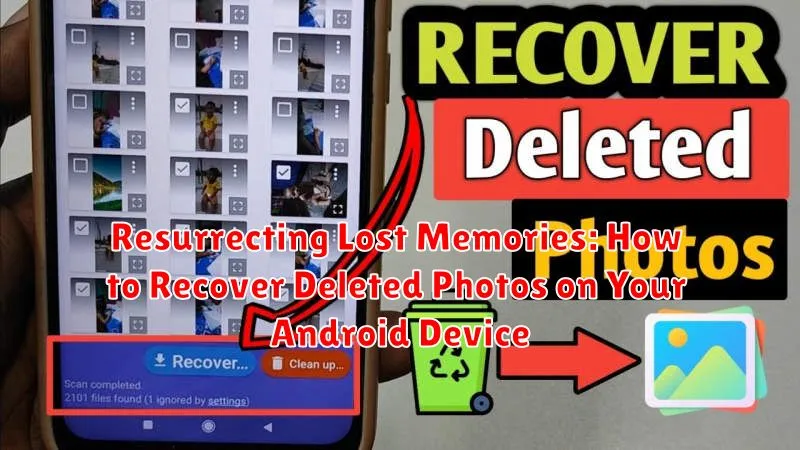
Losing precious photos from your Android device can be a devastating experience. Whether they were accidentally deleted, lost due to a corrupted SD card, or vanished after a system update, those captured memories feel irretrievable. Fortunately, all hope is not lost. This article explores various methods for recovering deleted photos on your Android device, offering practical steps and advice to help you resurrect those lost memories. We will cover everything from readily available photo recovery apps to more advanced techniques, empowering you to take control of the situation and potentially retrieve your cherished images.
Recovering deleted photos is not always guaranteed, but taking swift and decisive action significantly increases your chances of success. The sooner you attempt photo recovery after the deletion event, the higher the likelihood of retrieval. This article will outline the crucial steps to take immediately following data loss, maximizing your probability of a successful recovery. We’ll also discuss preventative measures to safeguard your photos in the future, ensuring your memories remain safe and accessible for years to come. Learn how to navigate the process effectively and increase your odds of resurrecting those lost memories on your Android device.
Understanding Data Recovery on Android
When you delete a photo on your Android device, it isn’t immediately erased from the storage. Instead, the system marks the space occupied by the photo as available for new data. Think of it like removing a book from a library shelf and marking the spot as empty. The book isn’t gone, but the library considers the space free to use.
This is why prompt action is crucial for successful recovery. Before the system overwrites the deleted photo with new information, recovery software can scan the storage, identify these “deleted” files, and restore them. The longer you wait after deletion, the higher the chance the photo’s data gets overwritten, making recovery impossible.
Data recovery apps work by accessing these marked areas and attempting to reconstruct the deleted files. The file system plays a key role in this process. Different file systems manage data in various ways, influencing the complexity of recovery.
Common Reasons for Photo Deletion
Accidental deletion is a leading cause of photo loss. A simple mis-tap while browsing your gallery or managing files can result in unintentionally deleting precious memories. Similarly, performing a factory reset without proper backup wipes all data, including photos, from your device.
Storage management practices can also lead to photo loss. Clearing cache or app data can sometimes remove associated media files if not managed carefully. Furthermore, using third-party apps that have access to storage might inadvertently delete files. Malware or viruses can also corrupt or delete data, including photos, and are a less common, but important consideration. Finally, physical damage to your device’s storage can render files inaccessible, effectively deleting them.
Checking Recently Deleted Albums and Cloud Backups
Before resorting to third-party apps, explore built-in recovery options. Most Android devices feature a “Recently Deleted” album or similar folder within the default Gallery app. Deleted photos are often retained in this folder for a period of time, typically 30 to 60 days, allowing you to easily restore them.
Cloud backups offer another avenue for recovery. If you’ve enabled automatic backups to services like Google Photos, Dropbox, or OneDrive, your deleted photos might be safely stored in the cloud. Access your cloud account via a browser or the respective app to verify the availability of your photos and restore them if needed. Check the backup settings to confirm what data is included and the backup frequency. Remember to activate cloud backups as a preventative measure against future data loss.
Using Data Recovery Apps from the Google Play Store

If the previously mentioned methods prove unsuccessful, turning to specialized data recovery apps is a viable next step. The Google Play Store offers a variety of these apps, each with its own set of features and recovery capabilities. It’s crucial to install a reputable app with positive user reviews to minimize the risk of malware and maximize the chances of successful recovery.
Once you’ve selected and installed an app, the recovery process generally follows a similar pattern. Most apps will require you to grant certain permissions to access your device’s storage. They will then scan your internal storage or SD card, searching for traces of deleted files, including photos. This scanning process can take time, depending on the storage capacity and the amount of data the app needs to analyze.
Upon completion, the app will typically present you with a list of recoverable files. Carefully review the listed files and select the photos you wish to restore. The app will then attempt to recover the selected files and save them to a designated location on your device. Remember that the success rate of these apps can vary depending on several factors, including how long ago the photos were deleted and the level of activity on the device since deletion.
Important Note: Immediately stop using your device after realizing data loss to increase the chances of successful recovery. Continued usage can overwrite deleted files, making them irretrievable.
Tips for Maximizing Data Recovery Success
Acting quickly is crucial after realizing photos have been deleted. The longer you wait, the higher the chance the data will be overwritten.
Minimize phone usage. Avoid taking new pictures, downloading apps, or even browsing the internet. These actions can overwrite the deleted data, making recovery more difficult or even impossible.
Airplane Mode is your friend. Enabling airplane mode prevents new data from being downloaded and potentially overwriting your lost photos.
Choose recovery apps wisely. Read reviews and compare features before installing a data recovery app. Look for apps with positive ratings and a proven track record.
Be patient. The recovery process can take time, especially if a significant amount of data is being scanned. Avoid interrupting the process unless absolutely necessary.
Preventive Measures: Backing Up Your Precious Photos
The best way to deal with photo loss is to prevent it altogether. Regular backups ensure that even if your device fails or files are accidentally deleted, your photos remain safe. There are several effective backup methods available for Android users.
Cloud Storage Services
Cloud services like Google Photos, Dropbox, and OneDrive offer automatic backup options. Once configured, they seamlessly upload new photos to the cloud, providing a secure off-device copy. Consider storage limits and subscription costs when choosing a service.
Local Backups
Backing up to your computer provides another layer of protection. Connect your Android device and transfer your photos to a designated folder. External hard drives offer a dedicated backup solution, adding extra security against computer failures.
Manufacturer’s Cloud Services
Many manufacturers offer their own cloud solutions. Check if your device has a built-in backup feature and explore its capabilities. This can be a convenient option for seamlessly integrating backups within your device’s ecosystem.
Exploring Advanced Data Recovery Options
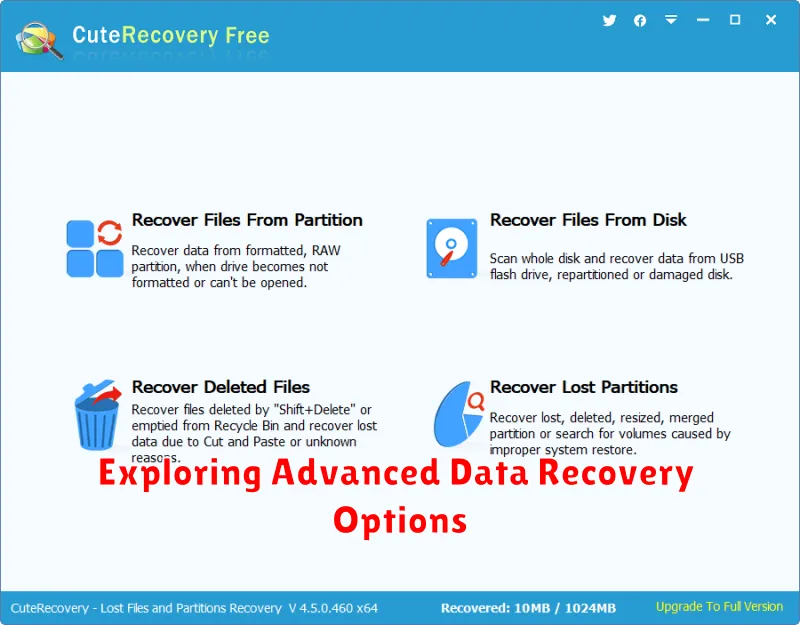
If initial recovery methods prove unsuccessful, consider exploring advanced data recovery software designed for Android devices. These specialized tools often employ sophisticated algorithms to scan deeper into your device’s storage, potentially uncovering files that standard methods miss. Research reputable software options and carefully review user testimonials and expert reviews before making a selection.
Important Note: Advanced recovery software may require technical expertise. Some programs may necessitate rooting your Android device, which can void your warranty and introduce potential risks if not performed correctly. Proceed with caution and follow instructions meticulously.
Another advanced option is to consult with a professional data recovery service. These services specialize in retrieving lost data from various storage devices, including Android phones. While this option can be more expensive, it offers the highest probability of success, especially in complex data loss scenarios. When selecting a service, inquire about their experience with Android devices and their success rates.
Restoring Recovered Photos to Your Device
Once you’ve successfully recovered your deleted photos using a data recovery software or method, the final step is to restore them back to your Android device. This process is generally straightforward.
Most recovery software allows you to select the recovered photos you wish to restore. Ensure the destination for these photos is set to a location on your device, such as a new folder on your internal storage or SD card (if applicable).
If the recovery process resulted in files on your computer, you can connect your Android device via USB and transfer the recovered photos. Create a new folder to organize the restored images, making them easily accessible.
After the transfer, safely disconnect your device from the computer. You can then access your restored photos through your device’s default photo gallery app or any other photo viewing application.
