
Is your iPhone battery draining too quickly? Do you constantly find yourself searching for a charger? A healthy iPhone battery is essential for staying connected and productive throughout the day. In this article, we’ll explore practical tips and tricks to maximize your iPhone battery health, ensuring long-lasting power and reducing the need for frequent charging. Learn how to optimize your settings, manage apps, and adopt charging habits that will significantly extend your battery’s lifespan and keep your iPhone running smoothly.
From understanding battery-draining culprits to utilizing power-saving modes, we’ll cover a range of strategies to help you get the most out of your iPhone’s battery. Whether you have the latest model or an older generation, these tips and tricks will empower you to take control of your iPhone battery health and enjoy uninterrupted usage. Discover how small changes can make a big difference in achieving long-lasting power and avoiding the frustration of a low battery.
Understanding Factors That Affect Battery Health
Several factors contribute to the overall health and lifespan of your iPhone’s battery. Temperature plays a crucial role. Extreme heat or cold can accelerate battery degradation. Avoid leaving your device in direct sunlight or exposing it to freezing temperatures.
High-intensity tasks, such as gaming or streaming high-definition video, demand more power and can strain the battery more quickly than less demanding activities like web browsing or texting.
The age of your battery is another significant factor. Batteries naturally degrade over time, and older batteries hold less charge. Charging habits also impact battery health. Frequently letting your battery discharge completely or consistently charging to 100% can accelerate the aging process.
Finally, the version of software you are using can affect battery performance. Keeping your iOS updated ensures you have the latest battery optimization features.
Monitoring Your iPhone’s Battery Usage
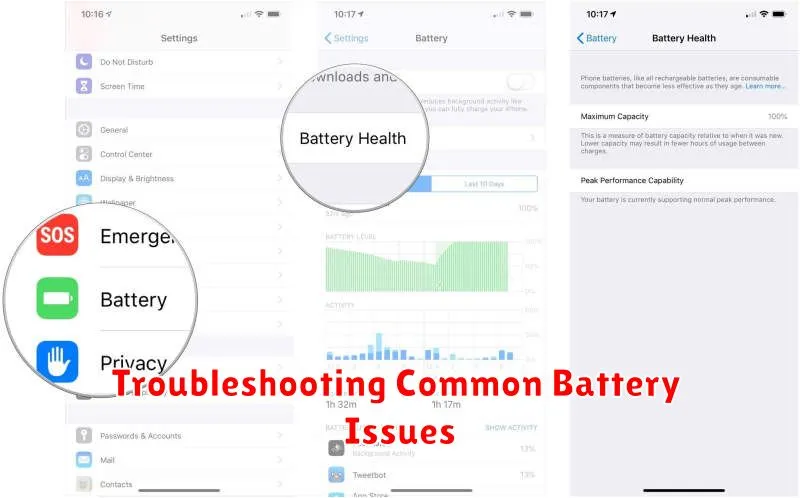
Keeping track of your battery usage helps identify power-hungry apps and habits. iOS provides built-in tools to monitor battery consumption effectively. Access this information in the Settings app under Battery.
The Last 24 Hours and Last 10 Days views offer insights into which apps are consuming the most power. Pay close attention to the percentage displayed next to each app. A high percentage suggests the app may be using more battery than expected. Tap on an app to reveal its background activity details.
Understanding screen-on time versus background activity is crucial. If an app consumes significant power while not actively used, consider adjusting its background refresh settings or limiting its use.
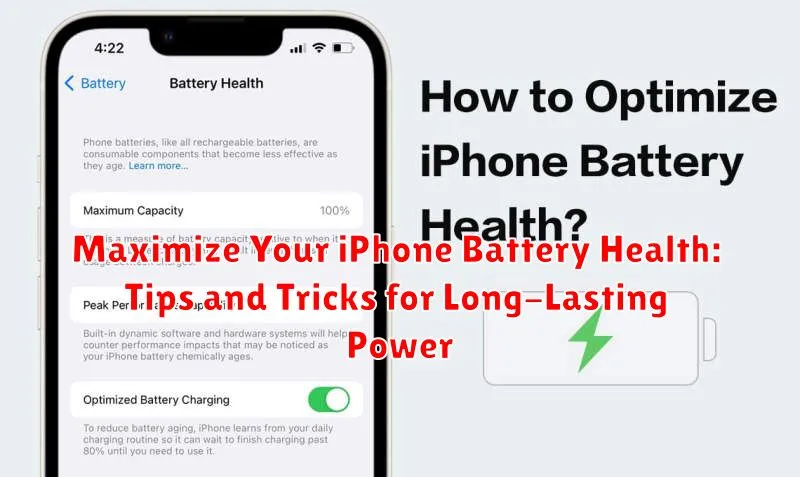
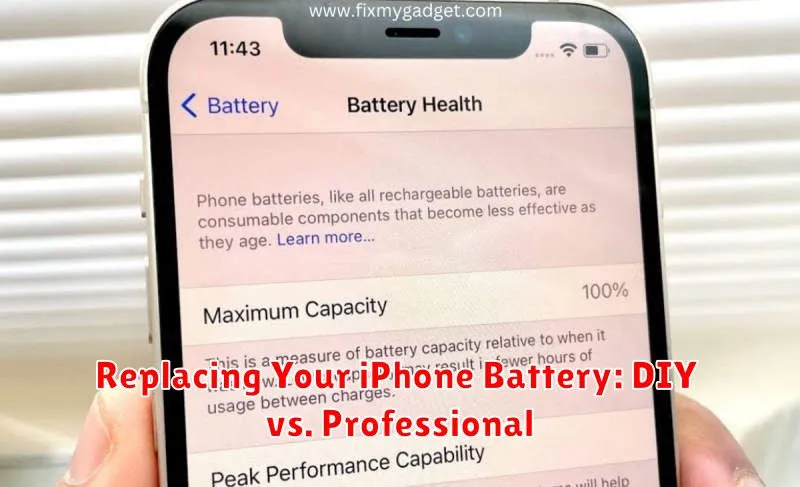
Battery Health metrics, also found in the Battery settings, provide a valuable overview of your battery’s maximum capacity. This percentage indicates the battery’s current capacity relative to when it was new. A lower capacity might mean the battery needs to be replaced.
Optimizing Battery Settings for Extended Use
Several settings on your iPhone can be adjusted to significantly improve battery life. By understanding these settings and making a few tweaks, you can extend the time between charges.
Display Settings
Lowering screen brightness is one of the easiest ways to conserve battery. Access the Control Center and adjust the brightness slider as needed. Enabling Auto-Brightness allows your iPhone to automatically adjust the screen brightness based on ambient lighting conditions, further optimizing battery usage.
Network Settings
When not in use, disable Wi-Fi and Bluetooth to prevent your device from constantly searching for networks. Utilizing Airplane Mode in areas with poor cellular reception can also prevent excessive battery drain due to constant searching for a signal.
Background App Activity
Limit background app activity by disabling Background App Refresh for apps that don’t require constant updates. This prevents apps from using power in the background when you’re not actively using them.
Effective Charging Practices to Preserve Battery Life
Avoid Extreme Temperatures while charging. Heat is detrimental to battery longevity. Don’t leave your iPhone in direct sunlight or a hot car while it’s plugged in. Similarly, extremely cold temperatures can also negatively impact battery performance.
Partial Charging is preferable to letting your battery regularly deplete to 0% and then charging to 100%. Top off your battery whenever convenient. Modern lithium-ion batteries do not suffer from the “memory effect” of older battery technologies.
Use Certified Chargers. While third-party chargers might be cheaper, sticking with Apple-certified chargers or MFi-certified options ensures compatibility and safeguards against potential damage from voltage fluctuations.
Avoid Overcharging. While iPhones have safeguards against overcharging, it’s still a good practice to unplug your device once it reaches 100%. Leaving it plugged in indefinitely, especially overnight, can contribute to long-term battery wear.
Remove Cases While Charging, particularly thick or insulating cases, as these can trap heat and elevate the temperature of your iPhone during charging. This extra heat can accelerate battery degradation.
Calibrating Your iPhone Battery for Accurate Readings
Sometimes, your iPhone’s battery percentage indicator might display inaccurate readings, such as unexpectedly dropping or showing inconsistent charge levels. Calibrating your battery can help resolve these issues and ensure the displayed percentage reflects the true remaining charge.
Calibration involves fully discharging and then fully recharging your iPhone’s battery. This process helps the battery management system recalculate and display the correct battery percentage. It’s important to note that frequent calibration isn’t necessary. Perform it only when you notice significant inconsistencies with the battery indicator.
How to Calibrate Your iPhone Battery
- Fully Discharge: Use your iPhone until it shuts down completely due to low battery.
- Deplete Residual Charge: Leave the phone off for a few hours to ensure any remaining power is drained.
- Recharge: Connect your iPhone to its charger and let it charge uninterrupted until it reaches 100%.
- Normal Usage: After reaching 100%, you can disconnect the charger and resume using your iPhone normally.
Recognizing Signs of Battery Degradation
A degrading battery can significantly impact your iPhone’s performance. Being able to recognize the signs is the first step towards addressing the issue. Here’s what to look for:
Unexpected Shutdowns
Does your iPhone suddenly power off, even with a seemingly sufficient charge? This is a major indicator of battery degradation. The battery may no longer be able to provide the necessary power under certain processing demands.
Slower Performance
Noticeable lags and sluggishness, especially when launching apps or performing complex tasks, can be attributed to an aging battery. To conserve power, iOS might throttle performance when the battery is degraded.
Reduced Battery Life
A significantly shorter battery life than when your iPhone was new is a classic sign of degradation. If you find yourself needing to charge much more frequently, it’s time to investigate the battery’s health.
Overheating
Excessive heat, even during normal usage, can suggest a battery problem. A degrading battery often generates more heat during operation.
Battery Health Percentage
Check your battery health in Settings > Battery > Battery Health. A low maximum capacity percentage provides a clear indication of battery wear. Additionally, the “Peak Performance Capability” messages can offer insight into battery-related performance limitations.
Troubleshooting Common Battery Issues
Experiencing rapid battery drain? Don’t immediately assume your battery needs replacement. Often, software or settings are the culprit. Here’s a breakdown of common issues and solutions:
1. Rogue Apps
Certain apps can consume excessive power, even when running in the background. Check your battery usage in Settings to identify power-hungry apps. Force-quitting these apps or updating them to the latest version often resolves the issue.
2. Background App Activity
Limit background app activity by disabling Background App Refresh in Settings for apps you don’t need constantly updating. This can significantly improve battery life.
3. Location Services
While convenient, constant location tracking drains power. Adjust location services to “While Using the App” for most apps. You can also completely disable location services, but this impacts some app functionality.
4. Display Brightness
High screen brightness is a major battery consumer. Reduce brightness manually or enable Auto-Brightness to optimize battery life.
Replacing Your iPhone Battery: DIY vs. Professional
Facing a consistently drained battery? A replacement might be necessary. You have two primary options: a do-it-yourself (DIY) approach or professional replacement.
DIY Replacement
The DIY route involves purchasing a battery and tools online. While potentially cost-effective, it carries significant risks. Improper handling can damage delicate internal components, voiding your warranty. This method requires technical aptitude and careful attention to detail. Proceed with extreme caution.
Professional Replacement
Authorized Apple service providers or certified technicians offer reliable replacements using genuine parts. This option preserves your warranty and minimizes the risk of damage. While generally more expensive than DIY, professional replacement provides peace of mind and ensures proper installation. It is the recommended approach for most users.
