
Learning how to install APK files on your Android device opens up a world of possibilities beyond the Google Play Store. This comprehensive guide will provide you with step-by-step instructions, enabling you to install APKs safely and efficiently. Whether you’re looking to access apps not available in your region, try out beta versions, or explore alternative app stores, understanding APK installation is a valuable skill for any Android user. This tutorial covers everything from enabling unknown sources to verifying APK integrity, ensuring a smooth and secure installation process.
This guide is designed for users of all technical levels, breaking down the APK installation process into easily digestible steps. We’ll cover the necessary security precautions, explain the reasons behind each step, and address potential challenges you might encounter. By the end of this guide, you’ll be confident in your ability to install APK files on your Android device and take advantage of the wider Android ecosystem. Mastering this skill allows you greater control over your device and access to a broader range of applications, making your Android experience even more versatile.
Understanding APK Files and Their Uses
APK stands for Android Package Kit. Think of it as the equivalent of an .exe file on a Windows computer or a .dmg file on a Mac. It’s the file format Android uses to distribute and install apps.
These files contain everything an app needs to function correctly on your device, including the program code, resources (images, sounds, etc.), certificates, and manifest file (containing app permissions and other information).
Primarily, APK files are used to install apps outside of the official Google Play Store. While the Play Store is generally the safest and most convenient way to get apps, APK files offer a way to access apps not available on the platform, try beta versions, or even revert to older versions of apps.
However, it’s crucial to be aware of the security risks involved when downloading APKs from untrusted sources. We’ll cover this in more detail later.
Enabling Installation from Unknown Sources
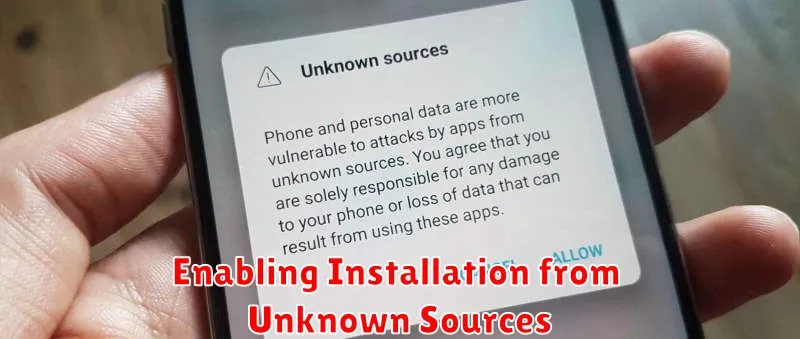
Before you can install APK files, you need to grant your Android device permission to install apps from sources other than the Google Play Store. This security feature protects your device from potentially harmful applications. The process for enabling this permission varies slightly depending on your Android version.
Android 8.0 (Oreo) and later:
For newer Android versions, the permission is granted on a per-app basis. When you attempt to install an APK file using a file manager app, for example, you’ll be prompted to grant that specific app the permission to install unknown apps.
Android 7.0 (Nougat) and earlier:
On older Android systems, there’s a global setting to allow installations from unknown sources. You’ll typically find this in your device’s Settings. Navigate to Security (or similar) and look for the Unknown sources option. Enable this setting to allow APK installations. Remember to exercise caution when enabling this and install APKs only from trusted sources.
Finding and Downloading APK Files Safely
Locating and downloading APK files requires caution. Prioritize reputable sources to minimize the risk of malware. While various websites offer APK downloads, not all are safe. Thoroughly research any website before downloading.
Look for established APK repositories known for their security practices and user reviews. Consider community forums and websites dedicated to Android apps. These often have sections for APK downloads with user feedback and recommendations.
Verify the APK file’s integrity. Check the developer’s digital signature if available. This helps confirm the file hasn’t been tampered with. Look for information about the APK’s version number and release date to ensure you’re downloading the most recent and legitimate version.
Step-by-Step APK Installation Process
Once you’ve located and downloaded the desired APK file and enabled installations from unknown sources, you’re ready to begin the installation process. Follow these steps:
1. Locate the APK File
Using your file manager app, navigate to the folder where you downloaded the APK. This is often the “Downloads” folder.
2. Initiate Installation
Tap the APK file. A prompt will appear summarizing the app’s requested permissions. Review these permissions carefully.
3. Confirm Installation
If you agree with the permissions, tap “Install.” The installation process will begin. This may take a few moments depending on the size of the app.
4. Complete Installation
Once the installation is complete, you’ll see a confirmation message. You can now choose to “Open” the app directly or “Done” to return to your file manager.
Troubleshooting Common APK Installation Issues
Occasionally, you might encounter issues during the APK installation process. Here are some common problems and their solutions:
“App Not Installed” Error
This is a frequent error. It can arise from several sources. Ensure the APK file is compatible with your device’s architecture (e.g., ARM, x86) and Android version. Check for sufficient storage space. If an older version of the app is already installed, uninstall it and retry.
“Parse Error”
A parse error usually indicates a corrupted or incomplete APK file. Re-download the APK file from a trusted source. Verify the file integrity if possible.
“There was a problem parsing the package”
Similar to the “Parse Error,” this often suggests a corrupted download. Ensure the download wasn’t interrupted. Re-download the APK. If the issue persists, the APK itself might be flawed.
Installation Hangs or Freezes
If the installation process seems frozen, try restarting your device. If the problem persists, it might be due to an incompatibility or a corrupted file. Try a different APK source.
Verification of App Authenticity
Before installing any APK file, verifying its authenticity is crucial to protect your device and data. Downloading APKs from untrusted sources can expose you to malware and other security risks. Therefore, taking steps to confirm the legitimacy of the app is paramount.
One method is to compare the APK’s cryptographic signature with the signature of the app if it were downloaded from the official app store. If the signatures don’t match, the APK might have been tampered with.
Researching the developer or publisher of the APK is also essential. Look for established developers with a positive reputation. Check online reviews and forums for any reports of malicious activity associated with the app or the developer.
Finally, consider using online virus scanners specifically designed for APK files. These scanners can detect known malware strains within the APK, providing an additional layer of security.
Security Considerations and Best Practices
Installing APKs outside of the official Google Play Store introduces potential security risks. It’s crucial to take precautions to protect your device and data.
Download from Trusted Sources: Only download APKs from reputable websites or developers you explicitly trust. Avoid downloading from unfamiliar sources or file-sharing platforms, as these can often harbor malicious software.
Verify App Permissions: Before installing, carefully review the permissions requested by the app. If an app requests access to sensitive information that seems excessive for its functionality (e.g., contacts, location, storage), reconsider installation. Malicious apps may disguise themselves as legitimate ones while attempting to gain unauthorized access.
Keep Your Software Updated: Ensure your Android operating system and security software are up-to-date. These updates often include patches for vulnerabilities that could be exploited by malicious apps.
Enable Play Protect: Google Play Protect is a security feature that scans apps for potential threats. Keep this feature enabled to provide an additional layer of security.
Alternative App Installation Methods
While APK files offer a way to install apps outside the official app store, there are alternative methods worth considering. These methods often provide increased security and convenience.
Using Third-Party App Stores
Several reputable third-party app stores, like the Amazon Appstore and F-Droid, offer curated collections of Android applications. These stores provide an alternative marketplace to explore and download apps directly onto your device, often without needing to enable special permissions.
Direct Installation from Developers
Some developers offer direct downloads of their apps from their websites. This method can be a secure way to obtain the latest version or a specialized version of an application not available on public app stores. Ensure the developer’s website is legitimate before downloading.
Aurora Store
Aurora Store offers a unique approach, allowing users to access and download apps from the Google Play Store without needing a Google account. It acts as a front-end, offering similar functionality while preserving privacy.
