
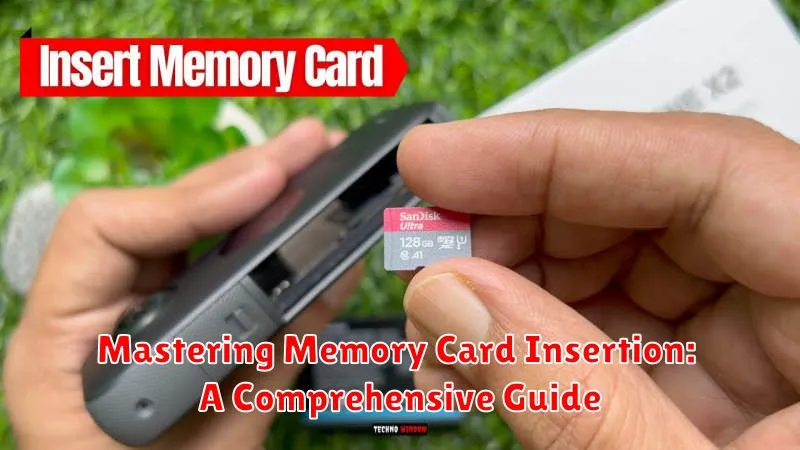
Memory cards are essential for storing digital data in various devices, from cameras and smartphones to gaming consoles and laptops. Proper memory card insertion is crucial for both accessing stored information and protecting the card and device from damage. This comprehensive guide will cover everything you need to know about mastering memory card insertion, addressing common challenges, troubleshooting tips, and providing detailed instructions for various device types. Understanding how to correctly insert and remove memory cards can prevent data loss, extend the lifespan of your memory cards, and ensure seamless data transfer. Whether you’re a novice or a seasoned tech user, this guide offers valuable insights into memory card management.
This guide offers a step-by-step approach to inserting memory cards, covering various memory card formats, such as SD cards, microSD cards, and CF cards. Learn to identify the correct memory card slot on your device and understand the subtle nuances of proper memory card orientation. We will also address common issues like memory card errors and provide effective solutions. By the end of this guide, you will be confident in your ability to handle memory cards effectively and efficiently, optimizing your digital workflow and ensuring the safety of your valuable data.
Understanding Memory Card Types and Compatibility
Before inserting a memory card, it’s crucial to understand the different types and their compatibility with your device. Using an incompatible card can lead to malfunction or even damage.
Common memory card types include SD (Secure Digital) cards, microSD cards, and CompactFlash cards. Within these categories, there are variations in size, speed, and capacity. For example, SD cards come in standard SD, SDHC (High Capacity), and SDXC (Extended Capacity) formats. MicroSD cards follow a similar structure with microSD, microSDHC, and microSDXC.
Compatibility is determined by both the physical size of the card and the device’s specifications. Consult your device’s user manual to determine the precise types and capacities it supports. Attempting to force an incompatible card into a slot can damage both the card and the device.
Locating the Memory Card Slot on Your Device
The location of the memory card slot varies depending on the device. Carefully examine your device to locate it. Common locations include:
- Smartphones and Tablets: Often on the side or top edge, sometimes behind a small, removable tray. Look for a small indentation or a pinhole beside a tray.
- Digital Cameras: Typically on the side or bottom, often protected by a small door or cover. Some newer models may have it integrated into the battery compartment.
- Laptops: Usually on the side, sometimes on the front. Look for a thin slot, often marked with a memory card symbol.
- Other Devices: Refer to your device’s user manual for the precise location. The manual will provide a clear diagram or explanation.
If you are having difficulty locating the memory card slot, consult your device’s user manual. It will contain a detailed diagram or instructions that pinpoint the slot’s location.
Preparing the Memory Card for Insertion
Before inserting the memory card, it’s crucial to prepare it properly to prevent data corruption or device damage. Check the memory card for any physical damage, such as cracks or bent connectors. If damaged, do not attempt to insert it. Replace it with a new one.
If this is a new memory card, it might require formatting. Check your device’s user manual for formatting instructions specific to your device model. Formatting will erase any existing data on the card, so ensure you’ve backed up important files if the card is not new.
Static electricity can potentially damage the memory card. Before handling the card, ground yourself by touching a metal object. Avoid touching the card’s metal connectors directly.
Ensure the memory card is correctly oriented before attempting insertion. Most cards have a notch or bevel that aligns with a corresponding groove in the slot.
Inserting the Memory Card Correctly
The correct insertion technique is crucial for both the memory card and your device. Careless insertion can damage the contacts or even break the card.
Identify the correct orientation. Memory cards have a specific notch or angled corner that aligns with the corresponding slot on your device. Attempting to force the card in the wrong direction can cause irreversible harm.
Gentle pressure. Once you have confirmed the correct orientation, use gentle, even pressure to push the card into the slot. You should feel a slight click or resistance as the card locks into place. Avoid excessive force.
Push until secure. Ensure the card is fully seated in the slot. It should be flush with the surrounding surface or slightly recessed, depending on the device. A loosely inserted card can disconnect unexpectedly, leading to data loss.
Verifying Memory Card Installation
After inserting the memory card, it’s crucial to verify its successful installation. Different devices offer various methods for confirmation. Here’s a general guide:
Device Notification: Many devices display a brief notification indicating successful memory card detection. This might be a small icon in the status bar or a pop-up message. Look for symbols resembling an SD card or a storage device.
File Manager/Explorer: Access your device’s file manager or file explorer application. A newly installed and recognized memory card should appear as a separate storage location, often labeled with the card’s name or storage capacity. Navigating to this location should reveal the card’s contents or allow you to create new folders and files.
Camera/App Functionality: If using the memory card for a specific application, like a camera, open the app. The app should recognize the available storage on the memory card. Attempt to save a file or take a picture to confirm the card is functioning correctly.
Troubleshooting Memory Card Insertion Issues
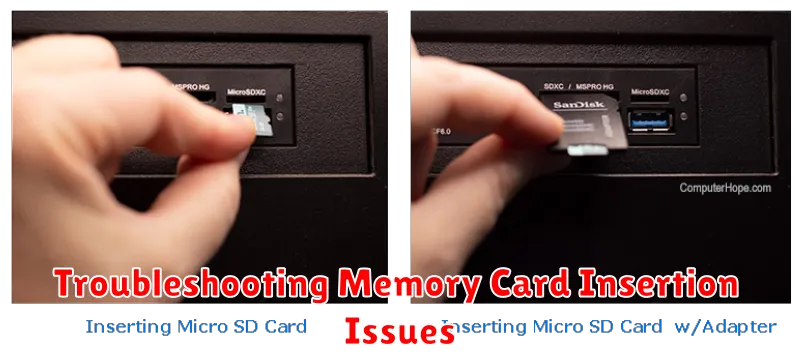
Occasionally, you might encounter problems inserting your memory card. Here are some common issues and solutions:
Card Not Inserting
If the card doesn’t insert smoothly, do not force it. Double-check the card’s orientation. There’s a correct way to insert it, indicated by a notch or angled corner. Ensure the card aligns with the slot.
Card Not Recognized
If the device doesn’t recognize the inserted card, try re-inserting it. Ensure the card is fully seated in the slot. Sometimes, a gentle push is needed. If the problem persists, test the card in another compatible device to rule out card malfunction.
Write Protection Error
A write protection error prevents new data from being written to the card. Check for a physical write-protect switch on the card itself. If present, slide the switch to the unlocked position.
Safely Removing the Memory Card
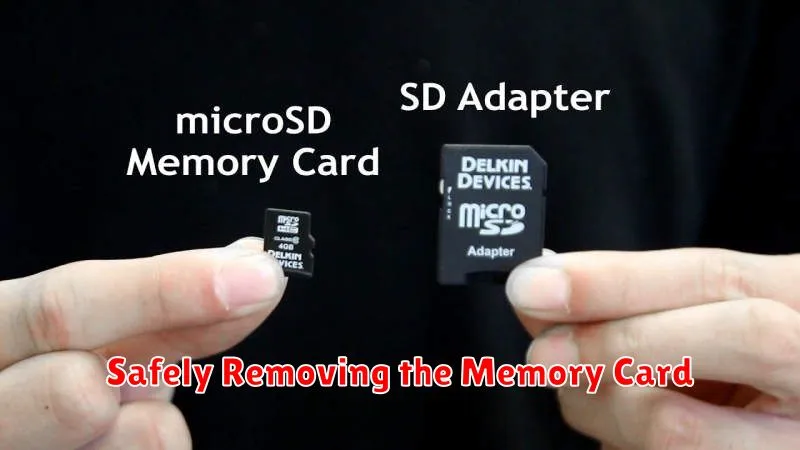
Improper removal of a memory card can lead to data corruption or damage to the card or device. Follow these steps to safely eject your memory card.
First, stop any active processes that are using the memory card. This includes closing any files or applications that are accessing data on the card. For example, if you are viewing photos, close the photo viewer application.
Next, locate the “safely remove hardware” icon in your system tray (usually in the bottom right corner of your screen). Click on the icon and select the memory card you wish to eject. This process informs the operating system to stop all communication with the card.
Once you receive notification that it’s safe to remove the hardware, you can physically remove the memory card from the slot. Gently but firmly pull out the card.
