

Is your phone dragging its feet, leaving you staring at a loading screen for what feels like an eternity? A slow phone can be incredibly frustrating, hindering your productivity and making even simple tasks feel arduous. Fortunately, there are numerous ways to boost performance and revitalize your device. This article provides practical steps to diagnose the root cause of your phone’s sluggishness and offers effective solutions to fix a slow phone and reclaim its speed. Whether you’re dealing with an aging device or a relatively new one bogged down by demanding apps, we’ll explore techniques to optimize performance and restore your phone’s responsiveness. Learn how to identify resource-hogging apps, clear out unnecessary data, and implement settings adjustments to speed up your phone and enjoy a smoother, more efficient mobile experience.
From simple troubleshooting steps like clearing your cache to more advanced techniques like optimizing background processes, we’ll cover a range of strategies to address various performance issues. This guide will empower you to take control of your phone’s speed, showing you how to improve phone performance, extend its lifespan, and ensure it runs smoothly for years to come. Whether you’re an Android user or an iPhone owner, the techniques outlined here will help you fix a slow phone and boost performance, eliminating lag and restoring the snappy responsiveness you deserve. Get ready to say goodbye to frustrating delays and hello to a faster, more efficient mobile experience. Let’s dive in and learn how to speed up your phone!
Identifying the Root Cause of a Slow Phone
A slow phone can be frustrating, but before attempting any fixes, it’s crucial to pinpoint the underlying cause. Several factors can contribute to decreased performance.
Insufficient Storage: Check your phone’s available storage. A near-full storage can significantly impact speed. Look at how much space apps, photos, and videos are consuming.
Resource-Intensive Apps: Certain apps demand more processing power and memory. Identify any apps that consistently lag or cause the phone to overheat. These might be the culprits.
Background Processes: Numerous apps running in the background can strain system resources. Check your phone’s settings to see which apps are active and consider closing unnecessary ones.
Operating System Issues: An outdated operating system can lead to performance problems. Ensure your phone is running the latest available software version.
Clearing App Cache and Data to Free Up Space
Over time, apps accumulate cached data and temporary files that can consume significant storage space and contribute to a sluggish phone. Clearing the cache and data can often reclaim valuable space and improve performance. It’s important to understand the distinction between clearing cache and clearing data.
Clearing Cache
Clearing the cache removes temporary files associated with an app, such as images and other media. This can free up space without deleting your app settings, login information, or progress.
Clearing Data
Clearing data, on the other hand, removes all app data including settings, preferences, and saved files. It essentially resets the app to its initial state. Proceed with caution as clearing data can result in loss of important information.
The process for clearing cache and data may vary slightly depending on your phone’s operating system. Typically, you can access these options within the App Settings menu. Consult your phone’s user manual for specific instructions.
Uninstalling Unused Apps to Optimize Performance
Over time, accumulating numerous apps, even if unused, can negatively impact your phone’s performance. Unused apps can still run background processes, consume storage space, and contribute to system clutter. Uninstalling these apps can significantly improve your phone’s speed and responsiveness.
Identify apps you no longer use or need. Check your app drawer or home screen for apps you haven’t opened in weeks or months. These are prime candidates for removal.
The process for uninstalling apps varies slightly depending on your phone’s operating system, but generally involves accessing the app settings, selecting the app, and choosing the uninstall option. This will free up valuable storage space and reduce background activity, leading to a more efficient and responsive device. Regularly reviewing and uninstalling unused apps is a key practice for maintaining optimal phone performance.
Updating Software for Bug Fixes and Improvements
Outdated software can significantly impact your phone’s performance. Regularly updating your operating system (OS) and apps is crucial for maintaining optimal speed and efficiency. Software updates often include bug fixes that resolve performance issues, as well as optimizations that enhance overall speed.
Updating your OS usually involves going to your phone’s settings and checking for system updates. The process may vary slightly depending on your phone’s manufacturer and OS version, but generally involves a simple download and installation procedure.
Updating your apps is typically done through your device’s app store. You can often choose to update all apps at once, or select individual apps to update. It’s good practice to enable automatic updates for your apps, ensuring they remain current without manual intervention.
By keeping your software up-to-date, you benefit from the latest performance improvements and security enhancements, leading to a smoother and more efficient mobile experience.
Restarting Your Phone to Refresh System Processes
Sometimes, the simplest solution is the most effective. Restarting your phone can often resolve performance issues by clearing temporary files, closing background processes, and refreshing the operating system. Think of it as a quick “reboot” for your device.
Over time, as you use apps and navigate your phone, various processes run in the background. Some of these processes might consume significant system resources, even when you’re not actively using them. A restart forces these processes to close and allows your phone to start fresh.
The process for restarting your phone varies slightly depending on the manufacturer and model. Typically, you can restart your phone by holding down the power button for a few seconds until a menu appears. Select the “Restart” option from the menu. Your phone will then power off and turn back on automatically.
A simple restart can often alleviate minor performance hiccups and restore your phone’s responsiveness. If you find your phone running sluggishly, a restart is an excellent first step in troubleshooting the problem.
Limiting Background Processes for Smoother Operation
Background processes, while often essential, can consume valuable system resources, leading to a sluggish phone. Managing these processes effectively can significantly boost your phone’s performance.
Identify Resource-Intensive Apps: Use your phone’s built-in settings to determine which apps are consuming the most battery and processing power. Often, social media, messaging, and streaming apps are the primary culprits.
Restrict Background Activity: Limit or disable background activity for apps you don’t frequently use. This prevents them from constantly syncing data or sending notifications, freeing up resources for other tasks.
Close Unused Apps: Regularly closing apps you’re not actively using prevents them from running unnecessarily in the background. Develop a habit of closing apps after each use to maintain optimal performance.
Factory Resetting Your Phone as a Last Resort
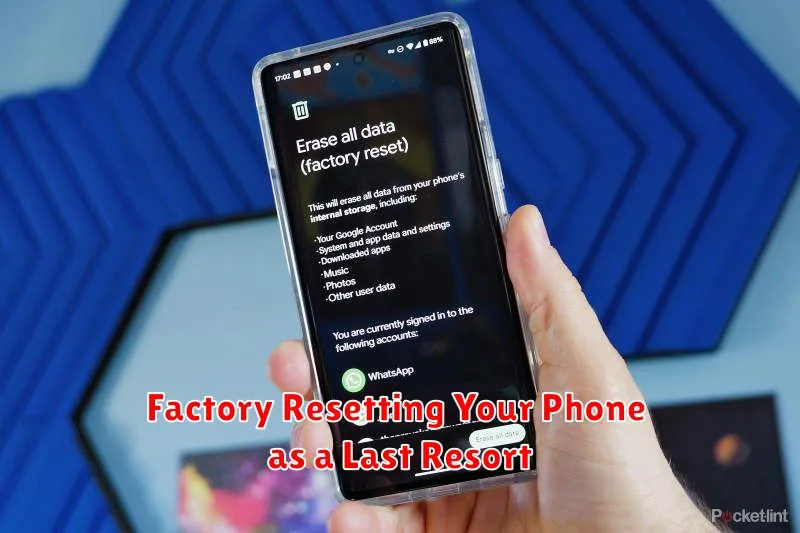
A factory reset should be considered a final option when all other troubleshooting methods fail to improve your phone’s performance. It will erase all data on your phone, reverting it back to its original factory settings. Be sure to back up any important data like photos, contacts, and files before proceeding.
The process for factory resetting varies depending on your phone’s operating system and manufacturer. Generally, you can find the factory reset option within the “Settings” menu, often under “System,” “General Management,” or “Backup and Reset.” Look for options like “Factory data reset” or “Reset phone.”
After initiating the reset, your phone will restart and guide you through the initial setup process as if it were brand new. While a factory reset can often resolve persistent performance issues, remember it’s a complete data wipe, so proceed with caution and ensure your data is backed up first.
Checking for Malware and Viruses

While less common on iOS, malware can significantly impact Android phone performance. A virus can bog down your system by running malicious processes in the background, consuming resources, and slowing everything down. Regularly scanning your device is crucial for maintaining optimal performance.
Use a reputable antivirus app from a trusted source. These apps can detect and remove malicious software. Ensure the app is up-to-date for the best protection against the latest threats.
Be cautious about downloading apps from unknown sources. Stick to the official app store (Google Play Store for Android, App Store for iOS) as these platforms have security measures in place to screen apps for malicious content.
Pay attention to app permissions. Avoid granting unnecessary permissions, especially those that access sensitive data like contacts or location, as this can be a sign of a malicious app.
