
Have you ever suspected there might be hidden apps lurking on your phone, invisible to the casual observer? Perhaps you’ve noticed unusual battery drain, unexplained data usage, or just have a nagging feeling that something isn’t right. This comprehensive guide will delve into the world of secret apps, providing you with the tools and knowledge to find hidden apps on your device. Whether you’re concerned about spyware, hidden malware, or simply want to understand your phone’s functionality better, this guide will empower you to uncover any concealed applications.
Learning how to detect hidden apps is crucial for maintaining your privacy and security. This guide will explore various methods for unveiling hidden apps, covering both Android and iOS platforms. We’ll examine telltale signs of secret app activity, explore system settings, and introduce specialized tools to help you identify and manage any hidden applications that may be present. Gain peace of mind and take control of your mobile device by learning how to find hidden apps effectively.
Why Hide Apps?
People choose to hide apps on their phones for a variety of reasons, often centered around privacy and control.
One primary motivation is to protect sensitive information. Apps containing financial data, private communications, or personal photos may be hidden to prevent unauthorized access, especially if the phone is shared or frequently handled by others. This adds an extra layer of security beyond the device’s primary lock screen.
Another reason is to manage digital clutter. Some users prefer a minimalist home screen, free from infrequently used apps. Hiding apps allows them to keep their phone organized without completely uninstalling potentially useful applications.
Parental control is another key factor. Parents might hide apps with inappropriate content or those prone to in-app purchases to restrict their children’s access. This allows them to curate a safer digital environment for their children.
Finally, some individuals may hide apps for personal reasons. They might wish to discreetly use certain apps without drawing attention, or simply prefer a cleaner, more personalized phone interface.
Common Methods for Hiding Apps
Individuals hide apps for a variety of reasons, employing different methods depending on the phone’s operating system and available features. Understanding these methods is crucial to finding hidden apps.
Using Built-in Features:
Some launchers and operating systems offer built-in features to hide apps. This often involves a simple setting toggle within the app drawer or settings menu. These features are typically designed for privacy or to declutter the user interface.
Third-Party Launchers and Apps:
Many third-party launchers and apps provide more advanced hiding capabilities. These can range from renaming apps with inconspicuous labels to completely concealing them behind disguised icons or requiring a secret gesture to access them.
Guest or Private Modes:
Certain devices offer guest or private modes that create separate user profiles with distinct app sets. Apps installed within these modes might not be visible from the main user profile.
Step-by-Step Instructions to Find Hidden Apps on Android
Finding concealed apps on an Android device can vary slightly depending on the manufacturer and Android version. However, these general steps provide a solid starting point:
1. Check the App Drawer
Swipe up from the bottom of your home screen to access the app drawer. Scrutinize the app icons for anything unfamiliar or suspicious. Some launchers allow creating folders; ensure to check within those as well.
2. Search within the App Drawer
Most app drawers have a search function. Type in keywords that might relate to the suspected hidden app. Even if an app is hidden visually, it might still appear in search results.
3. Explore the Settings Menu
Open your device’s Settings app. Navigate to the “Apps” or “Applications” section. This usually lists all installed apps, including hidden ones. Look carefully through the list for anything out of the ordinary.
4. Utilize the File Manager
Some advanced users hide apps by moving the APK files. If you suspect this, use a file manager app (if your device has one pre-installed or download one) and search for APK files in unusual directories. Proceed with caution when exploring system files.
Exploring App Drawer Settings
The app drawer, often accessed by swiping up from the bottom of your home screen, provides a comprehensive list of installed applications. However, some launchers allow for customization, including the ability to hide apps from this view. Exploring the settings within your specific app drawer can often reveal hidden apps.
To access these settings, look for a three-dot icon, a gear icon, or a menu option typically labeled “Settings,” “Options,” or similar. The precise location and wording vary depending on the launcher your phone uses. Common launchers like Nova Launcher, Action Launcher, and Microsoft Launcher all offer app hiding features configurable within their respective settings menus.
Within the app drawer settings, you might find options like “Hide Apps” or “Hidden Apps.” Selecting this will usually present a list of currently hidden apps, allowing you to unhide them by toggling a switch or checkbox. Carefully examine these settings as they are key to discovering deliberately concealed applications.
Checking for Hidden Apps in Settings
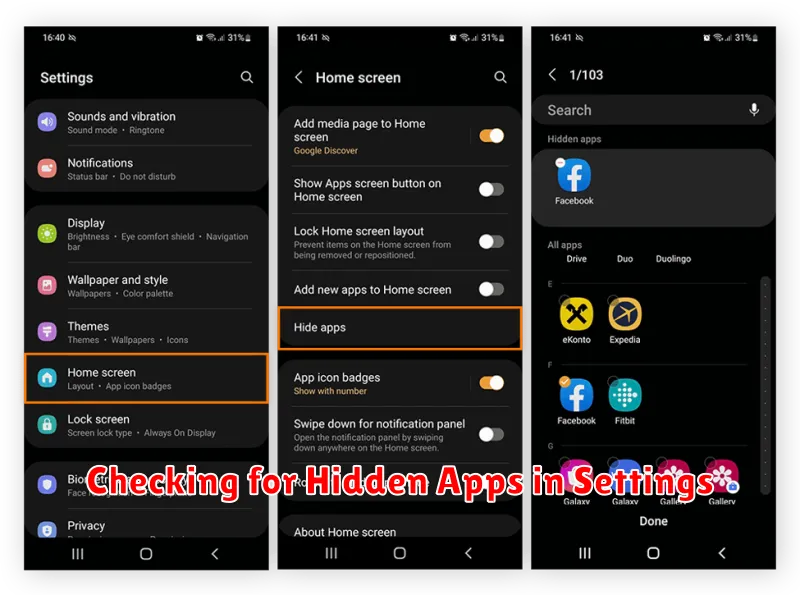
Another method to uncover hidden apps involves navigating your phone’s settings. This approach can vary slightly depending on your phone’s manufacturer and Android version, but the general principle remains the same. Look for options related to “Apps,” “Applications,” or “App Management.”
Within the app management section, you might find a list of all installed applications, both visible and hidden. Sometimes, hidden apps might be grouped under a separate category, such as “Disabled apps” or “Hidden apps.” Carefully review the list of all apps. If you find an app you don’t recognize or one that you thought was uninstalled, it might have been intentionally hidden.
Some phone manufacturers include a feature to “show system apps” or “show all apps.” Enabling this option can reveal pre-installed apps that are usually hidden from the app drawer. While many system apps are essential for your phone’s operation, some manufacturers or carriers might pre-install bloatware that users may wish to hide. Be cautious when interacting with system apps, as disabling essential ones can impact your phone’s functionality. Focus your search on apps that appear unfamiliar or suspicious.
Using File Manager to Locate Hidden Apps
A file manager application can be a powerful tool for uncovering hidden apps. These apps provide a direct view into your device’s file system, allowing you to explore folders and files, including those associated with hidden applications. While the exact steps may vary depending on your device’s operating system and the specific file manager you are using, the general principle remains the same.
First, install a file manager if your device doesn’t have one pre-installed. Many reputable options are available on app stores.
Next, open the file manager and navigate to your device’s internal storage. Look for folders named similarly to “data” or “app”. Hidden apps, or their associated files, might reside within these directories. Be cautious when exploring these folders, as modifying system files can have unintended consequences.
Carefully examine the contents of these folders. Look for names that seem unfamiliar or suspicious. If you locate a folder associated with a suspected hidden app, you can gain further insights by examining the files within. However, avoid deleting or modifying any files unless you are certain of their purpose.
Identifying Hidden Apps Through Third-Party Apps
While some hidden apps might evade detection through standard phone settings or file managers, specialized third-party applications can offer a more thorough approach to uncovering concealed software.
Several apps available on app stores are designed to scan for and identify hidden or potentially malicious applications. These apps often employ advanced detection techniques that go beyond simple file scans, looking for unusual app behaviors, permissions, or data usage patterns. It’s important to choose reputable third-party apps from trusted sources.
When using these apps, carefully review the results. Not all flagged apps are necessarily harmful; some apps might be designed for legitimate privacy or security purposes. Always verify the nature and purpose of any flagged app before taking action.
How to Unhide Apps
Once you’ve identified potentially hidden apps, the next step is to unhide them. The process can vary depending on how the app was hidden in the first place. Here are common methods for unhiding applications:
Using App Settings
Many launchers or system settings allow you to hide apps. Look for options like “Hide Apps” or “App Drawer Settings” within your phone’s settings or launcher settings. From there, you should be able to unselect the hidden apps, making them visible again.
Checking Disabled Apps
Some apps might appear hidden because they’ve been disabled. Go to your device’s Settings, then Apps (or Applications), and look for a tab or list of Disabled Apps. If you find the app you’re looking for, select it and choose Enable.
Restoring from a Secure Folder
If your device has a secure folder feature, apps moved there might appear hidden from the regular app drawer. Access your secure folder and look for the app. You can typically move it back to the main app list from within the secure folder’s settings.
Protecting Your Privacy and Security
Protecting your digital privacy and security is paramount in today’s interconnected world. Taking proactive steps to safeguard your information can significantly reduce your risk of becoming a victim of cybercrime or data breaches.
Strong passwords are the first line of defense. Use unique, complex passwords for each of your accounts, incorporating a mix of uppercase and lowercase letters, numbers, and symbols. Consider using a password manager to securely store and manage your credentials.
Regularly update your software. Operating systems and apps frequently release updates that patch security vulnerabilities. Keeping your software up-to-date ensures you have the latest protection against known threats.
Be cautious about the apps you install. Download apps only from official app stores like Google Play Store and Apple App Store. Research apps before installing them, paying attention to reviews and permissions they request. Avoid apps that request excessive permissions or have negative reviews.
Enable two-factor authentication (2FA) whenever possible. 2FA adds an extra layer of security by requiring a second form of verification, such as a code sent to your phone or email, in addition to your password.
