
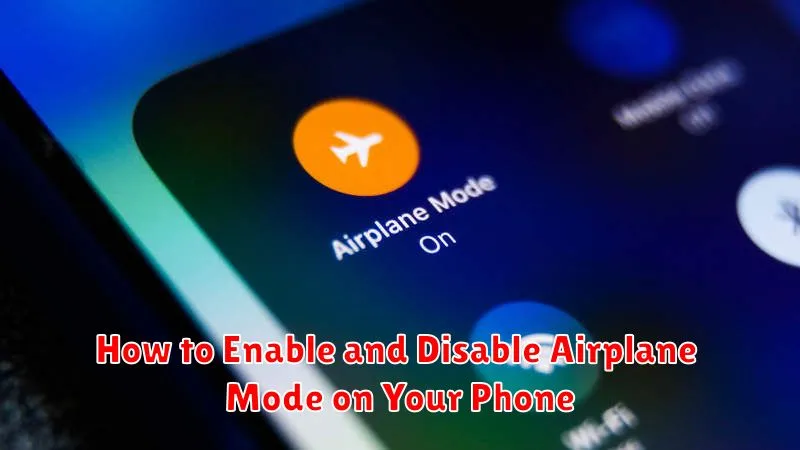
Airplane Mode is a crucial setting on your phone that allows you to quickly disconnect from all wireless networks. Knowing how to enable and disable Airplane Mode is essential for various situations, from complying with airline regulations to troubleshooting connectivity issues. This article provides a comprehensive guide on how to enable and disable Airplane Mode on various phone types, empowering you to manage your device’s connections effectively. Whether you need to activate Airplane Mode before a flight or deactivate it to reconnect to the internet, this guide will provide clear and concise instructions.
Mastering the ability to enable and disable Airplane Mode offers a range of benefits. By activating Airplane Mode, you not only adhere to air travel regulations but also conserve battery life and minimize distractions. Conversely, knowing how to disable Airplane Mode ensures you can quickly restore connectivity when needed. This guide will walk you through the steps required to both enable and disable Airplane Mode on your device, giving you full control over your wireless connections and enhancing your overall phone experience.
What is Airplane Mode and Its Uses?
Airplane Mode is a setting on smartphones, tablets, and other electronic devices that disables the device’s cellular radio, Wi-Fi, and Bluetooth functionalities. Essentially, it cuts off all wireless communication transmissions from your device.
Activating Airplane Mode is crucial when aboard an aircraft as it prevents interference with the plane’s communication systems. While the specific regulations vary by airline and country, it’s generally required for takeoff and landing.
Beyond air travel, Airplane Mode has several other practical uses:
- Conserving Battery: With wireless radios turned off, your device consumes significantly less power, extending battery life.
- Reducing Distractions: Eliminating calls, texts, and notifications allows for uninterrupted focus.
- Troubleshooting Network Issues: Toggling Airplane Mode on and off can sometimes resolve connection problems.
- Limiting Data Usage: If you’re concerned about exceeding your data allowance, Airplane Mode prevents background data usage.
Steps to Enable Airplane Mode on Android Devices
The process for enabling Airplane Mode on Android devices is generally straightforward, although slight variations may exist depending on the manufacturer and Android version. Here are the most common methods:
Method 1: Using the Quick Settings Panel
Swipe down from the top of your screen to open the Quick Settings panel. Locate the Airplane Mode icon (typically an airplane symbol) and tap it. The icon will highlight, indicating that Airplane Mode is now active.
Method 2: Using the Settings App
Open the Settings app on your device. Find and select “Network & internet” or a similarly named setting. Within this menu, you should see an option for “Airplane Mode” or “Flight mode.” Tap the toggle switch to enable it.
Steps to Enable Airplane Mode on iOS Devices
Enabling Airplane Mode on an iOS device, such as an iPhone or iPad, is straightforward. There are two primary methods to accomplish this.
Method 1: Using the Control Center
Swipe down from the top-right corner of the screen (on iPhone X or later) or swipe up from the bottom of the screen (on older iPhones and iPads) to access the Control Center. Locate the airplane icon and tap it. The icon will turn orange, indicating that Airplane Mode is now active.
Method 2: Using the Settings App
Alternatively, open the Settings app. Tap on the setting for “Airplane Mode“. Toggle the switch to the on position. The switch will turn green when Airplane Mode is enabled.
Disabling Airplane Mode on Your Phone
Turning off Airplane Mode is generally a straightforward process, regardless of your device’s operating system. The steps are similar to enabling it, just in reverse.
For Most Devices:
Locate the quick settings menu. This is typically accessed by swiping down from the top of your screen. Find the Airplane Mode icon (usually an airplane symbol) and tap it to disable the mode. You should see an indication, such as the icon disappearing or changing color, to confirm that Airplane Mode is off.
Alternative Method:
You can also usually disable Airplane Mode through your phone’s settings menu. Navigate to the “Network & internet” or similarly named settings section. Within this section, you should find the Airplane Mode toggle switch. Tap it to turn the setting off.
Your phone will then reconnect to available networks. This may take a few moments. Observe your device’s status bar for network icons to reappear, indicating a successful reconnection to cellular and Wi-Fi networks.
Troubleshooting Airplane Mode Issues
Occasionally, you might encounter issues with Airplane Mode. Here are some common problems and their solutions:
Airplane Mode Won’t Turn Off
If Airplane Mode is stuck and won’t turn off, try these steps:
- Restart your device. This is the simplest solution and often resolves minor software glitches.
- Check for software updates. An outdated operating system can sometimes cause conflicts.
- Check for hardware issues. If the problem persists, there might be a problem with your device’s antenna or other hardware. Contact your device manufacturer or a qualified technician for assistance.
Connectivity Problems After Disabling Airplane Mode
If you’re experiencing problems connecting to Wi-Fi or cellular networks after disabling Airplane Mode, try the following:
- Toggle Airplane Mode on and off again. This can refresh the network connections.
- Restart your device.
- Check your network settings. Make sure Wi-Fi and cellular data are enabled and that you’re connecting to the correct network.
Understanding the Impact of Airplane Mode on Different Features
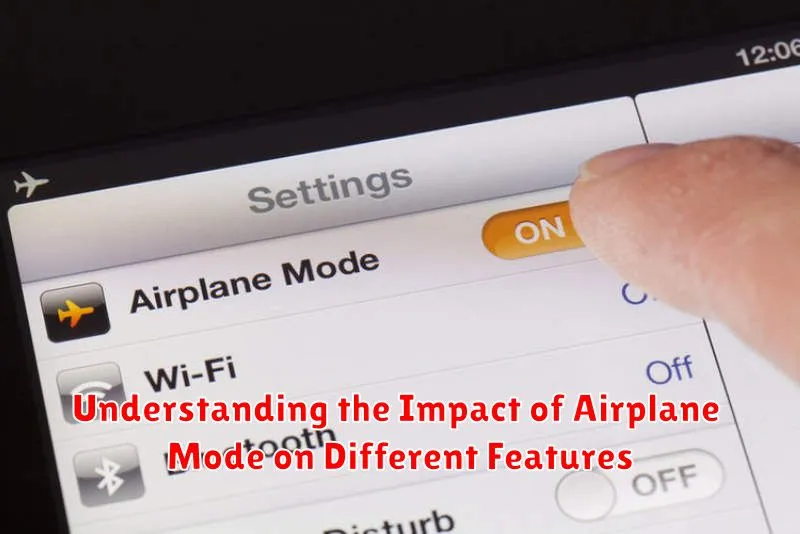
Airplane mode acts as a master switch, effectively disabling all wireless communication on your phone. This includes key features like cellular data, Wi-Fi, and Bluetooth. Enabling this mode means you cannot make or receive calls, send texts, or browse the internet.
Beyond these core functions, other features may also be affected. Location services often rely on cellular data and Wi-Fi for precise positioning, and may thus have reduced accuracy or become completely unavailable. Similarly, features like mobile hotspot and Wi-Fi calling will be deactivated as they depend on underlying wireless technologies.
While in airplane mode, your phone becomes isolated from external networks. However, core functionalities like your camera, stored media (music, photos, videos), and offline apps remain accessible. This allows you to continue using your device for tasks that don’t require network connectivity.
Using Airplane Mode for Troubleshooting Network Problems
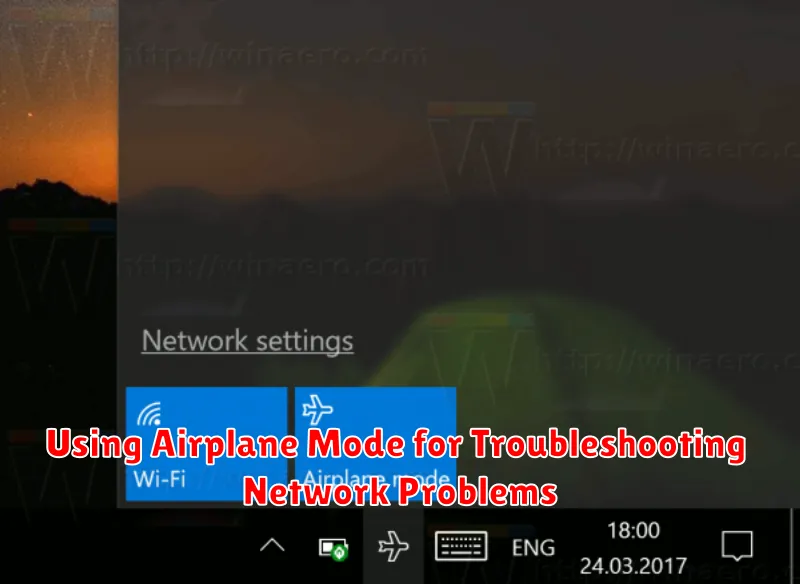
Occasionally, you might experience network connectivity issues on your phone. Airplane mode can be a useful tool for resolving these problems. By turning airplane mode on and then off, you essentially reset your phone’s connection to the cellular network and Wi-Fi. This can often resolve minor glitches that prevent you from making calls, sending texts, or accessing the internet.
When to try this:
- You’re unable to make or receive calls.
- Text messages aren’t sending or being received.
- You can’t connect to the internet via cellular data.
- Your phone shows a weak signal even in areas with good coverage.
How this helps: Enabling airplane mode disconnects your phone from all networks. Disabling it forces your phone to reconnect, often resolving temporary network issues.
