
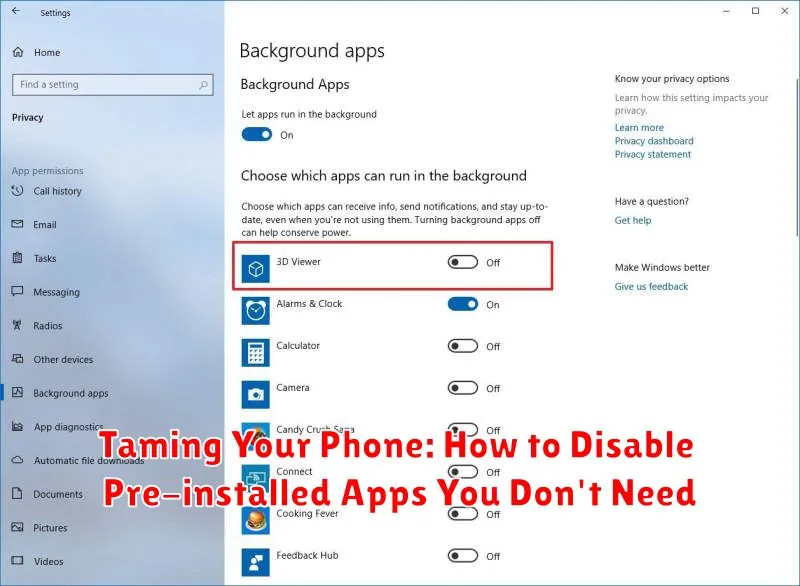
Is your phone cluttered with pre-installed apps you never use? Are you tired of navigating through a sea of unwanted icons just to find the apps you actually need? Many smartphones come pre-loaded with a suite of applications, often referred to as bloatware, that consume valuable storage space and can even impact device performance. This article, “Taming Your Phone: How to Disable Pre-installed Apps You Don’t Need,” will provide you with a comprehensive guide on how to identify and effectively disable these unnecessary pre-installed apps, reclaiming control over your device and optimizing its functionality. Learn how to free up valuable resources and streamline your mobile experience by disabling these pre-installed apps.
Reclaiming control of your device starts with understanding how to manage pre-installed apps. This article will explore the various methods for disabling pre-installed apps on both Android and iOS devices, ranging from simple disabling within settings to more advanced techniques for experienced users. Whether you’re looking to free up storage, improve performance, or simply declutter your home screen, this guide will empower you to take control of your phone and tailor it to your specific needs. Learn how to identify pre-installed apps that can be safely disabled and discover the benefits of a streamlined, more efficient mobile experience.
Identifying Pre-installed Apps on Your Device
Before you can disable any applications, you need to identify which ones are pre-installed. These apps, often called bloatware, come with your phone out of the box and are often associated with the manufacturer or your carrier. They can range from utility apps you might actually use to games or services you never touch.
The simplest way to identify pre-installed apps is to observe your app drawer or home screen. Look for apps you didn’t install yourself. Often, pre-installed apps have a generic look or might be grouped in a separate folder.
Another way to identify these apps is through the app settings. Navigate to your phone’s settings, then find the application manager or app list. Here, you can see all installed apps. Pre-installed apps might be marked or categorized differently than apps you’ve downloaded, but this varies depending on the device and operating system.
Pay close attention to app names and developer information. This can offer clues as to whether an app is pre-installed, especially if the developer is your phone manufacturer or carrier.
Understanding the Difference Between Disabling and Uninstalling
Before you start managing pre-installed apps, it’s crucial to understand the difference between disabling and uninstalling.
Uninstalling an app removes it completely from your device. This frees up storage space and eliminates all associated data. However, you typically cannot uninstall pre-installed apps, especially those core to the system’s functionality.
Disabling an app, on the other hand, renders it inactive. The app remains on your device, taking up minimal storage, but it won’t run in the background, consume resources, or send notifications. Essentially, it’s as if the app isn’t there, but it can be re-enabled later if needed.
Step-by-Step Guide to Disabling Pre-installed Apps on Android
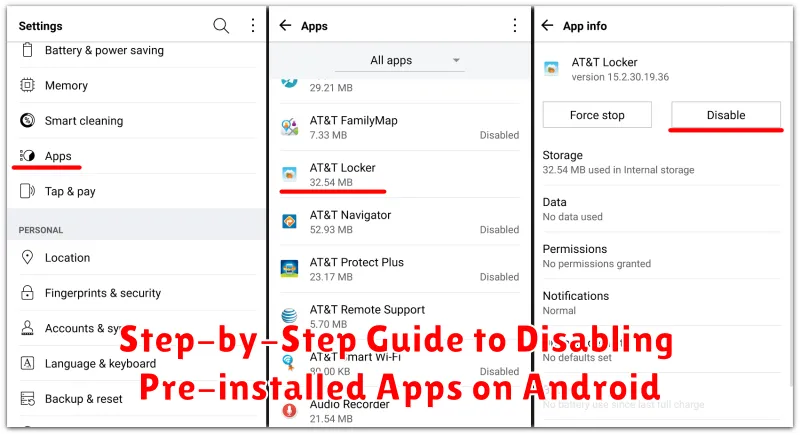
Disabling pre-installed apps on Android can free up storage and improve performance. Follow these steps:
- Open the Settings app on your Android device.
- Navigate to Apps or Applications (the wording may vary depending on your device and Android version).
- Locate the pre-installed app you wish to disable. Tap on it to access the App info screen.
- If the app can be disabled, you’ll see a Disable button. Tap it.
- A confirmation message may appear, warning you about potential side effects. Confirm your choice by tapping Disable App.
Note: Some pre-installed system apps crucial for the operating system’s functionality cannot be disabled.
If you later decide to re-enable the app, simply follow the same steps and tap the Enable button.
Step-by-Step Guide to Managing Pre-installed Apps on iOS
While completely uninstalling pre-installed apps on iOS isn’t typically possible, you can manage them effectively through other means. This primarily involves removing them from your Home Screen and restricting their functionality.
Offloading Apps: This removes the app from your Home Screen, freeing up storage space, but retains its data and documents. If you need the app again, you can easily re-download it along with your saved information.
- Go to Settings > General > iPhone Storage.
- Select the app you wish to offload.
- Tap “Offload App.”
Hiding Built-in Apps: Some built-in apps can be hidden from the Home Screen, streamlining its appearance.
- Long-press on the app icon you want to hide.
- Tap “Remove App“.
- Select “Remove from Home Screen“.
Restricting App Functionality (for certain apps): You can manage permissions and settings for specific built-in apps within the Settings app itself. Look for the app’s individual settings to control notifications, data usage, and other functionalities.
Potential Risks and Considerations When Disabling Apps
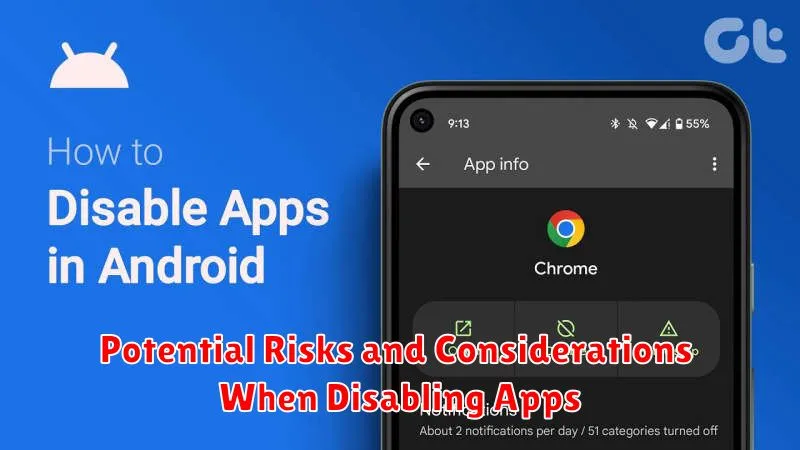
While disabling pre-installed apps can reclaim storage and improve performance, it’s important to consider potential risks. Disabling certain apps might affect the functionality of other apps or even core system features. For example, disabling a system-level app related to the keyboard could impact your ability to type.
Compatibility issues may arise with future updates. If a disabled app is required for a system update, you might need to re-enable it before proceeding. Furthermore, some pre-installed apps might be required for certain hardware features to function correctly.
Disabling an app doesn’t completely remove it. It simply hides it and prevents it from running. Therefore, the storage space saved might not be as significant as uninstalling the app entirely. If storage space is your primary concern, consider clearing the app’s cache and data before resorting to disabling.
It’s crucial to proceed with caution and research any potential implications before disabling an app, particularly system apps. If unsure, it’s always safer to leave pre-installed apps enabled.
Reclaiming Storage Space and Improving Phone Performance
Pre-installed apps, often called bloatware, consume valuable storage space and can negatively impact phone performance. Disabling these unused apps can free up significant storage, allowing you to store more photos, videos, and other files. This action can also lead to improved phone performance.
By disabling unused apps, you reduce the strain on your phone’s processing power and RAM. This can result in a smoother, more responsive user experience. Disabling apps prevents them from running background processes, which can consume resources and drain battery life. Reclaiming resources through disabling apps can lead to faster app loading times and improved overall system stability.
The amount of storage and performance improvement you experience will depend on the number and size of the apps you disable. While disabling apps doesn’t completely remove them from your device, it effectively minimizes their impact on your phone’s resources and available space.
Exploring Alternative Methods for Managing Unwanted Apps
If disabling pre-installed apps isn’t sufficient, consider these alternative approaches for managing unwanted applications and reclaiming valuable storage space on your device.
Custom Launchers
Installing a custom launcher can offer greater control over your app drawer and home screen. Some launchers allow you to hide apps completely, keeping them from view without requiring a full disable. This can provide a cleaner user experience and help you focus on the apps you use most.
Third-Party App Management Tools
Explore third-party app management tools available on your device’s app store. Some of these tools might offer advanced features beyond standard disabling, including batch uninstalling updates or even freezing apps to completely prevent them from running in the background. Exercise caution when using third-party tools, and ensure they are reputable before granting them access to your device.
