
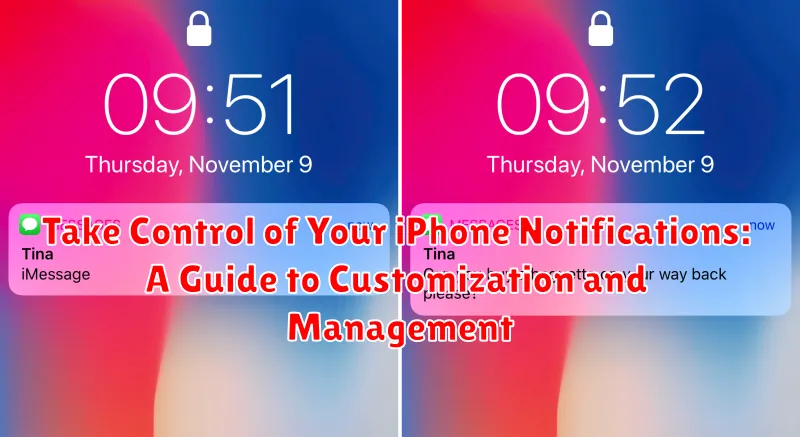
Are you constantly bombarded by a barrage of iPhone notifications, disrupting your focus and cluttering your lock screen? Do you find yourself overwhelmed by the sheer volume of alerts, struggling to distinguish between what’s truly important and what’s simply digital noise? This comprehensive guide will empower you to take control of your iPhone notification settings, offering practical strategies for customization and effective management. Learn how to silence distracting alerts, prioritize essential updates, and personalize your notification experience for optimal productivity and peace of mind. Reclaim your focus and master the art of notification management with these simple yet powerful techniques.
From understanding the nuances of notification settings to mastering the art of customization, this guide provides step-by-step instructions to help you tailor your iPhone notifications to your specific needs. Whether you’re looking to streamline your workflow, minimize distractions, or simply regain a sense of control over your digital life, this article offers invaluable insights into effective notification management. Discover how to effectively use Focus Modes, configure app-specific alerts, and leverage other powerful features to create a truly personalized and efficient notification system. Take charge of your iPhone notifications and transform your device from a source of constant interruption into a powerful tool for productivity and connection.
Understanding Different Notification Types on Your iPhone
Your iPhone uses several notification types to keep you informed without being overwhelming. Understanding these types helps you tailor your notification settings effectively.
Lock Screen Notifications
These appear briefly on your Lock Screen when your iPhone is locked. They provide a quick glance at what’s new without requiring you to unlock your device.
Notification Center Notifications
Accessible by swiping down from the top of your screen, the Notification Center collects all your recent notifications. This allows you to review them at your convenience.
Banner Notifications
Banner notifications appear briefly at the top of your screen when your iPhone is unlocked. They offer a temporary alert without interrupting your current activity. Temporary banners disappear automatically, while persistent banners require an action (like dismissing or tapping) to remove them.
Badges
Badges are small red circles that appear on app icons. The number inside the badge indicates the number of unread notifications for that specific app. They provide a visual cue of pending notifications.
Managing Notifications from Specific Apps
Gaining granular control over notifications from individual apps is crucial for a focused digital life. Your iPhone allows you to tailor how each app notifies you, preventing notification overload.
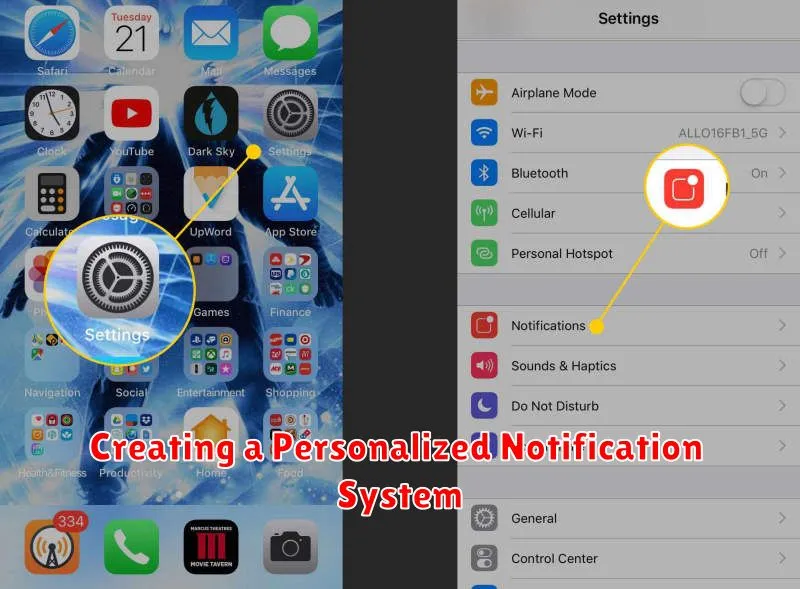
To manage notifications for a specific app, navigate to Settings > Notifications. Here, you’ll find a list of all your installed apps. Select the app whose notifications you wish to adjust.
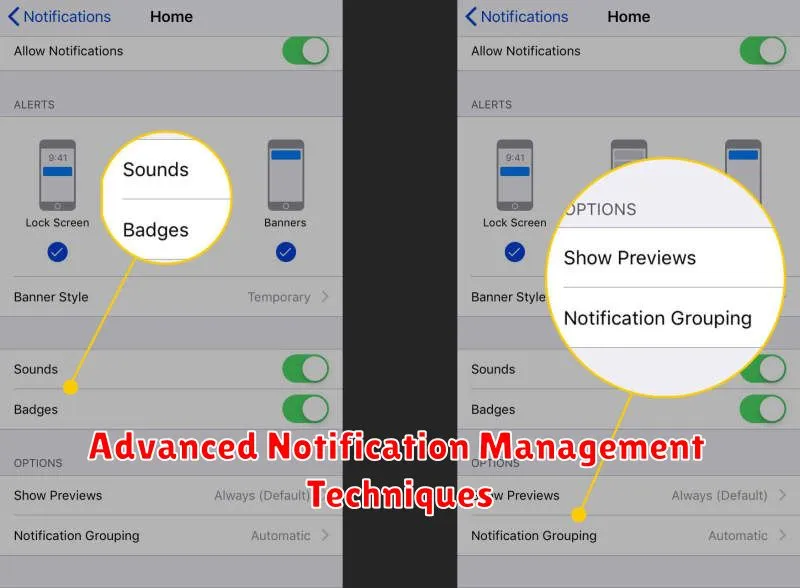
Within the app’s notification settings, you have several options. You can completely disable notifications using the “Allow Notifications” toggle. Alternatively, customize the notification style by choosing between banners, alerts, and sounds.
Further customization options include choosing whether notifications appear on your Lock Screen, Notification Center, and whether they include a preview of the message content. You can also enable or disable notification badges, which display a numbered icon on the app’s icon indicating the number of unread notifications.
Customizing Notification Alerts: Sounds, Banners, and Badges
Tailor your notification experience by customizing how alerts appear and sound. Sounds distinguish notifications from different apps, allowing you to identify their source without looking at your phone. Choose from a range of built-in sounds or even purchase new ones.
Banners provide a preview of the notification content at the top of your screen. Configure them to appear temporarily (Temporary Banners) or persist until dismissed (Persistent Banners). You can also disable banners altogether if you prefer a less intrusive notification style.
Badges are small red circles that appear on app icons, indicating the number of unread notifications. This visual cue offers a quick overview of pending alerts. You can choose to enable or disable badges on a per-app basis.
Using Focus Modes to Silence Notifications
Focus Modes on your iPhone offer a powerful way to silence notifications and minimize distractions based on your current activity. By creating customized Focus Modes, you can specify which apps and people are allowed to send notifications while others are silenced.
You can choose from pre-configured Focus Modes like “Do Not Disturb,” “Work,” “Personal,” or “Sleep,” or create your own custom Focus options. Within each Focus, you can fine-tune notification settings, allowing only essential communications to break through.
Activating a Focus Mode is simple and can be done through the Control Center or by scheduling them for specific times or locations. This allows you to seamlessly transition between different Focuses throughout your day, ensuring you stay focused on the task at hand.
Scheduling Downtime for Uninterrupted Periods
Downtime is a powerful feature designed to help you disconnect and minimize distractions. It silences all app notifications and calls, except those you specifically allow. This creates dedicated periods for focus, relaxation, or sleep.
To schedule Downtime, navigate to Settings > Screen Time > Downtime. Toggle Downtime on and set your desired Start and End times. These times will repeat daily.
While Downtime is active, your iPhone’s home screen will dim, and app icons will display an hourglass symbol. Attempting to open most apps will display a message indicating they are blocked by Downtime.
You can choose to Always Allow specific apps during Downtime. This is useful for essential communication or apps related to health or emergencies. To configure this, tap Always Allowed in the Downtime settings and select the desired apps.
Configuring Notification Settings for Privacy
Protecting your privacy is crucial in today’s digital world. Your iPhone’s notification settings play a key role in managing what information is visible on your lock screen. Taking control of these settings can prevent sensitive data from being displayed to prying eyes.
You can customize notification settings for each app individually. This allows you to prioritize which apps can display previews on your lock screen. For example, you might choose to show previews for messages from friends and family, but hide previews for work emails or banking apps.
To configure these settings, navigate to Settings > Notifications. From here, select the specific app you wish to adjust. You’ll find options to show or hide previews entirely, or to only show previews when your phone is unlocked.
Consider disabling notifications for sensitive apps altogether if you require a higher level of privacy. This will prevent any alerts from appearing on your lock screen, keeping your information secure.
Troubleshooting Common Notification Issues
Experiencing notification problems on your iPhone? Here are some common issues and their solutions:
Notifications Not Appearing
If you’re not receiving notifications, first ensure that Do Not Disturb is off. Check this in the Control Center or in Settings. Then, verify that notifications are enabled for the specific app. Navigate to Settings > Notifications and select the app. Ensure “Allow Notifications” is toggled on and your preferred alert styles (banners, sounds, badges) are selected.
Delayed Notifications
Check your internet connection. A weak or unstable connection can cause delays. Also, ensure Background App Refresh is enabled for the app in question. Find this in Settings > General > Background App Refresh.
Notification Sounds Not Working
Start by checking your ringer switch. If it’s on silent, notifications will not make a sound. Also, check the sound settings within the app’s notification settings. Make sure a sound is selected and the volume isn’t set too low. Finally, verify that your iPhone’s overall volume is sufficient.
Advanced Notification Management Techniques
Beyond basic notification settings, iOS offers advanced tools for refined control. Focus Modes allow you to create custom notification profiles for different situations like work, personal time, or driving. Within each Focus Mode, you can specify which apps and people can send notifications, ensuring minimal distractions during specific activities.
Notification Summary provides a curated digest of less time-sensitive notifications delivered at scheduled times. This helps avoid constant interruptions while still keeping you informed about less urgent updates. You can customize which apps are included in the Summary and choose delivery times that suit your schedule.
Leverage the Time Sensitive notification setting for crucial alerts that require immediate attention, bypassing Focus Modes or Summary deliveries. This ensures critical notifications, such as security alerts or important reminders, always reach you promptly.
Creating a Personalized Notification System
A truly personalized notification system goes beyond simply enabling or disabling alerts. It involves tailoring the delivery, appearance, and behavior of notifications to perfectly match your individual needs and preferences. This level of customization empowers you to stay informed without feeling overwhelmed.
Customizing Notification Delivery
Delivery method plays a key role in how quickly you notice a notification. Consider utilizing prominent banners for crucial alerts, while less urgent updates can be delivered subtly to your notification center. For certain apps, you might prefer a simple badge app icon, indicating pending notifications without immediate interruption.
Notification Sounds and Haptics
Sound and Haptics provide distinct sensory cues for different notifications. Assign unique sounds to specific contacts or apps to instantly recognize the source of an alert without looking at your phone. Similar customization can be applied to haptic feedback, offering a tactile way to distinguish between different notifications.
Utilizing Focus Modes
Leverage Focus modes to filter notifications based on your current activity. Create personalized Focus modes for work, personal time, sleep, and other scenarios, allowing only relevant notifications to come through during each designated period. This granular control ensures you stay focused and avoid distractions.
