
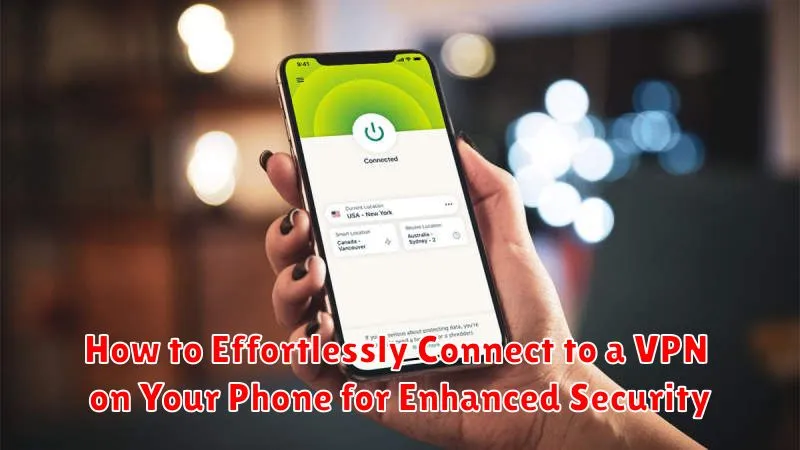
In today’s interconnected world, online security is paramount. Using a VPN, or Virtual Private Network, is a powerful and effortless way to enhance your security and privacy while using your phone. Whether you’re browsing on public Wi-Fi, accessing sensitive information, or simply want to keep your online activity private, a VPN provides a crucial layer of protection. This article will guide you through the simple steps to connect to a VPN on your phone, ensuring your mobile browsing is both secure and private.
Connecting to a VPN on your phone is easier than you might think. With just a few taps, you can establish a secure connection and enjoy the numerous benefits of a VPN, including enhanced security, increased privacy, and access to geo-restricted content. This comprehensive guide will cover various methods for setting up a VPN on your phone, regardless of your operating system, ensuring a smooth and effortless setup process. Learn how to connect to a VPN and take control of your online security today.
Understanding the Importance of a VPN on Your Phone
Using a VPN on your phone offers several critical security advantages. When you connect to public Wi-Fi, your data is vulnerable to interception. A VPN encrypts your internet traffic, creating a secure tunnel that shields your information from prying eyes. This prevents hackers from accessing your passwords, financial details, and other sensitive data.
Beyond security, a VPN also enhances your privacy. Your online activity is masked, preventing websites and apps from tracking your browsing habits and collecting personal information. This helps protect your digital footprint and prevents targeted advertising based on your online behavior.
VPNs can also bypass geo-restrictions. By connecting to a server in a different location, you can access content that might be blocked in your region. This is useful for accessing streaming services or websites that are unavailable in your current location.
Choosing the Right VPN for Your Needs
Selecting the right VPN involves considering several key factors. Your individual needs will determine which VPN best suits you.
Security and Privacy: Look for VPNs with strong encryption (like AES-256) and a no-logs policy. This ensures your data is protected and your online activity remains private.
Speed and Performance: A fast VPN is crucial for smooth browsing and streaming. Check for VPNs with a large server network and optimized protocols for speed.
Device Compatibility: Ensure the VPN is compatible with your phone’s operating system (Android or iOS). Check if the VPN provider offers a dedicated app for your device.
Cost: VPNs come in both free and paid versions. Free VPNs often have limitations on data usage and server access. Consider a paid VPN for better performance and features.
Customer Support: Reliable customer support is essential if you encounter any issues. Check if the VPN provider offers 24/7 support via email or live chat.
Step-by-Step Guide to Installing a VPN on Android
Installing a VPN on your Android device is a straightforward process. Follow these steps to enhance your mobile security:
1. Subscribe to a VPN Service
Select a reputable VPN provider and subscribe to their service. This usually involves creating an account and choosing a subscription plan.
2. Download the VPN App
Open the Google Play Store on your Android device. Search for your chosen VPN provider’s app and tap “Install”.
3. Open the VPN App and Sign In
Once the app is installed, open it. You’ll be prompted to sign in using the credentials you created when subscribing to the service.
4. Choose a Server Location
Most VPN apps will present you with a list of server locations. Select a server based on your needs. Factors to consider include speed and geographic location.
5. Connect to the VPN
Tap the “Connect” button within the app. The app will establish a connection to the selected VPN server.
Step-by-Step Guide to Installing a VPN on iOS
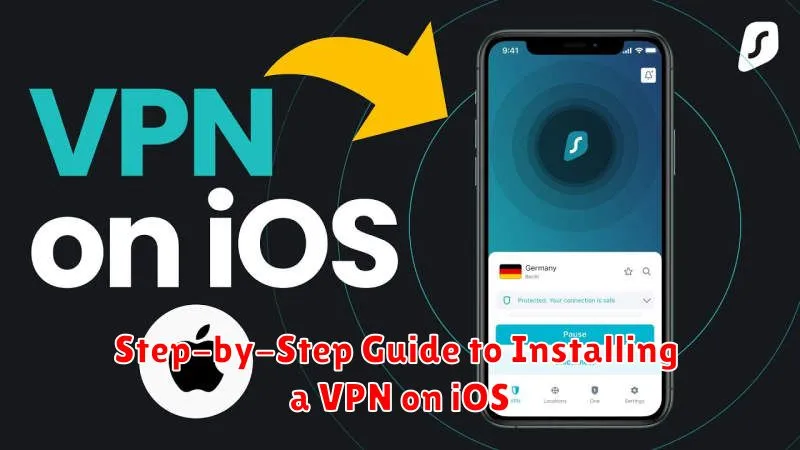
Installing a VPN on your iOS device is straightforward. Follow these steps for enhanced mobile security:
1. Subscribe to a VPN service: Research and choose a reputable VPN provider that meets your needs.
2. Download the VPN app: Open the App Store on your iPhone or iPad and search for your chosen VPN provider’s app. Download and install it.
3. Open the VPN app: Launch the app and follow the on-screen instructions to sign in with your VPN account credentials.
4. Grant permissions: The VPN app will request permission to add VPN configurations to your device. Allow this to enable the VPN connection.
5. Choose a server location: Most VPN apps offer a list of server locations. Select a server based on your needs (e.g., speed, location).
Connecting to Your VPN and Troubleshooting Common Issues
Once you’ve installed your chosen VPN, connecting is usually straightforward. Open the VPN app and tap the “connect” button. The app will typically notify you when the connection is established. You should see a VPN icon in your phone’s status bar, indicating an active connection.
Should you encounter issues, here are some common troubleshooting steps:
Common VPN Connection Issues and Solutions
- No Connection: Check your internet connection. Try disconnecting and reconnecting to your Wi-Fi or mobile data.
- Slow Speeds: Try connecting to a different VPN server location. Server load can affect speeds.
- App Conflicts: Certain apps might not function correctly with a VPN. Try temporarily disabling the VPN to see if it resolves the issue.
- Account Issues: Ensure your VPN subscription is active and you’re logged in correctly. Contact your VPN provider’s support if necessary.
If problems persist, consult your VPN provider’s documentation for specific troubleshooting steps or contact their support team. They can offer tailored assistance for your specific VPN and device.
Advanced VPN Settings for Enhanced Privacy
While basic VPN connection offers a good level of security, exploring advanced settings can significantly enhance your privacy. These settings allow for finer control over your connection and data flow.
Split Tunneling: This feature lets you choose which apps use the VPN connection and which apps use your regular internet connection. This can be beneficial for accessing local network devices while maintaining VPN protection for other activities.
Kill Switch: A kill switch is a crucial security feature. It blocks all internet traffic if the VPN connection drops unexpectedly, preventing your real IP address from being exposed.
Protocol Selection: Different VPN protocols offer varying levels of security and speed. OpenVPN and WireGuard are generally considered strong and reliable choices for enhanced privacy.
Custom DNS Servers: Utilizing custom DNS servers prevents your internet service provider from tracking your browsing history, adding another layer of privacy to your connection.
Key Benefits of Using a VPN on Your Mobile Device
Using a VPN on your mobile device offers several crucial advantages for security and privacy.
Public Wi-Fi Security: VPNs encrypt your data when connected to public Wi-Fi hotspots, shielding your information from potential hackers and eavesdroppers. This is particularly important when accessing sensitive data like online banking or email.
Data Privacy: A VPN masks your IP address, making it harder for websites and apps to track your online activity and location. This helps protect your privacy and prevents targeted advertising based on your browsing history.
Bypass Geo-Restrictions: Some websites and streaming services restrict content based on location. A VPN allows you to connect to servers in different countries, bypassing these restrictions and accessing a wider range of content.
Increased Security for Remote Work: When working remotely, a VPN adds an extra layer of security for accessing company resources and protecting sensitive data from potential threats.
