
Is your iPhone battery draining too quickly? Are you constantly searching for a charger? A healthy battery is essential for optimal iPhone performance. This guide will provide you with practical steps to maximize your iPhone’s battery life, starting with understanding how to check your iPhone’s battery health. Learn how to interpret the battery health data and identify potential issues that may be impacting your battery life. We’ll equip you with the knowledge to make informed decisions about battery maintenance and replacement.
Taking proactive steps to manage your battery health can significantly extend the lifespan of your iPhone’s battery. This comprehensive guide will delve into the key factors that influence battery performance, including usage habits, charging practices, and software updates. By implementing the strategies outlined in this article, you can maximize your battery life and enjoy uninterrupted usage of your iPhone. Whether you have a brand new iPhone or an older model, learning how to check and maintain your battery health is crucial for maximizing its lifespan.
Understanding iPhone Battery Health
Like all rechargeable batteries, your iPhone’s battery is a consumable component that chemically ages over time. This aging process naturally leads to a gradual reduction in its ability to hold a full charge. This is why you might notice your iPhone needing to be charged more frequently as it gets older.
Battery health is a measure of your battery’s current capacity relative to its original capacity when it was new. A brand new iPhone has 100% battery health, indicating its full capacity. As the battery chemically ages, this percentage will decrease. This decrease is normal and expected.
Several factors influence how quickly a battery ages. These factors include charging habits, temperature exposure, and the overall usage patterns of the device.
Accessing Battery Health Information in Settings
Checking your iPhone’s battery health is straightforward. Follow these steps to access the relevant information:
- Open the Settings app on your iPhone.
- Scroll down and tap on Battery.
- Tap on Battery Health & Charging.
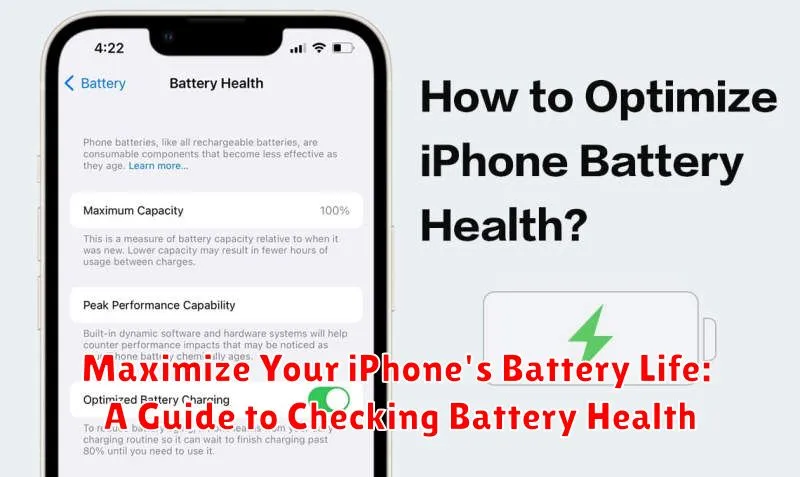
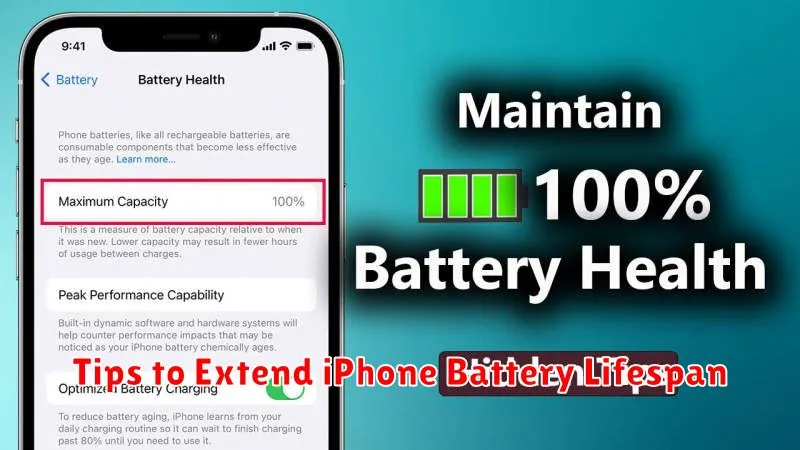
On this screen, you’ll find key details about your battery’s condition. This includes the Maximum Capacity percentage, which indicates the battery’s current capacity relative to when it was new. A lower percentage suggests the battery holds less charge than it used to.
You’ll also see Peak Performance Capability information. This section lets you know if your battery is currently supporting normal peak performance or if performance management features have been applied due to battery degradation. It will provide details if any performance limitations are active.
Interpreting Battery Health Metrics
Your iPhone’s Battery Health screen provides key metrics to understand your battery’s condition. The most important metric is Maximum Capacity. This percentage indicates the battery’s current capacity relative to when it was new. A higher percentage means the battery can hold a closer charge to its original design. For example, 95% means your battery holds 95% of the charge it could when new.
Peak Performance Capability is another important indicator. If your battery is operating at normal peak performance, you’ll see a message confirming this. However, if the battery has degraded significantly, a message might appear indicating that performance management features have been applied or dynamically applied to prevent unexpected shutdowns. This typically involves throttling the processor, which can result in slower app launches, lower frame rates, and reduced overall performance.
Finally, if your battery is experiencing a significant issue, you might see a message recommending service. This indicates the battery needs to be replaced for optimal performance.
Factors Affecting iPhone Battery Health
Several factors contribute to the degradation of an iPhone’s battery health over time. Understanding these factors can help you take proactive steps to maximize your battery’s lifespan.
Temperature
Extreme temperatures, both hot and cold, can significantly impact battery performance and longevity. High temperatures can accelerate the chemical aging process within the battery. Conversely, very cold temperatures can temporarily reduce battery capacity.
Charging Habits
Frequently letting your iPhone’s battery completely discharge or keeping it at 100% charge for extended periods can also strain the battery. Partial charging cycles are generally recommended instead of full charge-discharge cycles.
Software and Usage
Demanding applications, high screen brightness, and continuous usage contribute to faster battery drain and can impact long-term battery health. Software updates can sometimes optimize power consumption, so keeping your iPhone’s software up-to-date is beneficial.
Tips to Extend iPhone Battery Lifespan
Optimize Display Settings: Lowering screen brightness significantly impacts battery life. Enable Auto-Brightness to adjust dynamically based on ambient light. A shorter Auto-Lock time also helps conserve power.
Manage Background App Activity: Limit background app refresh for non-essential apps. This prevents them from constantly consuming power. You can find these settings in Background App Refresh within the General settings.
Leverage Low Power Mode: Activate Low Power Mode when battery life is dwindling. This temporarily reduces background activity, visual effects, and data usage to maximize battery performance.
Control Location Services: Be mindful of which apps have access to your location. While some require constant access, others can function effectively with “While Using” or “Never” permissions, conserving battery power.
Mindful Charging Practices: Avoid extreme temperatures while charging. Charging overnight is generally fine with optimized battery charging features, but partial charging throughout the day is also acceptable and won’t damage the battery.
When to Replace Your iPhone Battery
Knowing when to replace your iPhone battery is crucial for maintaining optimal device performance. Several key indicators can help you determine if it’s time for a new battery.
Performance Issues
If you experience unexpected shutdowns, especially during cold weather or when your battery percentage is relatively high, it’s a strong sign of battery degradation. Slow app launches and sluggish overall performance are also common symptoms.
Battery Health Percentage
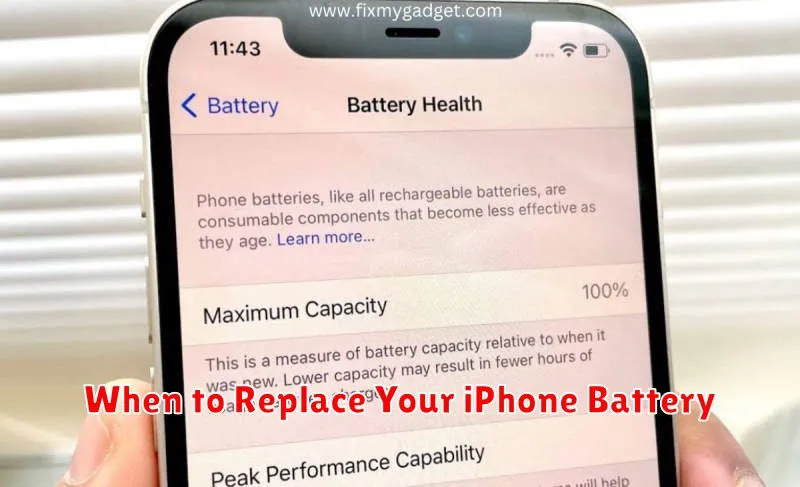
Your iPhone provides a convenient way to check battery health in Settings. A significantly reduced maximum capacity (e.g., below 80%) often suggests the need for a replacement. Peak Performance Capability messages may also appear, indicating your battery is struggling to deliver the required power.
Physical Battery Changes
Although less common, physical changes like swelling or bulging can be clear indicators of a damaged battery requiring immediate replacement. Do not attempt to use a phone with a swollen battery, as this poses a safety risk.
Authorized Service Providers for Battery Replacement
For reliable and safe iPhone battery replacements, utilizing an authorized service provider is highly recommended. Apple Stores and Apple Authorized Service Providers use genuine Apple parts and follow Apple’s repair procedures. This ensures proper installation and maintains your warranty coverage.
Choosing an unauthorized repair shop might seem cost-effective initially, however, it can lead to complications. Non-genuine batteries can have unpredictable performance and may even pose a safety hazard. Furthermore, using unauthorized services may void your warranty, resulting in higher costs down the line should any other issues arise.
To locate an authorized service provider in your area, you can visit Apple’s website and use their official provider locator. This tool will provide you with a list of certified locations near you, including contact information and directions.
Common Battery Myths Debunked
Several myths circulate regarding iPhone battery usage. Let’s clarify some common misconceptions.
Myth 1: Closing apps saves battery.
Contrary to popular belief, force-closing apps does not significantly improve battery life. iOS efficiently manages background processes. Force-closing actually uses more power in the long run, as the system has to relaunch the app from scratch.
Myth 2: You must fully discharge your battery before recharging.
Modern lithium-ion batteries do not suffer from the “memory effect” of older battery technologies. It’s perfectly acceptable, and even recommended, to charge your iPhone whenever convenient, even if it’s not fully depleted.
Myth 3: Using your phone while charging damages the battery.
While excessive heat can degrade battery health, using your phone while charging is generally safe. Apple designs its devices and charging systems with this in mind. Simply avoid covering your phone while it charges, as this can trap heat.
