
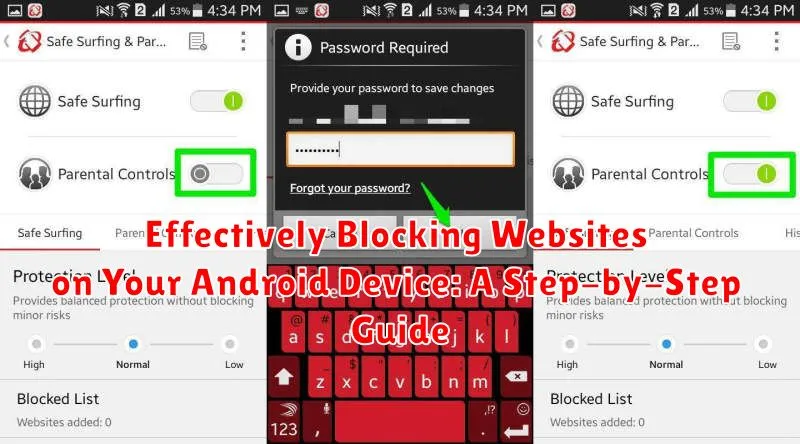
In today’s digital age, managing distractions and maintaining focus is crucial, especially on our mobile devices. Blocking websites on your Android device can be an effective method for increasing productivity, limiting access to inappropriate content, or simply curbing excessive internet usage. This comprehensive, step-by-step guide provides several methods for effectively blocking websites on your Android phone or tablet, catering to various user needs and technical skill levels. Whether you’re seeking to block distracting websites, protect children from harmful content, or enforce responsible internet usage, this guide offers valuable solutions for establishing website blocks on your Android device.
From leveraging built-in Android features and utilizing specialized apps to modifying your router settings, we will explore a range of techniques for blocking websites. We’ll delve into the advantages and disadvantages of each method, empowering you to choose the most suitable approach for your specific requirements. Learn how to block websites on Android effortlessly and take control of your digital environment. This guide provides you with the tools and knowledge you need to create a more focused and productive online experience, tailored to your individual preferences.
Why Block Websites on Android?
Managing access to specific websites on your Android device can be crucial for various reasons, contributing to a more focused and productive digital experience. Whether for personal use or for managing a child’s device, website blocking offers several key advantages.
Enhanced Productivity: Distracting websites can significantly impact productivity. By blocking access to social media, gaming sites, or other time-consuming platforms, you can create a more focused environment for work, study, or other important tasks.
Limiting Exposure to Inappropriate Content: For parents, blocking certain websites is essential for safeguarding children from inappropriate or harmful content. This can include websites with adult themes, violence, or other unsuitable material.
Privacy and Security: Blocking websites known for phishing scams, malware distribution, or other security threats can help protect your personal information and device security. This proactive approach minimizes the risk of encountering harmful online content.
Managing Data Usage: Some websites, especially those with heavy media content, can consume a significant amount of data. Blocking these sites can help manage data usage, especially if you have a limited data plan.
Reducing Procrastination: Blocking websites that facilitate procrastination can encourage healthier digital habits and promote more productive time management.
Using the Digital Wellbeing Feature for Website Blocking
Android’s Digital Wellbeing feature offers a built-in way to manage app usage and can also be utilized for website blocking. This method is particularly effective for controlling access to distracting websites on Chrome or other supported browsers.
Step 1: Open your device’s Settings app.
Step 2: Locate and select “Digital Wellbeing & parental controls.”
Step 3: Tap on the “Focus mode” option.
Step 4: Choose a focus mode or create a custom one.
Step 5: In the selected focus mode, under “Apps,” find and select the browser you wish to restrict (e.g., Chrome).
Step 6: Once the browser is selected within the focus mode, activate the focus mode. This will block access to all websites through that specific browser while the mode is active.
Blocking Websites Through Your Router
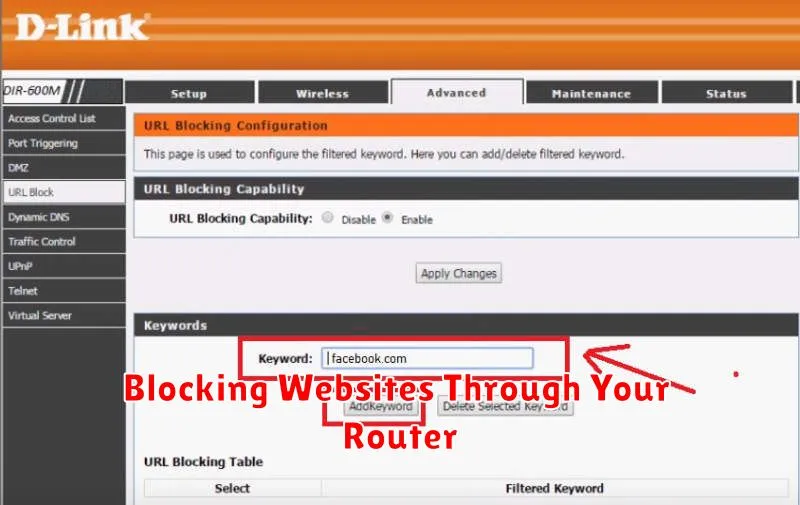
Blocking websites at the router level offers a comprehensive solution, preventing access from all devices connected to your Wi-Fi network, including your Android devices. This method is particularly useful for managing website access for children or for increasing productivity by limiting distractions.
The process for blocking websites via your router varies depending on the manufacturer and model. Generally, you will need to access your router’s settings by entering its IP address (often 192.168.1.1 or 192.168.0.1) into your web browser. Look for sections like “Security,” “Parental Controls,” “Website Filtering,” or “Access Restrictions.”
Within these settings, you should find options to block specific websites by entering their URLs or keywords. Some routers allow for scheduling website blocks, restricting access during specific times of the day. Refer to your router’s documentation for specific instructions on how to configure website blocking.
Using Third-Party Apps for Website Blocking
Several third-party apps available on the Google Play Store offer website blocking functionality. These apps often provide greater flexibility and advanced features compared to built-in methods. They can be particularly useful for managing distractions, enforcing parental controls, or increasing productivity.
When choosing an app, consider features like: website blocking by keyword, scheduling, app blocking, and reporting. Some apps may offer subscription services for premium features.
Installation and Setup:
- Search the Google Play Store for “website blocker” or “app blocker.”
- Read reviews and choose a reputable app that meets your needs.
- Download and install the app.
- Follow the app’s instructions to grant necessary permissions and configure your blocked website list.
Important Considerations: Be mindful of the permissions requested by these apps. Ensure the app is from a trusted source and has positive reviews to avoid potential privacy concerns.
Editing the Hosts File to Block Websites
Editing the hosts file offers a technical method for blocking websites directly on your device. This approach requires root access and a file manager app capable of accessing system files. Proceed with caution, as incorrect modifications to the hosts file can impact network connectivity.
The hosts file essentially maps domain names (like google.com) to IP addresses. By redirecting the unwanted website’s domain to a different IP address (such as 127.0.0.1, the local loopback address), you effectively prevent your device from accessing it.
The process involves locating the hosts file (typically located at /system/etc/hosts), making a backup copy, and then editing the original file. Add lines in the format 127.0.0.1 website.com, replacing website.com with the domain you wish to block. Save the changes, and the block should be active.
While powerful, this method requires technical proficiency and can be undone by factory resetting the device. It’s a more advanced approach best suited for users comfortable navigating system files.
Browser-Specific Website Blocking Options
Certain Android browsers provide built-in features or extensions to block websites directly. This offers a degree of control without needing separate apps. Note that effectiveness depends on the browser and the user’s technical proficiency.
Blocking in Firefox Focus (Android)
Firefox Focus, a privacy-focused browser, offers a simple blocking option. Navigate to Settings > Content Blocking. Select Custom and add the websites you want to block.
Using BlockSite Extension (Firefox, Chrome, others)
The BlockSite extension is available for several browsers, including Firefox and Chrome on Android. Install the extension and configure it to block specific websites or categories of content. This method is typically effective but relies on the extension remaining active.
Built-in Options (Limited)
Some browsers may offer limited built-in blocking features within their settings. These features, if present, are usually less comprehensive than dedicated extensions or apps, and may only block certain types of content rather than specific websites. Check your browser’s settings for these options. They may be labeled as “Content Blocking,” “Privacy,” or similar.
Managing Blocked Websites and Exceptions
After implementing website blocks, you might need to adjust them over time. This section details how to manage your blocked websites and create exceptions.
Viewing Blocked Websites: The method for viewing your blocked website list varies depending on the blocking method used. Browser-based methods usually offer a direct list within the browser’s settings. For apps or host file modifications, review the app’s interface or the edited file directly.
Unblocking Websites: To unblock a website, simply reverse the blocking process. If you used a browser’s built-in feature, disable the block for the specific site. If you used an app, remove the site from the app’s blacklist. For host file modifications, delete the corresponding entry.
Creating Exceptions: Some blocking methods allow exceptions. This means you can block a website generally but allow access to specific subpages or sections. Check your chosen blocking method’s documentation for information on setting up these exceptions. This feature offers granular control over access, helpful for educational or work-related needs.
Parental Control Apps for Website Blocking on Android
For more comprehensive website blocking and content filtering, especially for children’s devices, parental control apps offer a robust solution. These apps provide a range of features beyond simple website blocking, including screen time management, app usage monitoring, and location tracking.
Several popular parental control apps are available on the Google Play Store, each offering varying features and pricing. Research and compare different apps to find the one that best suits your needs. Key features to consider include website blocking capabilities, ease of use, and compatibility with your child’s device.
Installation and setup usually involve creating an account, installing the app on both the parent’s and child’s devices, and configuring the desired settings. Most apps provide intuitive interfaces for managing blocked websites and setting up filtering rules.
