
Losing your iPhone data can be a devastating experience. From precious photos and videos to important contacts and messages, the information stored on our devices is often irreplaceable. That’s why creating a robust and reliable iPhone backup is absolutely essential. This Ultimate iPhone Backup Guide will provide you with a comprehensive understanding of the various backup methods available, ensuring your data security and peace of mind. We’ll explore the intricacies of iCloud backups, iTunes backups (now Finder backups on macOS Catalina and later), and other effective backup strategies to help you choose the best solution for your needs. Whether you’re looking to backup contacts, backup photos, or secure all of your iPhone data, this guide has you covered.
This guide will walk you step-by-step through the process of creating and managing your iPhone backups. We’ll cover everything from setting up automatic backups to restoring your data from a backup in the event of data loss or a new device setup. You will learn how to encrypt your backups for added security, choose which data to include in your backups, and troubleshoot common backup issues. By the end of this Ultimate iPhone Backup Guide, you’ll have the knowledge and confidence to protect your valuable iPhone data and ensure it remains safe and sound.
Different Backup Methods for Your iPhone
Safeguarding your iPhone’s data is crucial. Fortunately, Apple provides a couple of robust methods to ensure your information is securely backed up. Choosing the right method depends on your preferences and access to resources.
The primary backup methods are iCloud Backup and computer backups (using Finder or iTunes). Each has its own advantages. iCloud Backup offers the convenience of automatic, wireless backups, while computer backups provide faster backup and restore speeds and don’t rely on internet connectivity or iCloud storage limits.
Selecting the appropriate method involves considering factors like available storage space, internet access, and the frequency with which you want to back up your device. Understanding the distinctions between these methods will empower you to choose the best solution for your needs.
iCloud Backup: Easy and Automatic
iCloud Backup offers a seamless and largely automated way to safeguard your iPhone data. With iCloud, your iPhone can back up wirelessly and automatically when it’s connected to power, locked, and on Wi-Fi. This ensures your data is regularly protected without any manual intervention.
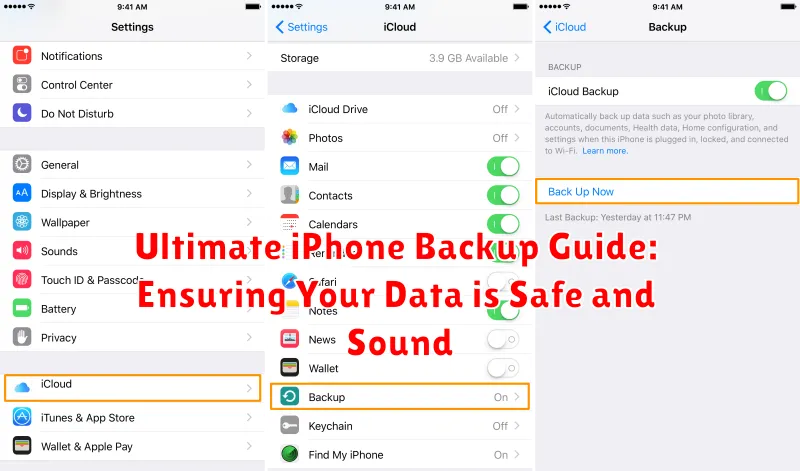
Setting up iCloud Backup is simple. Navigate to Settings, tap on your Apple ID banner at the top, select iCloud, and then tap on iCloud Backup. Toggle iCloud Backup to the on position. Apple provides 5GB of free iCloud storage. If you require more space for backups, photos, videos, and other files, you can purchase a larger iCloud storage plan.
iCloud backups include a wealth of essential data, such as device settings, app data, photos and videos stored in your iCloud Photo Library, message history, ringtones, visual voicemail, home screen and app organization, health data, and purchase history from Apple services. This ensures that if your device is lost, stolen, or damaged, you can restore this information to a new or repaired device.
Backing Up Your iPhone to Your Computer
Backing up your iPhone to a computer offers a fast and secure alternative to iCloud, especially beneficial for users with limited or no internet access. This method utilizes either Finder (macOS Catalina and later) or iTunes (macOS Mojave and earlier, and Windows).
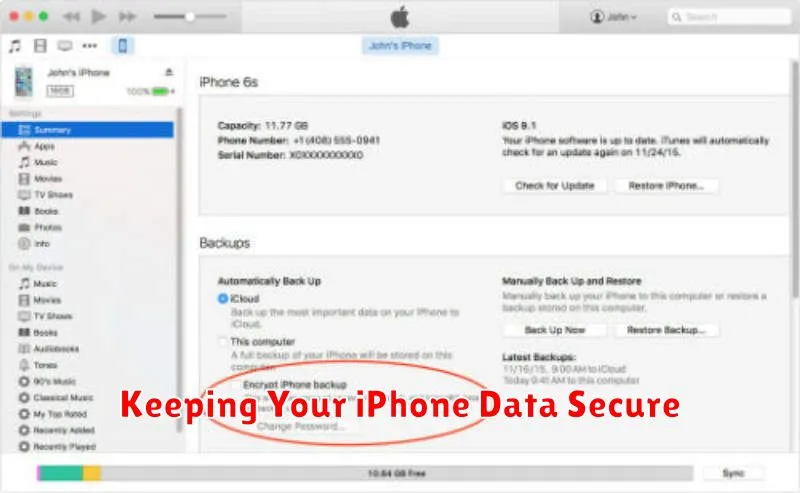
Connect your iPhone to your computer using a USB cable. Your device should appear in Finder or iTunes. Select your device and locate the Backups section. Choose to back up to “This Computer” for a full, local backup. You can also encrypt your backup by selecting “Encrypt local backup” and setting a password. Encryption is highly recommended as it protects sensitive data like health information and saved passwords.
Click “Back Up Now” to initiate the backup process. The time required depends on the amount of data on your iPhone. Keep your device connected until the process completes.
What Data is Included in an iPhone Backup?
Understanding what data is included in your iPhone backup is crucial for a successful restore. Backups generally encompass a wide range of data, ensuring your device can be restored to a near-identical state. However, some items are specifically excluded due to size or security concerns.
Included Data: iPhone backups typically save device settings, app data, photos and videos stored on the device, purchase history from Apple services (such as apps, music, and movies), message history, visual voicemail, home screen and app organization, and other system data. This comprehensive approach allows you to regain access to your personalized settings and content upon restoring.
Excluded Data: Certain data is not included in backups. This typically includes data already stored in iCloud, such as iCloud Photos, contacts, calendars, and Keychain data. Downloaded content like Apple TV shows, movies, and music, as well as books and podcasts, aren’t directly saved but can be re-downloaded from their respective services using your Apple ID. Face ID or Touch ID settings are also excluded for security reasons.
Restoring Your iPhone from a Backup
Restoring your iPhone returns it to a previous state, using data saved in a backup. This process is crucial for retrieving information after data loss, upgrading to a new device, or resolving software issues.
There are two primary ways to restore your iPhone: from an iCloud backup or from a computer backup.
Restoring from iCloud
When setting up a new or erased iPhone, choose the option to restore from iCloud. You’ll need to sign in with your Apple ID and select the relevant backup. Ensure a stable Wi-Fi connection as this process can take time depending on the backup size.
Restoring from a Computer
Connect your iPhone to the computer containing your backup. Open Finder (macOS Catalina or later) or iTunes (earlier macOS versions and Windows). Locate your device, and choose the “Restore Backup” option. Select the desired backup and allow the process to complete. Do not disconnect your iPhone until the restoration is finished.
After restoring, your iPhone will restart and display the data from the selected backup.
Troubleshooting Common iPhone Backup Issues
Encountering problems while backing up your iPhone? Here are some common issues and their solutions:
“Not Enough Storage” Message
If you see this message, you likely need to free up space in your iCloud storage or on your computer. Check your iCloud storage plan and consider upgrading if needed. For local backups, ensure sufficient free space on your computer’s hard drive. Deleting old backups can also free up space.
Backup Process Freezes or is Unusually Slow
A slow or frozen backup can indicate a software glitch or a connection problem. Try restarting your iPhone and computer. Ensure a stable Wi-Fi connection for iCloud backups or a secure USB connection for local backups. Updating to the latest version of iOS and iTunes/Finder can also resolve such issues.
“Unknown Error” Message
An unknown error message often requires more investigation. Try a different USB cable or port. If the issue persists, check Apple’s support website for specific error codes or contact Apple support directly.
Best Practices for iPhone Backup
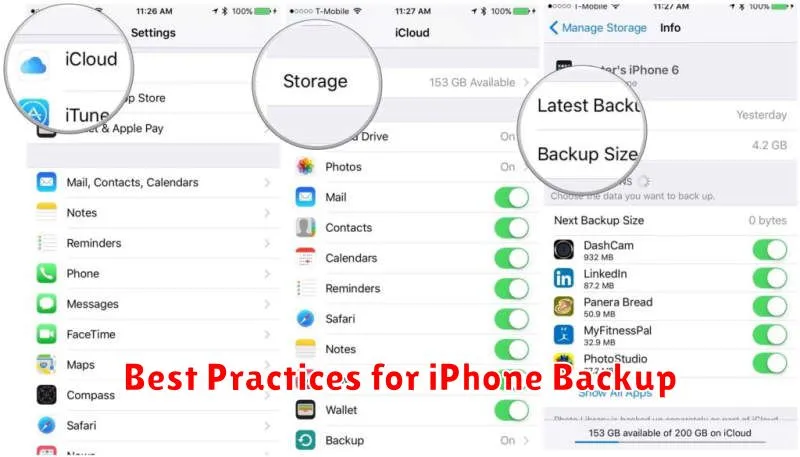
Regular backups are crucial for safeguarding your iPhone data. Consistency is key. Aim for backing up your device at least once a week, or even daily if you frequently create or modify important data.
Choose the backup method that best suits your needs. iCloud backups offer automatic, wireless convenience. However, computer backups (via Finder or iTunes) provide faster backup and restore speeds, especially for large amounts of data.
Ensure your backups are encrypted to protect sensitive information. This is especially important for iCloud backups. Encryption adds a layer of security by requiring a password to access the backed-up data.
Periodically verify your backups. Restoring a small portion of data from your backup can confirm its integrity and ensure it contains the information you expect.
Keeping Your iPhone Data Secure
Securing your iPhone backups is crucial for protecting your personal information. Strong passwords are the first line of defense. Use a unique, complex password for your Apple ID and computer login if you use iTunes for backups. Enable two-factor authentication for your Apple ID for added security.
Encryption adds another layer of protection. iCloud backups are encrypted by default. For iTunes backups, select the “Encrypt local backup” option and set a strong password different from your computer login. Remember, if you forget this password, your backup is inaccessible.
Physical security matters too. Keep your computer locked when not in use, and consider using full-disk encryption on your hard drive. For additional security, consider using a trusted security software solution on your computer.
