
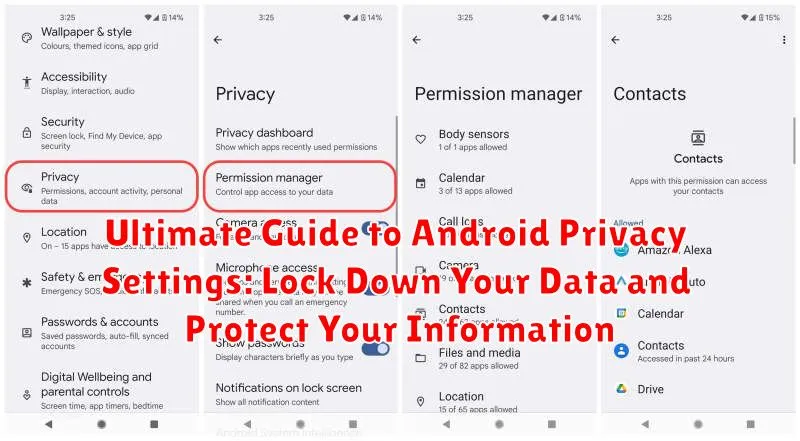
In today’s interconnected world, privacy has become paramount, especially on our mobile devices. Android, being the most popular mobile operating system globally, holds a vast amount of personal information. This Ultimate Guide to Android Privacy Settings provides a comprehensive overview of how to lock down your data and protect your information. From granular control over app permissions to securing your device with robust authentication, this guide will empower you to take control of your Android privacy and navigate the digital landscape with confidence. Understanding and utilizing these privacy settings is crucial to safeguarding your sensitive data from potential threats and ensuring a secure mobile experience.
This guide delves deep into the essential Android privacy settings, offering practical tips and step-by-step instructions to optimize your data protection. Whether you’re concerned about app permissions, location tracking, data sharing, or securing your device against unauthorized access, this resource will equip you with the knowledge and tools to effectively manage your Android privacy. Learn how to configure privacy controls for individual apps, manage your Google account privacy settings, and leverage built-in security features to enhance your overall mobile security posture. Mastering these privacy settings is essential for every Android user seeking to protect their personal information in the digital age.
Navigating the Android Privacy Settings Menu
Accessing your Android privacy settings is the first step towards taking control of your data. While the exact path may vary slightly depending on your device’s manufacturer and Android version, the general process remains consistent. Start by opening the Settings app on your device. You can typically find this app in your app drawer or by pulling down the notification shade and tapping the gear icon.
Once inside the Settings app, look for an option labeled Privacy or Security & privacy. Tap on this option to enter the main privacy hub. Within this menu, you’ll find a variety of categories related to different aspects of your privacy, such as app permissions, location services, lock screen settings, and more. Familiarizing yourself with the layout of this menu is essential for effectively managing your privacy preferences.
Within each category, you’ll find granular controls that allow you to customize your settings. Take some time to explore each section and understand the implications of the different options available. By understanding the organization and functions within the privacy settings menu, you can confidently tailor your device’s behavior to align with your individual privacy needs.
Controlling App Permissions for Enhanced Security
App permissions control what data and functionalities each app on your device can access. Managing these permissions is crucial for maintaining your privacy and security. Granting unnecessary permissions can expose your personal information to potential risks.
Android’s permission system allows you to review and modify access for each app individually. You can choose to grant or deny permissions such as access to your camera, microphone, contacts, location, and storage.
To manage app permissions, navigate to the App Permissions section within your phone’s settings. Here, you can see a categorized list of permissions and which apps have access to each. Review these permissions carefully and revoke access for any apps that you believe shouldn’t have it. Consider the function of each app and whether the requested permissions are necessary for its core functionality.
Regularly reviewing app permissions is a good security practice. New permissions may be requested when apps update, so it’s essential to stay informed and in control of what your apps can access.
Managing Location Services and Protecting Your Privacy
Location services, while convenient, can pose a privacy risk. Android provides granular control over which apps can access your location and when.
Access location settings by going to Settings > Location. Here, you can completely disable location services or customize them per app. Consider which apps genuinely require location access to function and revoke permissions for those that don’t.
Within location settings, you’ll find several important options. Location accuracy allows you to balance accuracy with battery life. Choosing a lower accuracy setting can help conserve power while still providing general location information.
You can also control the Location history stored by Google. This feature keeps a record of the places you’ve visited. While helpful for some services, you can choose to pause or delete this history to enhance your privacy.
Pay close attention to the App location permissions section. Here, you can individually manage location access for each installed app. Choose from options like “Allow all the time,” “Allow only while using the app,” or “Don’t allow.” Carefully consider each app’s function before granting location access.
Securing Your Lock Screen and Protecting Sensitive Data
Your lock screen is the first line of defense against unauthorized access. Strengthening it is crucial for protecting your data. Android offers a range of lock screen options, from simple patterns and PINs to more secure methods like passwords and biometric authentication (fingerprint, facial recognition).
Navigate to your device’s Security settings to configure your lock screen. Choose a strong password or PIN, avoiding easily guessable sequences. Consider enabling biometric authentication for added convenience and security, if available on your device.
Further enhance your lock screen security by adjusting the lock timer. A shorter timer ensures your device locks quickly after inactivity, minimizing the window of vulnerability. You can also control the information displayed on the lock screen, such as notifications. Limiting sensitive information visible on the lock screen prevents unauthorized viewing of private data.
Finally, explore options like “Lockdown Mode” (if available on your device). This feature disables biometrics and notifications on the lock screen, providing an extra layer of security in specific situations.
Utilizing Privacy Features like Incognito Browsing and Private DNS
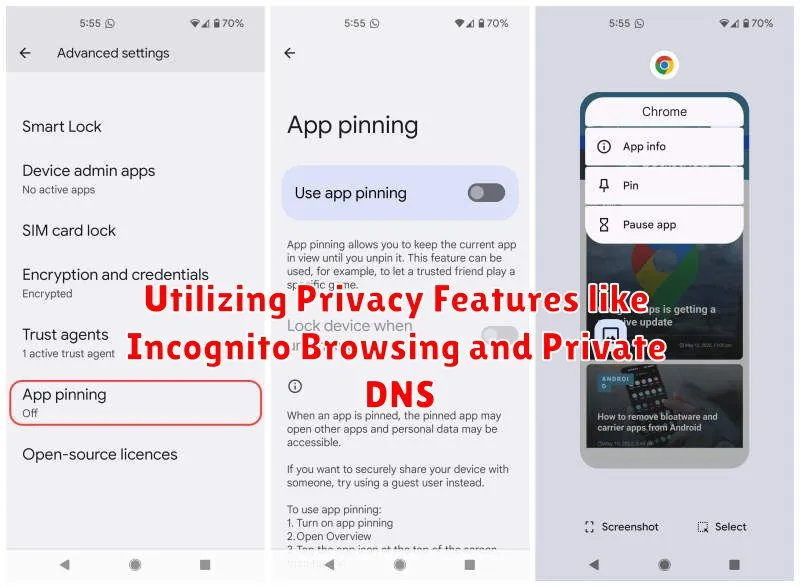
Beyond app permissions and location services, Android offers other privacy-enhancing features like incognito browsing and Private DNS.
Incognito Browsing
Incognito mode, available in most mobile browsers, prevents your browsing history, cookies, and site data from being saved on your device. This is useful for preventing tracking and keeping your browsing activity private, especially on shared devices. Remember, incognito mode doesn’t make you anonymous online.
Private DNS
Private DNS provides a more secure way to resolve domain names by using an encrypted connection to a DNS server. This helps prevent eavesdropping and manipulation of DNS data. You can configure Private DNS in your network settings by specifying a hostname of a trusted Private DNS provider.
Protecting Your Data with Encryption and Backup Options
Encryption is a fundamental step in safeguarding your Android device. It scrambles your data, making it unreadable without the decryption key, typically your PIN, password, or pattern. This protects your information if your device is lost or stolen.
To enable encryption, navigate to your device’s Security settings. The exact location may vary depending on your Android version and manufacturer. Look for an option like “Encrypt phone” or “Encrypt device.” Be aware that the initial encryption process can take some time, so ensure your device is fully charged.
Backing up your data is crucial for recovery in case of device failure or data loss. Android offers several backup options:
- Google Drive backup: This option backs up your app data, device settings, call history, text messages, and photos and videos to your Google account.
- Local backups: Some manufacturers offer local backup solutions to your device’s internal storage or an SD card.
Regularly backing up your data ensures you can restore your information to a new device or after a factory reset. Choose the backup method that best suits your needs and remember to perform backups frequently.
Advanced Privacy Settings for Enhanced Protection
Beyond the basic privacy settings, Android offers granular control over app permissions and data access. App Permissions are crucial for managing which apps can access specific features like your location, camera, and microphone. Regularly review these permissions by navigating to Settings > Apps and selecting individual apps.
Privacy Dashboard (available on Android 12 and later) provides a comprehensive overview of app access to sensitive permissions over the past 24 hours. This allows you to quickly identify and revoke unnecessary permissions.
Google Play Protect scans apps for malicious behavior. Ensure this feature is enabled in the Play Store settings to protect your device from potentially harmful apps. Find My Device allows you to locate, lock, or erase your device remotely in case of loss or theft. Activate this feature in your security settings.
Staying Up-to-Date with Security Patches and Updates
Maintaining up-to-date security patches is crucial for a secure Android experience. Regular updates patch vulnerabilities and protect against emerging threats. Failing to update your device leaves you exposed to potential exploits.
Most Android devices notify you of available updates. You can also manually check by navigating to Settings, then System, and finally System update. Promptly install any available updates.
The frequency of updates depends on your device manufacturer and your mobile carrier. Google Pixel devices typically receive updates directly from Google and are among the first to receive them. Other manufacturers may have different update schedules.
Consider enrolling in beta programs (if available for your device) for earlier access to updates, but be aware these may introduce temporary instability. Regardless of your update approach, keeping your system current is paramount to Android security.
