
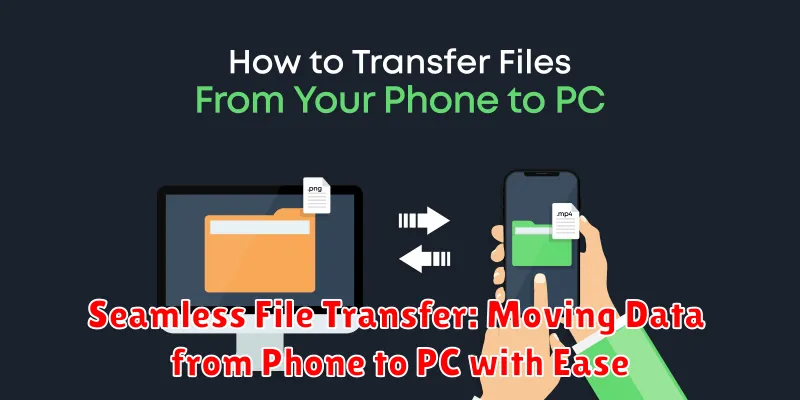
Transferring files between your phone and PC can often be a cumbersome process. Whether you’re dealing with photos, videos, documents, or other important data, the need for seamless file transfer is paramount in today’s interconnected world. This article explores efficient and user-friendly methods to achieve seamless data transfer between your phone and PC, eliminating the frustration of tangled wires and complicated procedures. Learn how to move your data from phone to PC with ease, streamlining your workflow and ensuring a smooth transfer experience.
Choosing the right method for file transfer depends on various factors, including the operating systems of your devices, the size of the files being transferred, and your personal preferences. From utilizing cloud storage services to leveraging dedicated file transfer applications and exploring built-in OS features, numerous options exist to facilitate seamless transfer of your data from phone to PC. This guide will delve into the most effective strategies, providing step-by-step instructions and highlighting the advantages and disadvantages of each, allowing you to choose the best solution for your seamless file transfer needs.
Preparing Your Phone and PC for File Transfer
Before initiating the transfer, ensure both your phone and PC are adequately prepared. This involves a few key steps to ensure a smooth and efficient process.
Checking Cable and Ports
Firstly, inspect the USB cable you intend to use. Ensure it is free from damage and compatible with both devices. A faulty cable can disrupt the connection and hinder the transfer. Verify the USB ports on both your phone and PC are functioning correctly.
Unlocking Your Phone
Unlock your phone. A locked phone may restrict access to its file system, preventing the PC from recognizing and interacting with it. Ensure the phone remains unlocked throughout the transfer process.
Enabling File Transfer Mode
Most phones require you to select a specific USB connection mode for file transfers. This is typically accessed through a notification that appears upon connecting the USB cable. Choosing the correct mode (often labeled “File Transfer” or “MTP”) is crucial for successful data transfer.
Connecting Your Phone to Your PC via USB
Connecting your phone and PC using a USB cable is a reliable and often fast method for file transfer. Begin by locating a compatible USB cable. Most modern Android phones use USB-C, while iPhones use Lightning. Your PC likely has both USB-A and USB-C ports.
Plug one end of the cable into your phone and the other into an available USB port on your computer. Your phone may prompt you to select a USB connection mode. Choose the “File Transfer” or “Data Transfer” option (the wording may vary slightly depending on your phone’s operating system).
This mode allows your computer to access your phone’s internal storage as if it were an external drive. If the connection is successful, a notification may appear on your computer indicating a new device has been connected. You are now ready to begin transferring files between your devices.
Exploring Different File Transfer Methods
Several methods facilitate seamless file transfer between your phone and PC. Choosing the right one depends on factors like file size, frequency of transfer, and available resources. Let’s explore some common options:
USB Connection
Directly connecting your phone to your PC via USB is a reliable and generally fast method, especially for larger files. This method often involves using your operating system’s file explorer to navigate and transfer files.
Bluetooth
Bluetooth offers a wireless transfer option, convenient for smaller files like photos or documents. While easier to set up than other wireless methods, Bluetooth transfer speeds are generally slower than USB or Wi-Fi.
Wi-Fi Transfer
Leveraging your local Wi-Fi network can offer faster wireless transfer speeds compared to Bluetooth. Several apps and built-in phone features facilitate Wi-Fi transfers, allowing you to move data wirelessly without needing a physical cable.
Cloud Storage Services
Cloud services like Google Drive, Dropbox, and OneDrive provide another convenient option. Uploading files to the cloud from your phone and then downloading them on your PC (or vice versa) offers platform independence and accessibility from anywhere with an internet connection.
Transferring Files Using File Explorer or Finder
File Explorer (Windows) and Finder (macOS) offer a direct method for transferring files once your phone is connected to your PC. After establishing the connection, your phone should appear as a device within the file management system.
In File Explorer, navigate to “This PC” and locate your phone listed among the devices and drives. Clicking on your phone’s icon will display its internal storage and any external SD cards. You can then browse through your phone’s folders, select the files you wish to transfer, and copy or move them to your desired location on the PC.
Finder users on macOS can locate their connected phone in the sidebar under “Locations.” Similar to File Explorer, selecting the phone reveals its accessible storage. From there, files can be dragged and dropped onto your Mac or copied and pasted into a chosen folder.
This drag-and-drop or copy-paste functionality provides a straightforward way to move files between your phone and computer, offering immediate access to the transferred data on your chosen platform.
Utilizing Cloud Storage Services for File Transfer
Cloud storage services offer a convenient and wireless way to transfer files between your phone and PC. By uploading files to a cloud service from your phone, you can then easily access and download them on your PC, or vice versa.
Popular cloud storage providers include Google Drive, Dropbox, Microsoft OneDrive, and iCloud. Most offer free storage tiers, with options to upgrade for larger storage capacities.
The process typically involves installing the cloud storage app on both your phone and PC. Once installed, you simply sign in with your account credentials. Uploading files from your phone to the cloud makes them accessible on your PC via the app or a web browser. Similarly, placing files in the cloud storage folder on your PC allows you to retrieve them on your phone.
This method is particularly useful for larger files or when you don’t have a USB cable handy. It also provides a backup solution, ensuring your files are safe even if your phone or PC is lost or damaged.
Transferring Files via Bluetooth
Bluetooth offers a wireless method for transferring files between your phone and PC. Ensure Bluetooth is enabled on both devices. On your phone, navigate to your file manager and select the file(s) you wish to transfer. Choose the “Share” option and select “Bluetooth” from the available sharing methods.
Your phone will then search for available Bluetooth devices. Select your PC from the list of discovered devices. Your PC will likely display a pairing request notification. Accept the pairing request on your PC.
Once paired, the file transfer will commence automatically. A notification on your PC will indicate the file transfer progress. Upon completion, the transferred files will be saved in your designated “Downloads” folder or the folder you specified during the Bluetooth setup.
Managing Transferred Files on Your PC
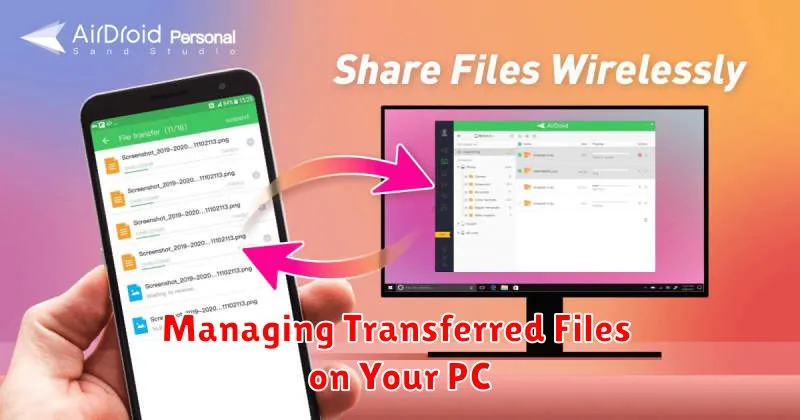
After successfully transferring files from your phone to your PC, efficient management is crucial. This involves organizing, accessing, and ensuring the security of your data.
Locating transferred files is the first step. They are typically saved in the designated “Downloads” folder or the directory you specified during the transfer process. Use your PC’s file explorer to navigate to this location. You can then organize these files into relevant folders based on file type, date, or project.
File security is paramount. Ensure your PC has updated antivirus software to protect against potential threats introduced via transferred files. Regularly back up important data to an external drive or cloud storage.
Software tools can assist with file management. Consider using file compression software to reduce file sizes for easier storage or sharing. File synchronization tools can automate backups and ensure consistency across devices.
Troubleshooting File Transfer Issues
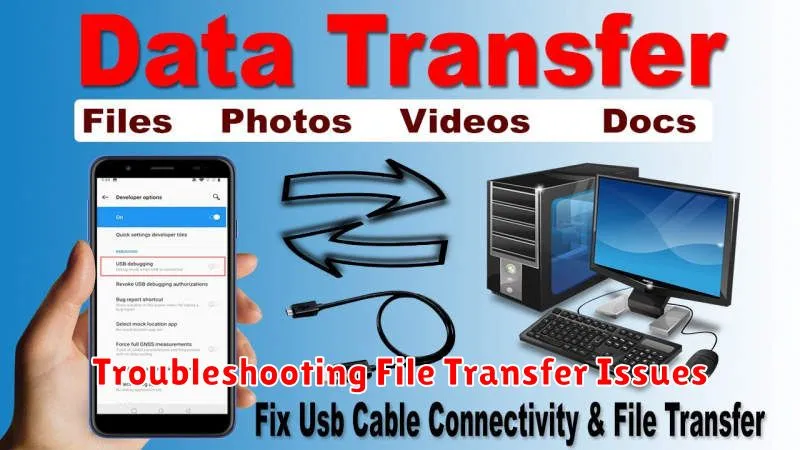
Occasionally, file transfers encounter hiccups. This section outlines common issues and their solutions.
Connectivity Problems
Bluetooth: Ensure both devices have Bluetooth enabled and are discoverable. Verify they are paired correctly. Try restarting the Bluetooth connection on both devices. Check for signal interference from other devices.
Transfer Errors
Incomplete Transfers: If a transfer is interrupted, try reinitiating the process. Ensure sufficient storage space is available on the receiving device. A corrupted file might also prevent a successful transfer.
File Compatibility
Unsupported Formats: The receiving device may not support the file format being transferred. Convert the file to a compatible format before attempting the transfer.
Slow Transfer Speeds
Large files inherently take longer to transfer. Minimize the number of applications running in the background on both devices to free up system resources. Ensure a strong and stable Bluetooth connection. Consider alternative transfer methods for very large files.
