
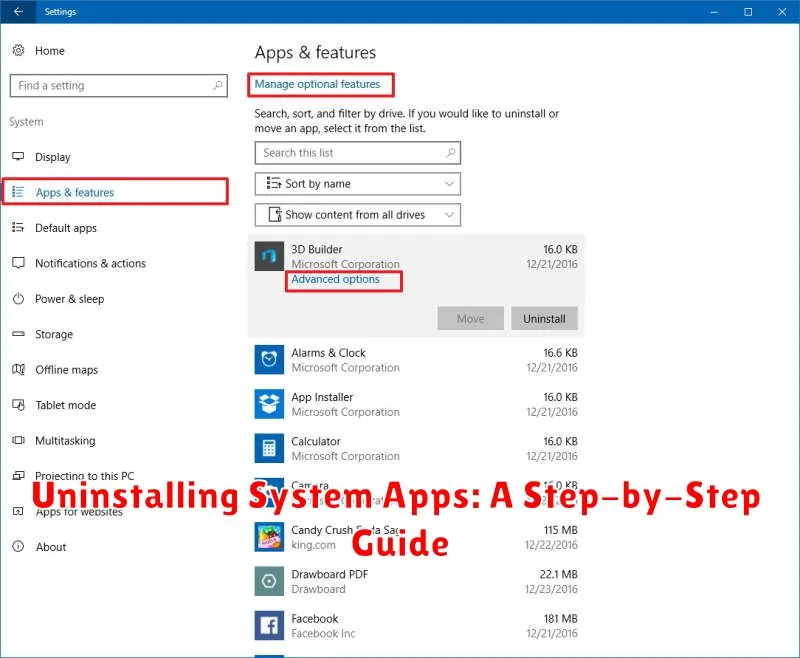
System apps, those pre-installed applications residing on your device, can sometimes feel like unwelcome guests, consuming valuable storage space and occasionally impacting performance. While some system apps are essential for core functionality, others might be redundant or simply unused, making them prime candidates for removal. This guide will provide a step-by-step approach to uninstalling system apps, allowing you to reclaim storage, optimize performance, and personalize your device. We’ll explore various methods for system app removal, catering to different technical skill levels and device configurations. Whether you’re a tech novice or a seasoned user, this guide will empower you to safely and effectively manage your system applications.
Uninstalling system apps, however, requires careful consideration. Certain system apps are integral to your device’s operating system, and their removal can lead to instability or even render your device unusable. Therefore, understanding the implications of system app removal is crucial before proceeding. This guide will not only explain the step-by-step process of uninstalling system apps but also highlight the potential risks involved. It will equip you with the knowledge to distinguish between safe-to-remove apps and essential system components, ensuring a smooth and trouble-free experience. Proceed with caution, and always back up your data before making any changes to your system applications.
Understanding System Apps and Their Importance
System apps, also known as pre-installed apps, are applications included on your device by the manufacturer. These apps often provide core functionalities and are integral to the operating system’s performance. They range from essential utilities like phone dialers and messaging apps to background services that manage system resources.
System apps differ from user-installed apps in several key ways. They often have higher-level permissions allowing them deeper access to your device’s hardware and software. Furthermore, they are typically integrated with other system components, ensuring smooth overall operation.
Understanding the role of these system apps is crucial. They contribute to the stability and functionality of the operating system. For example, the system UI app manages the visual elements and user interaction with the device. Other examples include apps managing network connectivity, audio processing, and security updates. Interfering with these apps can potentially lead to unexpected behavior or system instability.
Risks and Benefits of Uninstalling System Apps
Uninstalling system apps can offer certain advantages, but it’s crucial to understand the potential risks involved. A key benefit is freeing up storage space on your device. Removing unused system apps can reclaim valuable memory and improve performance, especially on devices with limited storage.
However, the risks can be substantial. Uninstalling essential system apps can lead to system instability, causing malfunctions or even rendering your device unusable. Dependent apps may also cease to function correctly if a required system app is removed. Additionally, some system apps are crucial for core functionality like calling, messaging, and accessing the internet. Removing them can severely impact your device’s usability.
Therefore, it’s strongly recommended to proceed with caution and only uninstall system apps if you are absolutely certain about their purpose and the potential consequences of their removal.
Methods for Uninstalling System Apps on Android
There are primarily two methods for uninstalling system apps on Android devices: using the system settings or utilizing the Android Debug Bridge (ADB).
The system settings method is the simplest approach, often involving just a few taps. However, this method is limited in its scope and may not allow removal of all system applications. It’s typically effective for uninstalling updates to pre-installed apps or removing apps added by your carrier or manufacturer.
For more advanced uninstallation, ADB offers greater control. This command-line tool allows interaction with the Android system from a computer. Using ADB provides the ability to uninstall system apps that are not accessible through the system settings menu. This method requires some technical proficiency and carries a higher risk if used improperly.
Choosing the appropriate method depends on the specific app you wish to remove and your comfort level with using command-line tools.
Using System Settings to Uninstall Apps
The simplest method for uninstalling some system apps is through your device’s built-in settings. This approach primarily works for apps that the manufacturer has added, or bloatware, rather than essential system components. Note: You may not be able to uninstall all system apps this way.
Steps:
- Open your device’s Settings app.
- Navigate to Apps or Application Manager (the naming may vary depending on your Android version and device manufacturer).
- Locate the app you wish to uninstall in the app list. Important: Exercise caution; some system apps are crucial for device functionality.
- Tap on the app to view its details.
- If the option is available, you’ll see an Uninstall button. Tap it and confirm the uninstallation.
If the Uninstall button is grayed out or not present, it usually indicates that the app cannot be uninstalled through this method. You might need to consider alternative approaches such as using ADB, which provides more control over system app management.
Uninstalling System Apps with ADB

The Android Debug Bridge (ADB) offers a more advanced method for uninstalling system applications. This approach requires some technical proficiency and should be undertaken with caution. Improper use of ADB commands can negatively impact your device’s functionality.
First, ensure you have the necessary tools: ADB installed on your computer and USB debugging enabled on your Android device. Connect your device to your computer via USB.
Next, open a command prompt or terminal on your computer and navigate to the platform-tools directory where ADB is installed. Then, use the following command structure to uninstall a system app:
adb shell pm uninstall -k --user 0
Replace <package_name> with the exact package name of the app you wish to uninstall. You can find the package name using various methods, including app inspectors or online resources.
The -k flag keeps the app data and cache, while --user 0 specifies the primary user profile.
Utilizing Third-Party Apps for System App Removal
Several third-party apps offer system app removal capabilities. It’s crucial to choose reputable apps from trusted sources like official app stores. Research reviews and ratings before installing any such application. These apps typically require root access to function correctly.
Understanding Root Access: Rooting your device grants privileged control over the Android operating system. While this allows for system app removal, it also introduces potential risks. Rooting can void your warranty and potentially expose your device to security vulnerabilities. Proceed with caution and thoroughly research the rooting process for your specific device model.
Using a Third-Party App: Once you have a suitable app installed and your device rooted, the process usually involves selecting the system app you wish to uninstall and confirming the action. Always double-check the app’s function before removal, as uninstalling critical system components can lead to instability.
Restoring Uninstalled System Apps
Uninstalling system apps can sometimes lead to unexpected issues or the realization that a removed app was necessary after all. Fortunately, several methods exist for restoring these uninstalled applications. The most common approach involves utilizing your device’s backup and restore functionality. If you created a backup before uninstalling the apps, restoring to that point will reinstate the removed applications.
Another method involves reinstalling the specific system app. This might require accessing your device’s firmware or utilizing a package manager application on certain operating systems. You can also try checking your device’s app store or manufacturer’s website for the application.
Factory resetting your device is a last resort option that will restore all pre-installed system applications. However, this will erase all user data and settings, so creating a backup beforehand is crucial.
Troubleshooting Common Issues During Uninstallation
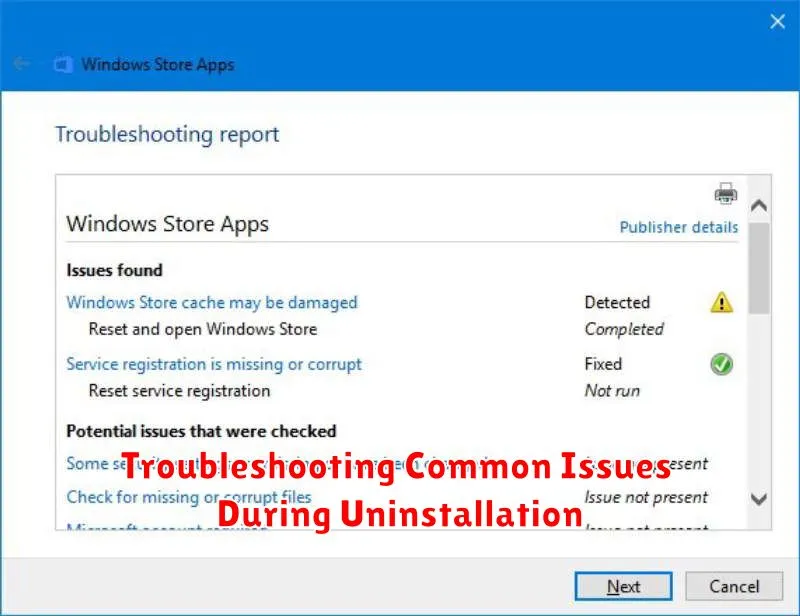
Uninstalling system apps can sometimes encounter issues. Here’s a guide to troubleshooting common problems:
App Not Uninstalling
If an app refuses to uninstall, verify you are using a method appropriate for your device and operating system. Some system apps are integral and cannot be removed. Restarting your device may resolve temporary glitches preventing uninstallation.
Device Performance Issues After Uninstallation
If you experience performance problems after uninstalling an app, the removed app may have been crucial for system stability. Reinstalling the app is often the best solution. If the app is not retrievable, a factory reset might be necessary, though this should be a last resort.
Error Messages During Uninstallation
Error messages can provide clues about the issue. Note the specific error message and research its meaning online. This will often lead to solutions. Ensure you have the necessary permissions and that the uninstallation process isn’t being interrupted by other processes.
Essential Tips for Safe System App Management
Managing system apps requires caution. Prioritize backing up your device before making any changes. This ensures you can restore your system to a working state if any issues arise. Thorough research is crucial. Understand the function of each system app before uninstalling or disabling it. Uninstalling essential system apps can lead to instability or data loss.
Start by disabling apps instead of uninstalling. This allows you to revert the changes easily if any problems occur. Observe your device’s performance after disabling an app. If no adverse effects are noticed, you can then consider uninstalling it. Regularly review disabled system apps. If you find an app isn’t necessary, proceed with uninstalling it to free up storage space.
Keep track of the apps you modify. Maintaining a list of disabled or uninstalled system apps can be invaluable for troubleshooting or restoring your device. Exercise prudence and only uninstall apps when you’re confident in their non-essential nature.
