
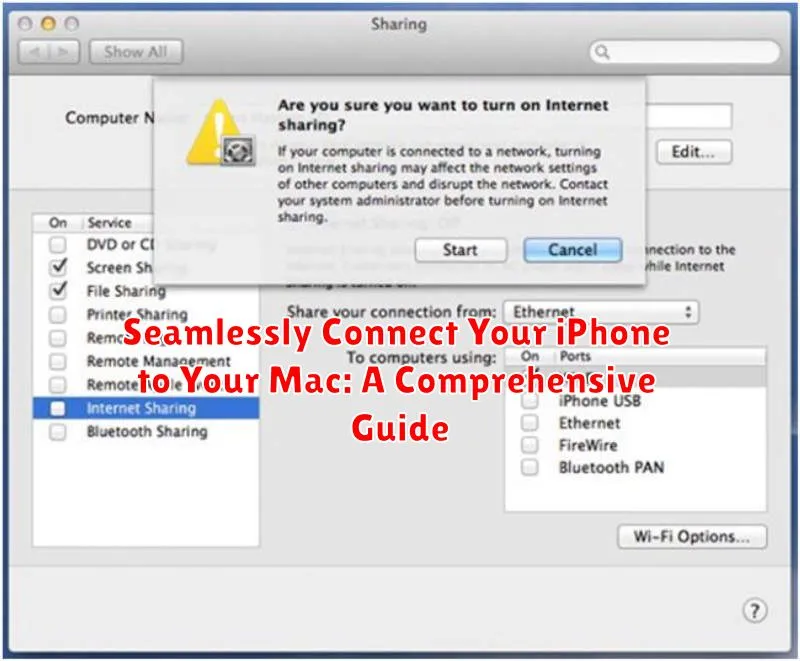
Connecting your iPhone to your Mac can significantly enhance your productivity and streamline your workflow. This comprehensive guide provides clear, step-by-step instructions on how to seamlessly connect your iPhone to your Mac, covering various methods, including using a USB cable, leveraging Wi-Fi syncing, and employing Bluetooth technology. Whether you need to transfer files, back up your data, access photos and videos, or utilize Continuity features, this guide will equip you with the knowledge to establish a robust and reliable connection between your devices.
Learn how to sync your iPhone and Mac effortlessly, enabling you to manage your contacts, calendar, and email across both platforms. We’ll explore the benefits and limitations of each connection method, helping you determine the optimal approach for your specific needs. Discover how to troubleshoot common connection issues and master the art of seamlessly integrating your Apple ecosystem. This guide will empower you to unlock the full potential of your Apple devices and optimize your digital experience by connecting your iPhone to your Mac effectively and efficiently.
Understanding Connection Methods: Wired vs. Wireless
Connecting your iPhone to your Mac offers a range of functionalities, from backing up your data to sharing files seamlessly. Choosing the right connection method depends on your specific needs and the task at hand. The two primary categories are wired (using a USB cable) and wireless connections.
Wired connections, typically using a Lightning to USB cable, offer the fastest data transfer speeds. This is particularly beneficial for large backups, restoring your device, or transferring large files. Wired connections are also reliable and stable, less susceptible to interference.
Wireless connections, utilizing technologies like Wi-Fi and Bluetooth, provide convenience and flexibility. You can interact with your iPhone without being physically tethered to your Mac. While generally slower than wired connections, wireless methods are suitable for tasks like syncing data, receiving notifications, and using features like AirDrop.
Choosing the right connection method depends on your specific needs. If speed and reliability are paramount, a wired connection is preferred. For convenience and general use, wireless options provide greater flexibility.
Connecting Your iPhone to Your Mac with a USB Cable
A wired connection offers a reliable and often faster method for connecting your iPhone to your Mac. This is particularly useful for tasks like backing up your device or transferring large files.
To begin, you will need a Lightning to USB cable. This cable is typically included with your iPhone. Connect the Lightning end to the port on the bottom of your iPhone, and the USB end to a corresponding port on your Mac.
Upon connection, your iPhone may prompt you to “Trust” this computer. Tap “Trust” if you intend to connect to this Mac regularly. This establishes a secure connection and allows for data transfer.
Your iPhone should then appear in the Finder sidebar on your Mac. Selecting it will display various options for managing your device, such as backing up, syncing, and browsing files.
Setting Up Wi-Fi Syncing Between Your iPhone and Mac
Wi-Fi syncing provides a convenient way to back up and sync your iPhone with your Mac without needing a physical cable. This method is particularly useful for automatic backups.
To enable Wi-Fi syncing, you’ll need to connect your iPhone to your Mac with a USB cable at least once initially. This establishes the connection and allows you to select the Wi-Fi syncing option.
Steps to Enable Wi-Fi Syncing:
- Connect your iPhone to your Mac using a USB cable.
- Open Finder and select your iPhone in the sidebar.
- In the General tab, check the box that says “Show this iPhone when on Wi-Fi”.
- Click the “Apply” button.
Once enabled, your iPhone will automatically back up and sync with your Mac when it’s connected to the same Wi-Fi network, plugged into power, and locked.
Note: The initial sync over Wi-Fi may take longer than subsequent syncs.
Leveraging Bluetooth for Specific Connections
While Bluetooth might not be the first choice for large file transfers or syncing your entire iPhone, it excels in facilitating specific connections between your iPhone and Mac. These connections offer unique functionalities and conveniences for specific tasks.
One primary use of Bluetooth is connecting input devices. You can seamlessly pair your iPhone’s keyboard with your Mac, offering a familiar typing experience, especially useful if your Mac’s keyboard malfunctions or if you prefer the feel of your iPhone’s keyboard. Similarly, you can connect a Bluetooth trackpad or mouse paired with your iPhone to control your Mac’s cursor. This can be a convenient alternative to a traditional mouse or trackpad.
Personal Hotspot is another crucial function enabled by Bluetooth. While the internet connection itself is shared over Wi-Fi, initial pairing and activation often occur via Bluetooth. This allows your Mac to quickly discover and connect to your iPhone’s Personal Hotspot, providing internet access when a traditional Wi-Fi network isn’t available.
Bluetooth is also utilized for features like Handoff and Continuity. These features, although sometimes reliant on Wi-Fi as well, often use Bluetooth for initial device discovery and proximity detection. This seamless integration allows you to start a task on your iPhone and continue it on your Mac, or vice-versa.
Exploring AirDrop for Quick File Sharing
AirDrop offers a swift, wireless method for transferring files between Apple devices, including your iPhone and Mac. Its ease of use and speed make it ideal for sharing photos, videos, documents, and more.
To use AirDrop, ensure both Wi-Fi and Bluetooth are enabled on both your iPhone and Mac. Devices don’t need to be connected to the same Wi-Fi network, but they do need to be within close proximity to each other. AirDrop leverages Bluetooth to establish a peer-to-peer Wi-Fi connection for the transfer.
Sharing from your iPhone: Open the share sheet for the file you wish to transfer. Nearby AirDrop-enabled devices will appear. Select your Mac from the list.
Receiving on your Mac: A notification will appear on your Mac displaying a preview of the file being sent. You can choose to accept or decline the transfer. Accepted files are automatically saved to your Downloads folder.
AirDrop utilizes encryption to secure the file transfer, ensuring your data remains private during the process.
Troubleshooting Common iPhone-Mac Connection Issues
Connecting your iPhone and Mac should be a straightforward process, but occasionally issues arise. This section outlines common problems and their solutions.
Cable or Port Problems
A faulty cable or port is often the culprit. Try a different Apple-certified Lightning cable. Inspect both the iPhone’s charging port and the Mac’s USB port for debris or damage. A gentle cleaning with a dry, soft-bristled brush can sometimes resolve the issue.
Software Glitches
Software can sometimes interfere with connectivity. Ensure both your iPhone and Mac are running the latest versions of iOS and macOS. Restarting both devices can often clear temporary software conflicts.
Trust Issues
If you haven’t previously connected your iPhone to your Mac, or have reset trust settings, you may need to re-establish trust. When prompted on your iPhone, choose “Trust This Computer.”
iTunes or Finder Recognition Problems
If your Mac isn’t recognizing your iPhone in iTunes (older macOS versions) or Finder (newer macOS versions), try closing and reopening the application. Make sure iTunes or Finder is up-to-date.
Tips for Optimizing Your iPhone-Mac Workflow
Streamlining your workflow between your iPhone and Mac can significantly boost productivity. Here are a few key tips to optimize your cross-device experience.
Leverage Continuity Features
Handoff allows you to seamlessly transition between devices, starting a task on one and continuing on the other. Ensure this feature is enabled in both your iPhone and Mac settings.
Universal Clipboard lets you copy text, images, photos, and videos on one device and paste them on another. Ensure both devices are signed in to the same iCloud account with Wi-Fi and Bluetooth enabled.
Utilize Shared Ecosystem Features
iCloud Keychain synchronizes your passwords and other secure information, eliminating the need to manually enter credentials across devices. Keep your keychain updated for secure and efficient access.
AirDrop offers a quick and easy way to share files wirelessly between your iPhone and Mac. Ensure both devices have AirDrop enabled and are within range.
Organize Your Notifications
Manage your notifications to avoid distractions and maintain focus. Choose which notifications are mirrored from your iPhone to your Mac to prevent unnecessary interruptions.
Maximizing Data Transfer Speeds Between Devices
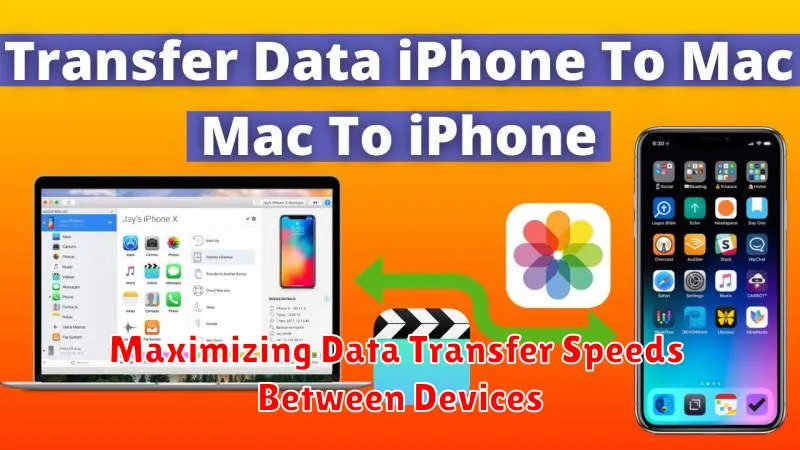
Transferring data quickly between your iPhone and Mac is crucial for a productive workflow. Several factors influence transfer speeds, and optimizing them can significantly improve your experience.
Choosing the Right Connection
Wired connections generally offer the fastest transfer speeds. Using a certified USB-C to Lightning cable can significantly outperform wireless methods, especially for large files like videos or backups. Ensure your cable is undamaged and supports fast data transfer.
Optimizing Wireless Transfers
For wireless transfers, a strong Wi-Fi connection is essential. Ensure both devices are connected to the same, stable network. Proximity also plays a role; keeping your iPhone close to your Mac can improve transfer rates. AirDrop leverages both Wi-Fi and Bluetooth, so ensuring Bluetooth is enabled can further enhance speeds, particularly for smaller files.
Software and System Considerations
Keeping your software updated on both your iPhone and Mac ensures optimal performance, including data transfer speeds. Closing unnecessary applications running in the background can free up system resources, potentially speeding up the process. Occasionally, restarting both devices can resolve temporary software glitches that may be hindering transfer rates.
